
You built the map, added the form trigger, wrote five follow-up emails, and hit save. A week later the numbers on the map are still zero, or a handful of contacts entered and then stopped halfway down, or they moved exactly as planned and the emails simply never arrived. If you are searching for why your Ontraport campaign not working is costing you leads, the good news is that Ontraport almost never fails silently for no reason. It does what the map and the contact records tell it to do, and one of those two is telling it something you did not intend.
I build and repair marketing automation for course creators and service businesses, across Ontraport, ActiveCampaign, Kartra, FluentCRM and HubSpot. The failure points rhyme across all of them, but Ontraport has its own set of settings that trip people up, and most of them sit in the left sidebar of a trigger or a goal where nobody looks twice. Below are the ten causes I check, in the order I check them, each with the exact fix, all checked against Ontraport’s own support center as of September 2026.
Quick Answer
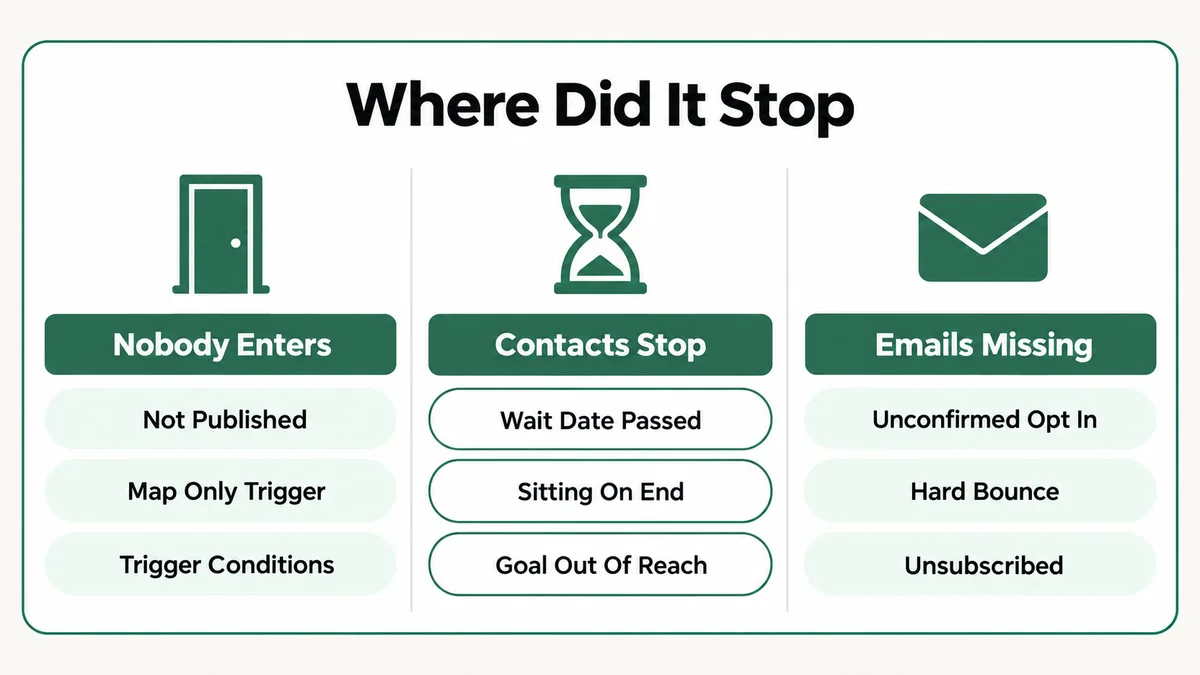
When an Ontraport campaign is not working, the cause usually sits in one of three places: the map has unpublished edits, the trigger’s settings or conditions are keeping contacts out, or the contacts are on the map but held on a Wait, an End or a goal they can never reach. If contacts move but emails never arrive, check each contact’s Bulk Email Status, because unconfirmed, hard bounced and unsubscribed contacts are skipped. Open the map in Performance Mode first: the numbers on each element show you exactly where contacts are sitting.
📋 What’s Covered
02Cause 1: Did You Save the Map but Never Publish It?
03Cause 2: Can New Contacts Even Activate the Trigger?
04Cause 3: Is the Trigger Ignoring Contacts Already on the Map?
05Cause 4: Are Trigger Conditions Filtering Everyone Out?
06Cause 5: Can Ontraport Actually See the Event?
07Cause 6: Is the Default Trigger Connected to Anything?
08Cause 7: Are Contacts Stuck on a Wait Element?
09Cause 8: Are Contacts Sitting on an End Element?
10Cause 9: Why Is the Goal Never Achieved?
11Cause 10: Is Bulk Email Status Blocking the Emails?
12Ontraport Campaign Not Working: What Order Should You Check Things In?
13Why Does Ontraport Keep Contacts Where They Are?
14How Do You Stop Campaigns Breaking in the First Place?
15Frequently Asked Questions
How Does an Ontraport Campaign Actually Move Contacts?
First, a naming note, because it confuses searches. Ontraport’s support center now calls campaigns “automations”, and the Campaign Builder is the Automation Builder. The old word still shows up in a lot of help URLs and in how most users talk about it, so I use both here. They are the same thing: a map you build under Contacts, then Automations.
Every map is built from five kinds of element, and a contact passes through them in order:
- Triggers sit at the top of a path. Ontraport describes each one as a new door onto the map. A contact only gets in when they do the thing the trigger listens for.
- Actions do the work: send an email, add a tag, update a field, fire a webhook, add the contact to another map.
- Waits hold contacts for a set time, until a date, or forever.
- Goals pull contacts forward the moment they do something, such as buying a product, skipping everything in between.
- Ends close a path. A contact either stays sitting there, leaves the map, or moves to another map.
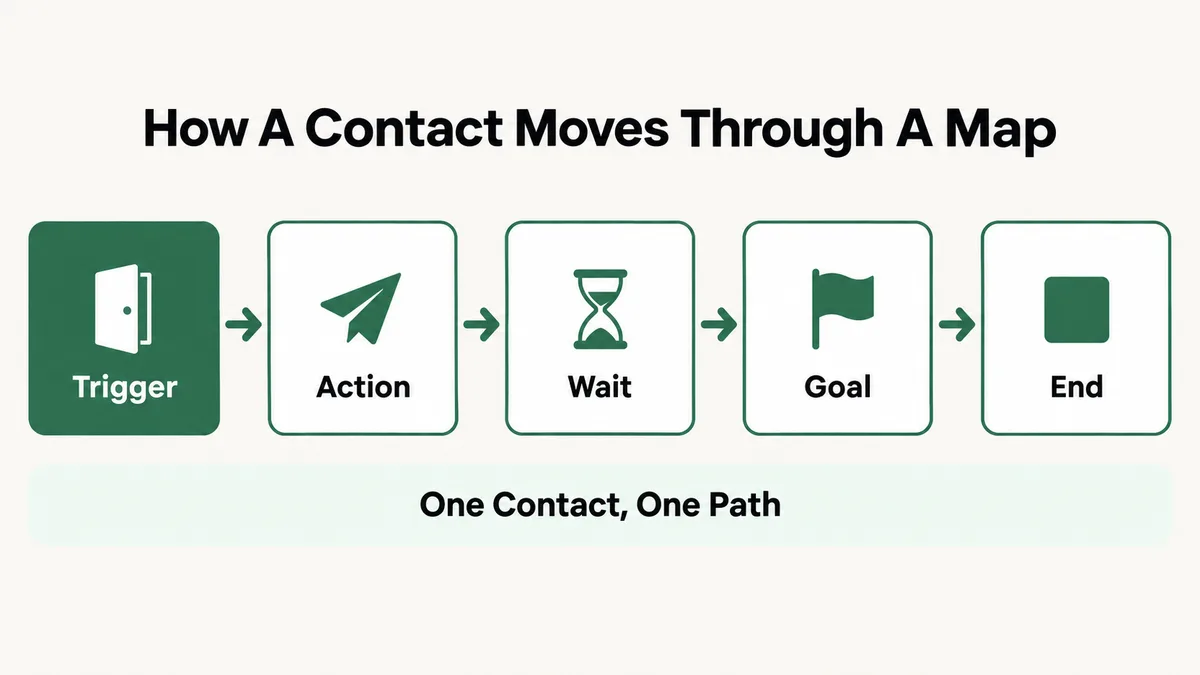
This model gives you the diagnosis before you open a single setting. If nobody enters the map, the problem is at the trigger. If people enter but stop, look at the Wait, End or goal below where they stopped. If they move and the emails do not arrive, the map is fine and the contact records are the problem. The ten causes follow that same order.
Cause 1: Did You Save the Map but Never Publish It?
This is the most common cause on maps that were edited after going live, and it catches experienced users because the builder looks finished. Ontraport’s Automation Builder autosaves your work every minute. That is helpful, but saving and publishing are two separate things. Ontraport’s own guide to creating an automation says edits do not go live until you click Publish.
So a creator adds a new email halfway down a live map, sees the change still there the next day, and assumes it is running. It is not. Contacts are still moving through the last published version. On a brand new map, the same thing means nobody is being added at all.
There is a related trap with deletions. When you delete an element that has contacts sitting on it, those contacts are removed from the map entirely. Ontraport warns you before it happens, but on a busy map it is easy to click through the warning and lose everyone parked on an old Wait.
Fix: Open the map and click Publish, then Save and Publish. Do it after every edit, however small. Before deleting any Wait or End element on a live map, switch to Performance Mode and check the number on it. If contacts are sitting there, move them first (see Cause 8) rather than deleting them off the map.
Cause 2: Can New Contacts Even Activate the Trigger?
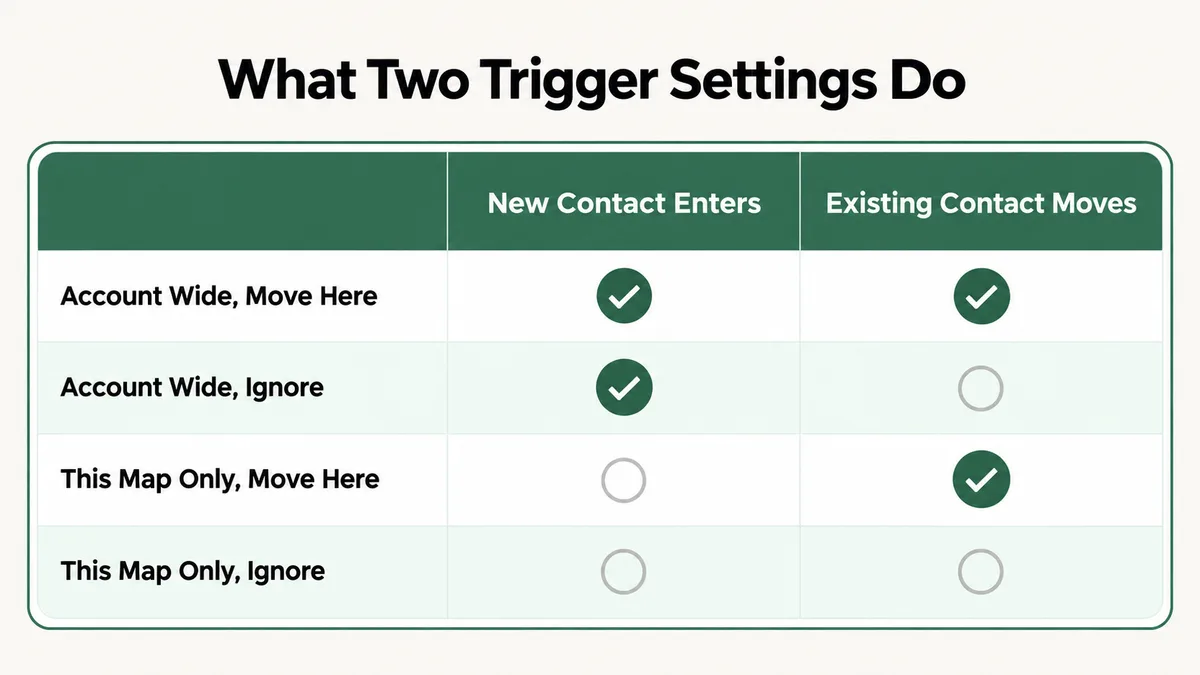
Every trigger has a setting in its left sidebar called “Who can activate this trigger?” with two options. Ontraport’s guide to triggers explains both:
- Any contact in account lets new contacts enter the map. This is the one you want for any trigger that starts a campaign.
- Any contact on this map only works for contacts who are already on the map. It exists to move people from one path to another. New contacts cannot enter through it at all.
The second option is correct for internal triggers, such as moving someone to a new path when they open an email. It is wrong for the trigger at the top of your lead capture path. The symptom is exact: the form fills in, the contact is created, the contact never appears on the map, and there is no error anywhere.
This happens most on bigger maps with several triggers, where some are meant to bring people in and others are meant to move people around. The two kinds look identical on the canvas, and the only difference is this one sidebar setting.
Fix: Click the trigger at the top of each entry path and read “Who can activate this trigger?” in the left sidebar. For any trigger meant to bring new people in, set it to Any contact in account, then republish. Keep Any contact on this map only for triggers that move people already inside the map.
Cause 3: Is the Trigger Ignoring Contacts Already on the Map?
The second trigger setting decides what happens when someone who is already on the map fires the trigger again. It is called “If contact is already on map, then…” and has three choices:
- Ignore this trigger leaves them exactly where they are.
- Move here when triggered moves them to the trigger’s path. Ontraport calls this the most common setting.
- Add here again when triggered puts a second copy of them on the map, useful for delivering several lead magnets at once.
Ignore is a sensible choice for a nurture map with several lead forms, since you do not want a second form fill to restart the sequence. But it produces the most common false alarm I see: the owner tests the campaign with their own contact record, which is already sitting on an End from last month’s test. They submit the form, nothing happens, and they conclude the trigger is broken. The trigger worked. It was told to ignore them.
There is also a checkbox below, “This trigger can only be activated once per contact”. Tick it, test once, and every later test with the same record does nothing.
Fix: Never test a campaign with a contact that has been on the map before. Create a fresh test contact with an email alias such as yourname+test7@gmail.com for each test run. Then read the trigger’s “If contact is already on map” setting and the once-per-contact checkbox, and make sure both match what should happen to returning contacts.
Cause 4: Are Trigger Conditions Filtering Everyone Out?
Any trigger can carry conditions that narrow who it accepts: Contact has Tag, Contact doesn’t have Tag, Field is this value, Is subscribed to product, Now is before, during or after a date or time, and many more. Each one is useful. Each one is also a place where a small mismatch blocks everybody.
The mismatches I find most often:
- A tag condition for a tag the contact does not have yet. The trigger requires a tag that is only applied later in the map, or by a different form. The condition is checked when the trigger fires, so a tag added afterwards does not help.
- A “Field is this value” condition with a value that does not match exactly. A dropdown option renamed in the field editor no longer matches the old value in the condition.
- A “Now is” condition that can never be true. Ontraport’s filters guide points out that the week starts on Monday, so no day will ever match “before Monday”.
- A “Contact is paused or active on Automation” condition pointing at a map the contact has since left.
Fix: Remove every condition from the trigger, republish, and run one fresh test contact through. If it enters, add the conditions back one at a time, republishing and testing after each, until the one that blocks shows itself. For tag timing problems, trigger on “When contact is added to Tag” instead of on the form, so the tag itself is the event.
Cause 5: Can Ontraport Actually See the Event?
Some triggers listen for events that happen outside Ontraport, and they only work if Ontraport has a way to see them. The trigger shows up in the list and saves without complaint, which is why this cause goes unnoticed for weeks.
- Contact visits URL on a page that is not built in Ontraport needs the Ontraport tracking code on that page. Ontraport’s own pages are tracked automatically. Your WordPress or Webflow pages are not, until you add the tracking code.
- Sends you an email requires Email Sync to be set up. Without it, Ontraport never sees the reply.
- Clicks an email link uses link numbers, counted left to right and top to bottom. Link “0” means any link. Add a button above the old link and the numbering shifts, so the trigger now watches a different link.
- Open order is charged or updated, set to Charged and successful, only fires for payments after the first one. A campaign expecting it on the initial purchase will never fire.
- Purchases product fires once even if the contact buys several of the same product in one transaction.
Fix: For each trigger, ask where the event happens. If it happens on a third-party site, confirm the tracking code is in the page source. If it depends on inbound email, confirm Email Sync is connected. For link triggers, reopen the email and recount the links, or switch to link “0”. For first purchases, use Purchases product or Open order is created rather than Charged and successful.
Cause 6: Is the Default Trigger Connected to Anything?
Not every contact enters a map through a trigger you built. When you add contacts to a map by hand, or use the Automations option in a form’s settings, Ontraport puts them on the map’s default trigger. Ontraport’s form settings guide describes that option as adding contacts to a map “using the default trigger”.
If nothing is connected below the default trigger, those contacts land on the map and go nowhere. They are technically on the campaign, so the owner assumes the sequence is running, and the first email never sends.
Ontraport’s filters guide gives the answer directly: a Go To element is how you link the default trigger to the rest of your automation. You add it below the trigger, then drag its handle to the element where the path should continue. Two limits to remember: a Go To cannot sit in the middle of an existing line, and it cannot connect to a trigger or a goal.
Fix: Open the map and find the default trigger. If its “What happens next?” box is empty or ends immediately, add a Go To element and drag its handle to the first real step, usually your first email or tag action. Republish. Contacts already parked on the default trigger will need moving with the tag method in Cause 8.
Cause 7: Are Contacts Stuck on a Wait Element?
Contacts entered the map, the first email went out, and then everything stopped. In Performance Mode, the number sits on a Wait element and does not move. Wait elements are the most common place for contacts to stall, and Ontraport’s guide to filter elements explains three reasons why.
The biggest one: “Wait until a specific date” holds contacts until that date. If a contact reaches the Wait after the date has already passed, Ontraport says they stay stuck unless moved manually. Evergreen maps built from an old launch template are full of these.
Second, a Wait set to Forever holds contacts until a trigger or goal moves them. If that trigger or goal was deleted or reconfigured, nothing will ever move them.
Third, the timing is longer than people expect. A Wait for some time counts full 24 hour periods, so “wait 1 day, then until 10 AM” means 24 hours plus however long it takes to reach 10 AM again. That can be close to two days. Paused contacts behave the same way from the outside: a contact paused with the Pause/Unpause automation action sits on the element they were paused on until another map unpauses them.
Fix: Click each Wait and read its setting. Replace “until a specific date” with a relative Wait on any evergreen map. If you shorten a Wait, Ontraport counts time already waited, so contacts who have waited longer than the new setting move on immediately. For Forever waits, confirm the trigger or goal that releases them still exists. For paused contacts, find the map whose Pause action put them there and make sure a matching Unpause action exists on a path they will actually reach.
Cause 8: Are Contacts Sitting on an End Element?
You extend an existing campaign. There were five emails, and you add three more at the bottom, above the old End. You publish, wait a few days, and none of the people who finished the first five get the new three.
This is how Ontraport is designed. A standard End keeps the contact on the map, sitting on the End. The triggers guide says that once contacts reach an End, only triggers or goals will move them, and new elements added above an End do not pull those contacts back up. They are parked, and they stay parked.
An End has three modes, and the choice matters. Left as a standard End, the contact stays on the map. Toggled to “Remove from this automation”, it becomes an Exit and the contact leaves. Toggled to “Move to new automation”, it sends the contact to another map. A campaign you expect to extend later should use standard Ends.
Fix: Ontraport’s own method works well. Create a new tag for this move only. Add a “Contact is added to Tag” trigger for that tag, set to Any contact on this map and Move here when triggered. Below it, add a Go To and drag its handle to the first new element. Republish. Then in Performance Mode, click the number on the End, select all the contacts sitting there, and add the tag.
Cause 9: Why Is the Goal Never Achieved?
Goals are the most useful element in Ontraport and the one with the most settings to get wrong. A goal such as “Purchases product” is meant to pull a buyer out of the sales emails and into onboarding. When it fails, buyers keep getting pitched the product they just paid for, which is the kind of mistake customers notice.
Ontraport’s guide to goals lists four options for “Who can achieve this goal?”: any contact on this map, only contacts on previous waits, contacts on any upstream element, and any contact in the account. The narrow ones cause the failures. “Contacts on any upstream element” only counts elements on the direct vertical path above the goal. If you cannot follow the arrows down from where the contact is to the goal, it is not upstream, and the goal ignores them.
The same “If contact is already on map” setting from triggers appears on goals too. Set to “Ignore this goal”, the goal does nothing for anyone already on the map, which on most maps is everyone. And the once-per-contact checkbox blocks a second purchase from pulling a returning customer forward.
Fix: Open the goal and set “Who can achieve this goal?” to Any contact on this map unless you have a specific reason to narrow it. Set “If contact is already on map” to Move here when achieved. Then check the Wait directly above the goal: by default it continues immediately when the goal is achieved, and adding a time limit there gives non-buyers their own path instead of waiting forever.
Cause 10: Is Bulk Email Status Blocking the Emails?
Everything on the map looks right. Performance Mode shows contacts passing through every email element. The contacts say they received nothing. In this case the map is working and the contact records are refusing the email.
Every Ontraport contact has a Bulk Email Status field, maintained by the system, and it decides whether automated email can reach them. Ontraport’s email standards page lists the values. Single opt-in and double opt-in can be sent all types of email. Pending review, used for recently imported contacts not yet approved, cannot be sent any bulk email. Hard bounce cannot be sent any bulk email either. Unconfirmed, used when double opt-in is required and the contact has not confirmed, is blocked as well, and Ontraport’s form settings guide confirms it will not attempt to send messages to those contacts. When someone unsubscribes, their status becomes Transactional only, and marketing emails stop.
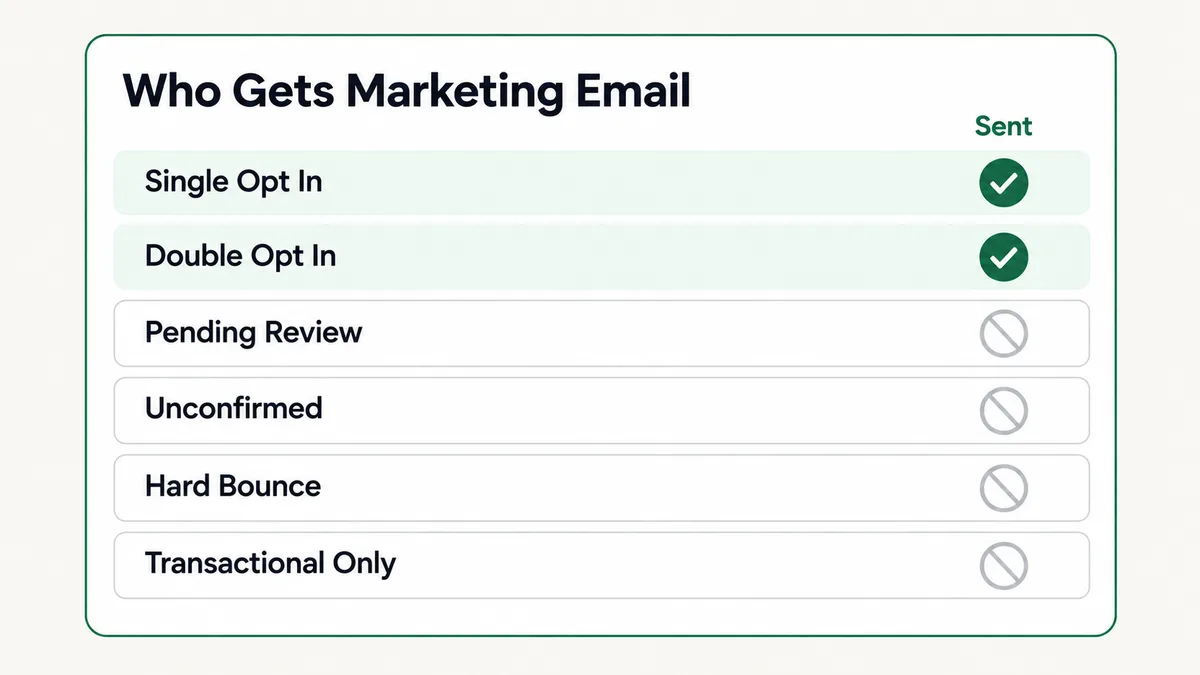
The pattern that matters most is double opt-in. If your form requires confirmation and the confirmation email lands in spam, the new lead stays Unconfirmed and every email in your welcome sequence is skipped while they move along the map as if all is well.
Fix: Open one affected contact and read their Bulk Email Status. If it is Unconfirmed, the confirmation step is the problem: test the confirmation email’s delivery, or switch the form to single opt-in if your list rules allow it. If it is Pending review, the contact came in through an import that has not been approved yet. Only tick “Transactional Mail” on a message that is genuinely transactional, such as a receipt or product delivery with no marketing content, since Ontraport’s standards forbid marketing in transactional mail.
Ontraport Campaign Not Working: What Order Should You Check Things In?
Ten causes is a long list to work through by guessing. This order puts the fastest checks first, and each step rules out a group of causes at once.
- Open the map in Performance Mode. Where are the numbers? Zero on the trigger points to Causes 1 to 6. A number stuck on a Wait, End or goal points to Causes 7 to 9. Numbers flowing all the way down points to Cause 10.
- Click Publish. If it asks you to save and publish, you had unpublished edits. That is Cause 1.
- Click the entry trigger and read the left sidebar. Who can activate it, what happens to existing contacts, and the once-per-contact box cover Causes 2 and 3.
- Strip the trigger’s conditions and test with a brand new contact. If it now works, it is Cause 4. If it still does not, ask where the event happens, for Cause 5.
- Check the default trigger. If contacts were added by hand or through form settings, make sure a Go To connects it, for Cause 6.
- Click the element where contacts are stuck. A dated Wait, a standard End or a narrow goal setting covers Causes 7, 8 and 9.
- Open one affected contact record. Their Bulk Email Status answers Cause 10 in a single glance.
Before you decide anything is broken, allow for two normal delays. Ontraport sends bulk emails and texts in batches every few minutes, so a delay of up to 5 minutes is expected. And the Add to Automation action runs on a scheduled job, so a contact moving back from a nested map can take up to 15 minutes. A test that looks dead after two minutes is often fine at twenty.
Why Does Ontraport Keep Contacts Where They Are?
Look back at the ten causes and a theme shows up. Ontraport almost never moves a contact unless something explicitly tells it to. Editing the map does not move anyone until you publish. Adding steps below does not pull anyone off an End. Shortening a Wait releases people only because time already waited counts. A new trigger does not reach contacts already on the map unless its settings say so.
This is deliberate, and it is the right call for a system that sends email to real customers. If every edit to a live map instantly rerouted everyone on it, one careless change to a sales sequence would send a burst of emails to thousands of people at once. Ontraport prefers to leave contacts in place and make you move them on purpose. The cost is that most fixes on a live campaign come in two parts: fix the map for new contacts, then move existing contacts by hand with a tag trigger.
It is also why the trigger and goal sidebars matter so much. They are the rules for movement. On ActiveCampaign, the equivalent settings sit in the start trigger’s “runs once” or “runs multiple times” choice, and I cover that in my guide to ActiveCampaign automations not triggering. Kartra handles re-entry differently again, as in this breakdown of Kartra automations. If you connect Ontraport to other tools, the same principle applies across the integration, which I walk through in why a Zapier zap does not trigger.
How Do You Stop Campaigns Breaking in the First Place?
Most of these ten causes are preventable with a few habits. None of them take long, and together they remove nearly every ticket I get about Ontraport maps.
- Publish after every edit. Treat Save as a draft and Publish as the only step that counts.
- Test with a new contact every time. Keep a naming pattern for aliases, such as name+test1, name+test2, so no test record has history on the map.
- Read both trigger settings before publishing. Who can activate it, and what happens to existing contacts. Do the same for every goal.
- Use relative Waits on evergreen maps. Keep specific dates for real one-off launches, and remove them once the launch is over.
- Use standard Ends on any campaign you plan to extend. That keeps contacts on the map so a tag trigger can move them later.
- Check Bulk Email Status after every import. Ontraport uses Pending review for recently imported contacts that have not been approved yet, and those contacts will not receive bulk email until they are.
Deliverability sits alongside all of this. A map can be flawless and still land in spam if your sending domain is not authenticated, which is a separate problem from the map itself. The domain side of it works much the same across platforms, and my email deliverability setup guide covers it step by step. If you are weighing Ontraport against a WordPress based CRM, my notes on FluentCRM automations show how the same problems look there.
Frequently Asked Questions
Are Ontraport campaigns and automations the same thing?
Yes. Ontraport’s support center now uses “automations” and “Automation Builder” for what used to be called campaigns and the Campaign Builder. You find them under Contacts, then Automations. The older name still appears in many help URLs.
Why did my edits not change anything on a live map?
The builder autosaves every minute, but edits only go live when you click Publish. Until then, contacts keep moving through the last published version of the map.
How do I see where contacts are stuck on an Ontraport map?
Open the map in Performance Mode. Each element shows how many contacts are on it. Clicking a number opens that group of contacts, so you can inspect them or add a tag to move them.
Why are contacts moving through the map but not getting emails?
Check their Bulk Email Status. Contacts marked Unconfirmed, Pending review, Hard bounce or Transactional only are skipped for marketing email, even though they still move through every element on the map.
I added new emails at the bottom of a campaign. Why do old contacts not get them?
Contacts who already reached an End stay there. New elements above an End do not pull them back. Move them with a tag trigger set to Any contact on this map and Move here when triggered, connected to the new emails with a Go To element.
How long should I wait before deciding a test failed?
Give it at least 15 minutes. Bulk emails go out in batches with up to 5 minutes of delay, and the Add to Automation action runs on a scheduled job that can take up to 15 minutes.
An Ontraport campaign not working is almost always Ontraport following an instruction precisely: an unpublished edit, a trigger that only accepts contacts already on the map, a Wait with a date in the past, or a contact whose email status says no. Start in Performance Mode, see where the numbers stop, and the cause is usually one click away from there. If your automation runs across more than one platform, my guide to HubSpot workflows not enrolling contacts uses the same approach for HubSpot.
Campaign still stuck?
Tell me what Performance Mode shows, which trigger starts the map, and one affected contact’s Bulk Email Status. I will tell you which of these ten causes it is and what to change, whether or not you need anyone to do the work.