
You build the automation, pick the trigger, write three emails with waits between them, and submit a test form. The contact appears in FluentCRM with the right tag. Then nothing. No welcome email, no second step, no movement in the automation report. A FluentCRM automation not running is one of the most common problems I get asked about on WordPress sites, and it almost never comes down to the email you wrote or the tag you picked.
FluentCRM runs inside WordPress rather than on a vendor’s servers, so it inherits every quirk of the site it lives on. The scheduler, the REST API, the mail setup and the plugin stack all belong to your site, and any one of them can stop an automation without an error appearing anywhere in the funnel editor. I build and repair automation stacks for course platforms and membership sites, and most of the FluentCRM fixes I make happen outside FluentCRM’s own screens.
Quick Answer
A FluentCRM automation not running usually comes down to one of three things. The automation is still saved as a draft, so it never listens for its trigger. The site’s scheduler is not firing often enough, because WP-Cron only runs when someone visits the site and FluentCRM expects scheduled tasks every minute. Or the contact is not in Subscribed status, which most triggers check before running any actions. Check the automation’s status toggle first, the Cron Job Monitor under Settings, System Admin Tools second, and the contact’s status third.
📋 What’s Covered
02Cause 1: Is the Automation Still Saved as a Draft?
03Cause 2: Is WP-Cron Only Firing When Someone Visits the Site?
04Cause 3: Did Someone Turn Off WP-Cron Without Adding a Server Cron?
05Cause 4: Is the Contact’s Status Blocking the Automation?
06Cause 5: Is the Contact Stuck in Pending Because of Double Opt-In?
07Cause 6: Has the Contact Already Been Through This Automation?
08Cause 7: Does the Trigger Match What Happened?
09Cause 8: Is the WordPress REST API Being Blocked?
10Cause 9: Is the Automation Running but the Email Never Arriving?
11Cause 10: Did a Goal or Another Automation Pull the Contact Out?
12FluentCRM Automation Not Running: Which Check Comes First?
13Why Does FluentCRM Depend So Heavily on WordPress Cron?
14How Do You Keep FluentCRM Automations Running Reliably?
15Frequently Asked Questions
How Does a FluentCRM Automation Decide Whether to Run?
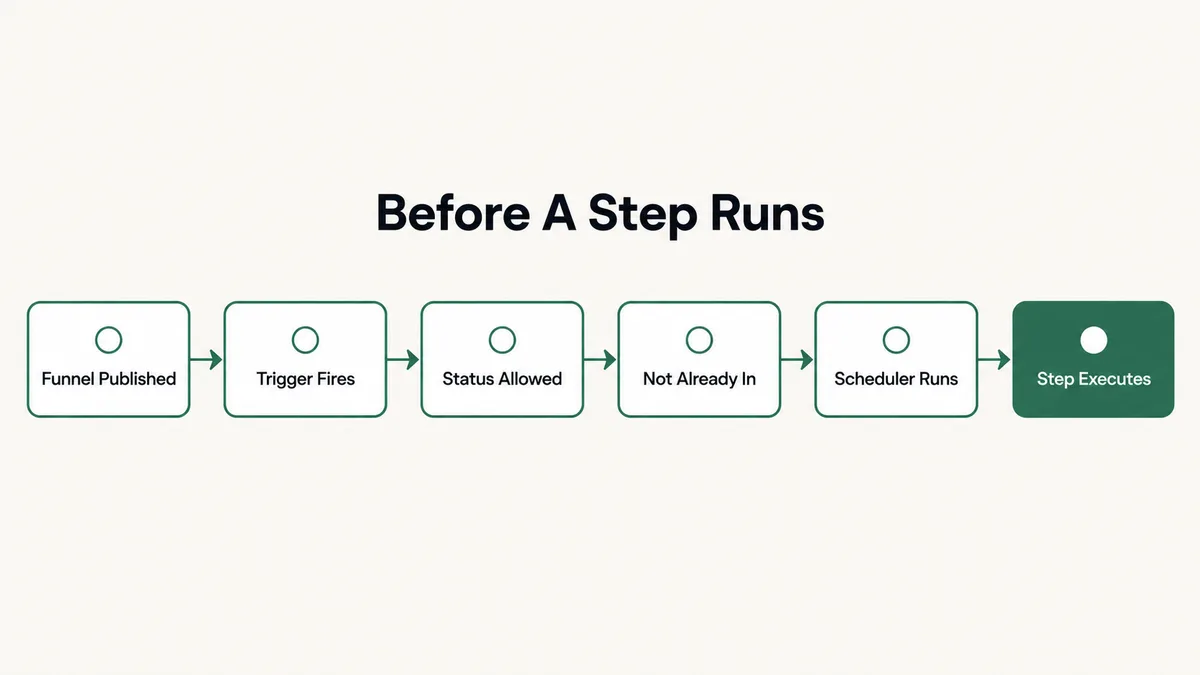
A step running is the end of a chain, not a single event. Each link belongs to a different part of the system, and the step only fires if every link is intact. Once you know the chain, the diagnosis gets short.
First, the automation has to be published. A draft funnel exists, looks complete in the editor, and never listens for anything. Second, the trigger has to fire and match: the right tag, the right list, the right form, the right order status. Third, the contact has to pass the trigger’s status check, which by default means Subscribed. Fourth, the contact must not already be in this automation, unless you told the trigger to restart. Only then does the contact enter, and the steps from there on are processed by the site’s scheduler.
That last link is the one people miss. The trigger can fire, the contact can show up in the funnel, and still nothing moves, because the work itself waits for WordPress to run its scheduled tasks. In one thread on the wordpress.org support forum, contacts were arriving as subscribed but received neither the welcome email nor the tag the automation was supposed to apply, and the support team’s first question was about cron. FluentCRM’s own general questions page names a scheduler that is not running as the most common case behind the reports its team sees.
Cause 1: Is the Automation Still Saved as a Draft?
FluentCRM has two states for an automation: published and draft. The status option in the editor spells out the difference. Switch it on and the automation is published and runs. Leave it off and the automation is saved as a draft only. A draft keeps every step, every email and every setting. It just never runs.
This catches people in a few predictable ways. A funnel you have just built stays a draft until you turn that option on, so a funnel built on Monday and tested on Tuesday has often never been switched on at all. A team member turns a funnel off to edit it, gets pulled into something else, and it stays off for a month. Or someone clones a working funnel to try a variation and switches on the wrong copy.
A related report is worth knowing about. On the same support forum, one user found that funnels in draft status were failing to kick off the scheduled task while published ones worked fine. That is one more reason never to leave a funnel you depend on sitting in draft, even for an afternoon.
Fix: Open the Automations screen in FluentCRM, which lists every funnel, and look at the status toggle in the Actions column for each one you expect to be live. The list shows them all at once, which is faster and less error prone than opening funnels one by one. Switch on the one you need, then fire its trigger with a brand new test contact rather than one that has been through it before, for the reason covered in cause six.
Cause 2: Is WP-Cron Only Firing When Someone Visits the Site?
WordPress does not have a clock of its own. Its scheduler, WP-Cron, checks for due tasks when a page loads, as the WordPress plugin handbook on cron explains. A busy site gets checked constantly. A quiet site can go long stretches with no check at all, and every due task waits for the next visit.
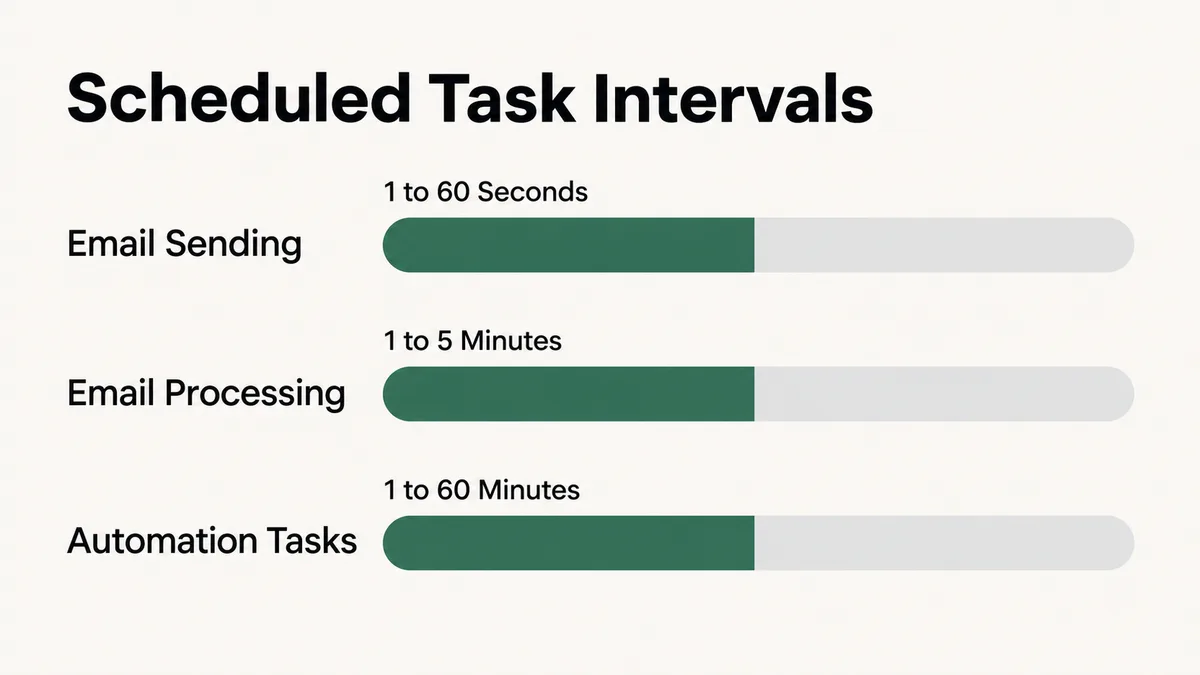
FluentCRM leans on that scheduler harder than most plugins do. Its cron basics and checklist lists three recurring jobs on very different clocks. Email sending expects a run every one to sixty seconds. Email processing expects one every one to five minutes. Automation tasks expect one every one to sixty minutes. The documented recommendation is a server cron that runs once a minute.
On a low traffic membership site, that gap is the whole problem. The automation is published, the contact entered, the wait step was set to one day, and the day passed. The next step is due. Nothing has asked WordPress to run due tasks since yesterday afternoon, so the contact sits at the wait step and the automation report lists them as pending.
Page caching makes this worse in a way that is easy to miss. A full page cache serves visitors a stored copy of the page without loading WordPress at all. That is what makes the site fast, and it also means those visits never reach the scheduler.
Fix: Open FluentCRM, then Settings, then System Admin Tools, and read the Cron Job Monitor. It lists each scheduled hook with its interval and next run time, and highlights tasks that are overdue. Overdue rows are your answer. Move the site onto a server cron that calls wp-cron.php every minute, as described in the next cause, and read that section in full first, because doing only half of it is worse than doing nothing.
Cause 3: Did Someone Turn Off WP-Cron Without Adding a Server Cron?
This is the fix for cause two done halfway, and it stops everything. The standard advice has two parts. Add a line to wp-config.php that switches off the visit based scheduler, then add a server cron that calls it on a fixed clock instead. FluentCRM’s documentation is blunt about the order: the disable line on its own stops all scheduled tasks, and if you can only do one of the two steps, do neither.
I see this after hosting migrations and after performance audits. Someone adds the constant to speed the site up, which is fair advice, and the server cron either never gets created or stays behind on the old server. From then on nothing scheduled runs. Not FluentCRM, not store renewals, not backups. Every plugin that depends on scheduled tasks stops together, and the funnel is just the first place anyone notices. The same failure sits behind a lot of WooCommerce subscriptions that stop renewing.
The two parts look like this. In wp-config.php:
define( 'DISABLE_WP_CRON', true );And in the host’s cron panel, set to run every minute:
* * * * * wget -q -O - https://yoursite.com/wp-cron.php?doing_wp_cron > /dev/null 2>&1That second line is the cPanel version from FluentCRM’s guide to replacing WordPress cron, with yoursite.com swapped for your own domain. The same documentation has separate walkthroughs for a VPS crontab, Cloudways, and external services such as cron-job.org and EasyCron for hosts that do not offer server cron at all.
Fix: Open wp-config.php and search for DISABLE_WP_CRON. If it is set to true, confirm a server cron exists that calls wp-cron.php every minute, either in the host’s cron panel or in an external service. If there is no such cron, create one now, or remove the constant so the visit based scheduler works again while you arrange it. Then reload the Cron Job Monitor after a few minutes and confirm the next run times are moving forward.
Cause 4: Is the Contact’s Status Blocking the Automation?
Every FluentCRM contact has one of seven statuses, and the status decides what that contact is allowed to receive. The contact status documentation defines them: Subscribed, Pending, Unsubscribed, Transactional, Bounced, Complained and Spammed. Subscribed contacts get both marketing and automated emails. Pending contacts are waiting on a confirmation click. Transactional contacts get functional mail such as receipts and nothing else. The last four are kept out of sending altogether.
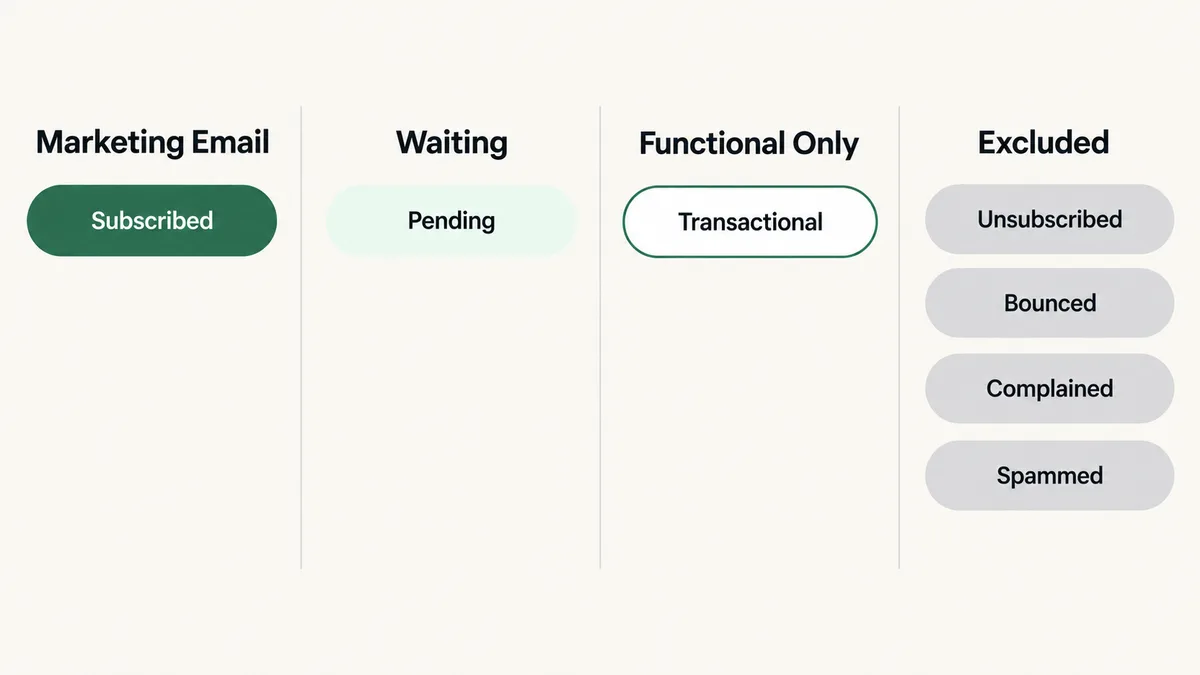
The connection to automations sits on the trigger. Most CRM triggers, including Tag Applied, List Applied, Contact Created and the Fluent Forms submission trigger, carry a checkbox that runs the automation’s actions even when the contact’s status is not Subscribed. Leave it unticked and the actions do not run for a contact who is Pending, Transactional or Unsubscribed. Nothing errors. The contact simply does not move.
Customers imported from a store or a membership plugin are the usual victims. They arrive as Transactional or Unsubscribed because nobody gave marketing consent, the onboarding automation runs on a tag trigger, and a whole segment of paying customers never gets the sequence meant for them.
Fix: Open a contact who should have entered and read the status at the top of their profile. If it is anything other than Subscribed, you have two honest options. Tick the trigger option that runs actions regardless of status, which is right for service emails such as course access or login details. Or get proper consent and change the status, which is right for anything promotional. Do not flip contacts to Subscribed just to make a funnel move.
Cause 5: Is the Contact Stuck in Pending Because of Double Opt-In?
Double opt-in adds a confirmation step before a contact counts as subscribed. With it switched on, a new contact receives a confirmation email and stays in Pending status until they click the link, as FluentCRM’s double opt-in settings guide describes. Until that click, any automation that requires Subscribed status waits too.
The trouble starts when Fluent Forms and FluentCRM both have double opt-in turned on. FluentCRM’s own help pages say the system then sends the confirmation email twice, and they recommend leaving the Fluent Forms option unchecked so FluentCRM handles consent on its own. Two confirmation emails a few seconds apart look like spam to the person receiving them, and plenty of people click neither.
Switching double opt-in off is not a clean fix either. In an April 2024 thread on the wordpress.org forum, a site owner turned it off in both plugins, after which new contacts arrived as Subscribed but got neither the welcome email nor the tag. Support’s first question was whether the server cron was still running. A consent change and a broken scheduler at the same moment are a hard pair to separate, so change one thing and test before changing the next.
Fix: Pick one place for double opt-in and turn it off in the other. With FluentCRM handling it, leave the Fluent Forms opt-in option unchecked. Confirm the confirmation email reaches the inbox and that its activation link is present, since that link is what moves a contact from Pending to Subscribed. Then look at your Pending contacts. A long list of old Pending contacts means the confirmation email is not arriving or not persuading anyone, and every one of those people is locked out of your automations.
Cause 6: Has the Contact Already Been Through This Automation?
By default a contact goes through an automation once. Applying the same tag again, submitting the same form again or placing a second order does not send them back to the start. Tag, list and contact triggers carry a Restart option for exactly this, and the WooCommerce triggers carry Restart the Automation alongside Skip if Already Active. The Fluent Forms trigger has its own version too: a condition that stops it firing if the contact has submitted the form before.
This is behind most reports of an automation that worked in testing and then stopped. The builder tests with their own email address, the automation runs, and every later test with that same contact does nothing. Removing and reapplying the tag feels like it should reset things. Without Restart ticked, it does not.
Steps you add later have a similar trap. Contacts who already completed the automation do not receive steps added after they finished. The automation report has a Re-apply New Steps button for exactly that case, and it is easy to miss when a new email you added never goes out to the people already through the funnel.
Fix: Test with a fresh email address every time. Plus addressing such as you+test7@yourdomain.com works with most mail providers and sends every test to one inbox. If contacts are meant to repeat the automation, tick Restart on the trigger and decide deliberately what should happen to someone already partway through. If you added steps after launch, use Re-apply New Steps in the automation report.
Cause 7: Does the Trigger Match What Happened?
A trigger fires on one precise event, and small settings narrow it a lot. List and tag triggers have a Run When setting that decides whether a contact needs any one of the selected tags or all of them. Choose all of them with three tags selected, and a contact who gets two never enters.
Store triggers are narrower still. FluentCRM’s ecommerce trigger documentation separates New Order, Order Processing, Order Completed, Order Refunded, Order Status Changed and Cart Abandoned, and each one can be limited by product, product category and purchase type: first purchase, returning customer or any purchase. An automation on Order Completed never fires for an order that sits at Processing or On hold. WooCommerce only completes an order on its own when every item in it is both virtual and downloadable, so a course or membership product that is not set up that way waits for someone to mark it complete by hand.
The New User Sign-Up trigger has its own filters: Targeted User Roles, and an If Contact Already Exist? setting that decides whether an existing contact gets updated or skipped. A membership plugin that creates users with a custom role, or a buyer who was already a contact before signing up, can fall outside those filters without anyone noticing.
Fix: Open the trigger settings and read every field as if a stranger configured them. Compare them against one specific contact who should have entered. Which tag did they get? Which status did their order reach? Which role did their user account get? The mismatch is almost always visible in a single side by side read.
Cause 8: Is the WordPress REST API Being Blocked?
FluentCRM’s admin screens talk to WordPress through the REST API. The plugin’s System Admin Tools documentation says FluentCRM depends on the REST API for core operations and needs four request methods to work: GET, POST, PUT and DELETE. The Cron Job Monitor screen includes a REST API status check for this reason.
Security plugins, host firewalls and some CDN rules block PUT and DELETE requests, or block the REST API for anyone not logged in, as a hardening measure. The symptoms are odd rather than obvious: settings that fail to save, steps that do not update, a funnel that looks right in one browser tab and wrong in another. None of it reads as a blocked request unless you already know to check.
Fix: Run the REST API status check in System Admin Tools. If any of the four methods fails, look at your security plugin settings first, then ask the host whether a firewall rule filters those methods on /wp-json/ paths. Allow them for FluentCRM’s routes rather than switching protection off for the whole site.
Cause 9: Is the Automation Running but the Email Never Arriving?
Sometimes the automation is fine and the problem sits one layer below it. FluentCRM does not deliver email by itself. Its email sending documentation says you need an SMTP plugin to relay mail reliably, and points to FluentSMTP, the same team’s free plugin, which connects to sending services such as Amazon SES, Mailgun and SendGrid.
Without one, WordPress hands mail to the web server’s own mail function. Many hosts restrict that function, and mail sent through it often fails the sender authentication checks that inbox providers run. The automation report shows the email step as done, because from FluentCRM’s side it was. The message just never reached anyone, or went to spam.
The scheduler shows up here too. Email sending is the job FluentCRM expects to run every one to sixty seconds, so a slow scheduler appears as delayed email long before it appears anywhere else.
Fix: Install FluentSMTP or another SMTP plugin, connect it to a proper sending service, and set up SPF, DKIM and DMARC records for the sending domain. Send a test from the SMTP plugin’s own test screen, then run the automation again and read the plugin’s email log. A failed entry in the log tells you the automation did its part and delivery did not.
Cause 10: Did a Goal or Another Automation Pull the Contact Out?
FluentCRM funnels can remove contacts on purpose, and it looks exactly like a failure if you have forgotten you set it up. Goals, which FluentCRM also calls benchmarks, move a contact forward the moment they meet a condition. The introduction to FluentCRM automation gives the standard example: a contact who buys the product partway through a sales sequence is taken out of it and moved to the next step. That is correct behaviour, and it means the rest of those emails never go to that person.
Actions can end things too. End This Funnel Here marks the automation complete at that step, and Cancel Automation stops other running automations for the contact. A cancel step in a purchase funnel that stops the nurture funnel is a common and sensible design, right up until someone forgets it exists and spends an afternoon wondering why the nurture funnel keeps losing contacts.
Fix: Open the automation report and search for the contact’s email. The individual view shows their status (Active, Completed, Cancelled or Pending), their latest action and their next step. Cancelled, or Completed earlier than expected, points at a goal or a cancel action. Then look through the other automations on the site for Cancel Automation steps that target this one.
FluentCRM Automation Not Running: Which Check Comes First?
Run these in order. Each check either finds the cause or rules out a whole category, which is faster than opening settings screens at random. The first three take a couple of minutes between them.
- Establish the scope. One automation or all of them? Everything stopping at once points at the scheduler or mail delivery, never at a single funnel.
- Check the status toggle on the Automations list. Published or draft, for every funnel you rely on.
- Open the Cron Job Monitor. Overdue hooks mean the scheduler is at fault, whatever else you find.
- Search wp-config.php for DISABLE_WP_CRON. If it is set to true, confirm a server cron exists and runs every minute.
- Read the contact’s status. Anything other than Subscribed needs either the trigger’s status override or proper consent.
- Look for Pending contacts and duplicate opt-in emails. One opt-in, in one plugin.
- Check whether the contact has been through before. Test with a new address, or tick Restart.
- Compare the trigger settings against one contact who should have entered. Tags, lists, order status, user role.
- Run the REST API status check. All four request methods need to pass.
- Read the SMTP log, then the automation report. Separate “the step ran” from “the email arrived”, and look for goals or cancel actions ending the funnel early.
The order is deliberate. Steps one to four cover the causes that stop every contact at once. Steps five to ten cover causes that stop particular contacts, which is slower work and only worth starting once you know the scheduler is healthy.
Why Does FluentCRM Depend So Heavily on WordPress Cron?
Because it runs on your site rather than on a vendor’s servers. A hosted email platform has its own machines running its own scheduler around the clock. When a delay expires there, a process that exists only for that purpose picks it up. FluentCRM has no such process. It lives inside WordPress, and WordPress only does work when something asks it to: a visitor, an admin, or a cron call.
That trade is why people choose FluentCRM in the first place. There is no per contact pricing, the data stays in your own database, and the plugin has more than 80,000 active installs according to its wordpress.org listing. The price of that independence is that the site owner becomes responsible for the scheduler. Most hosting accounts ship with visit based WP-Cron and nothing else, which is fine for publishing a scheduled blog post and not fine for an email sequence with a one hour delay.
It also explains why FluentCRM problems cluster on certain kinds of site. Low traffic sites, heavily cached sites, sites recently moved between hosts, and staging copies pushed live are where the scheduler goes missing. The other causes on this list are not unique to FluentCRM. Contact status, entry rules and goals trip people up on hosted tools as well, which is why the checks in the guide to an ActiveCampaign automation not triggering carry over almost unchanged.
How Do You Keep FluentCRM Automations Running Reliably?
Put the site on a server cron from day one. Switch off the visit based scheduler and call wp-cron.php every minute from the host’s cron panel or an external service. That one change removes the most common cause on this list for good, and it fixes timing for every other plugin on the site as well.
Look at the Cron Job Monitor on a schedule. A glance at the overdue rows once a week catches a broken cron before your contacts notice. After any hosting move, restore, or edit to wp-config.php, check it the same day.
Build a heartbeat automation. A small funnel that tags a test contact and emails you every morning gives you daily proof that the scheduler and the mail setup are both working. When that email stops arriving, you know before a customer tells you.
Keep consent settings in one place, test with fresh addresses, and write down which automations cancel which. Most of the problems in this article come from settings changed by different people at different times, with nobody holding the full picture. A one page note of what each funnel does and what ends it saves hours the next time something stops. If you want someone to look over how your CRM, forms and store fit together, that is part of my automation and integration work.
Frequently Asked Questions
Why is my FluentCRM automation stuck on a wait step?
Almost always the scheduler. A wait step relies on WordPress running its scheduled tasks after the delay expires, and a site on visit based WP-Cron with little traffic or heavy page caching can go hours without running them. Open Settings, then System Admin Tools, and check the Cron Job Monitor for overdue tasks. Set up a server cron that calls wp-cron.php every minute, and the contacts waiting at that step move on at the next run.
Why does my FluentCRM automation work for some contacts but not others?
When the scheduler is fine and only some contacts stall, the difference is in the contacts. Check three things on one contact who did not enter: their status, since most triggers skip anyone not Subscribed unless you tick the override; whether they have been through the automation before, since a contact only enters once unless Restart is on; and whether they match every trigger filter, such as Run When set to all tags, a product filter or a user role.
Do I need a server cron job for FluentCRM?
For anything with wait steps or scheduled emails, yes. FluentCRM’s own documentation describes WordPress cron as unreliable and recommends a server cron that runs every minute. A busy, uncached site can get by on visit based cron, but most membership and course sites are neither busy enough nor uncached enough. Add the server cron before you disable WP-Cron, never the other way round.
Why was the contact added but the welcome email never sent?
Four likely reasons, in this order. The automation is a draft. The contact is not Subscribed, often because they are Pending on a double opt-in confirmation. The scheduler has not run since the contact entered. Or the email was sent and never delivered, which the SMTP plugin’s log will show. Checking them in that order usually finds the answer within a few minutes.
How do I make a FluentCRM automation run again for the same contact?
Tick the Restart option on the trigger. Tag, list and contact triggers have it, and the WooCommerce triggers have Restart the Automation alongside Skip if Already Active. Without it, a contact who already went through the automation does not enter again, no matter how many times the tag is reapplied. If you only want existing contacts to receive steps you added later, use Re-apply New Steps in the automation report instead.
Should I use double opt-in in Fluent Forms or in FluentCRM?
One of them, not both. With both switched on, the contact receives two confirmation emails. FluentCRM’s help pages recommend leaving the Fluent Forms double opt-in option unchecked and letting FluentCRM handle confirmation, which keeps the Pending to Subscribed change in the same place as the automations that depend on it.
If you have worked through all ten and the automation is still idle, the cause has usually moved outside FluentCRM altogether. A plugin conflict after an update, a PHP error that kills the scheduled task partway through, or a host that pauses cron on cheaper plans. Those are worth chasing once the ten above are genuinely ruled out, and not before.
The pattern underneath nearly all of it is the same. A FluentCRM automation not running is rarely a broken automation. It is a chain of conditions that live in different places, and the funnel editor shows you only the last one. The same way of thinking applies to hosted tools, which is why the checks look so similar to the ones in the guide to a Make scenario not running and to a Zapier Zap not triggering.
Funnel stalled, and the Cron Job Monitor is a wall of overdue tasks?
Tell me whether it is one automation or all of them, where the site is hosted, and what changed recently. I will tell you which link in the chain has broken and what it takes to fix it, whether or not you need anyone to do the work.