
A student finishes the video, scrolls to the bottom of the lesson, and there is no button. Or the button is there, they click it, the page reloads, and the lesson still reads In Progress. Either way the course stops moving, the progress bar freezes, and the completion email never goes out. If you have been searching “Sensei LMS lesson not marking complete“, you have probably already tested the lesson yourself as an administrator, watched it work perfectly, and come away with no idea what your students are actually seeing.
I build and fix WordPress course sites for coaches, training companies and solo creators, and a Sensei lesson that refuses to complete is almost never a broken plugin. It is a rule switched on somewhere else. Sensei ties lesson completion to quiz settings, block placement and enrollment state, and when one of those is wrong it does not raise an error. The lesson simply sits there. Below are the ten causes I check, in the order that finds the problem fastest.
Quick Answer
When a Sensei LMS lesson is not marking complete, the usual cause is the quiz setting called Pass Required. Sensei’s own documentation states that when it is enabled the Complete Lesson button is hidden and the lesson is marked complete only after the student passes the quiz. The next most common causes are a missing Lesson Actions block, a quiz sitting unmarked in the grading queue, and a caching plugin serving students an old copy of the lesson page. Check the lesson’s quiz settings first, then the lesson template, then the student’s enrollment and grade.
📋 What’s Covered
02Cause 1: Is Pass Required Switched On in the Lesson’s Quiz?
03Cause 2: Is the Quiz Sitting Unmarked in the Grading Queue?
04Cause 3: Does a Question Have No Points Assigned?
05Cause 4: Is the Lesson Actions Block Missing From the Lesson?
06Cause 5: Are Learning Mode and the Lesson Actions Block Colliding?
07Cause 6: Is the Classic Editor Plugin Still Active?
08Cause 7: Is a Caching Plugin Serving a Stale Lesson Page?
09Cause 8: Is Another Plugin or the Theme Breaking the Button?
10Cause 9: Is a Prerequisite Blocking the Lesson Before It Starts?
11Cause 10: Is the Student Actually Enrolled, or Browsing as a Guest?
12Sensei LMS Lesson Not Marking Complete? What Should You Check First?
13Why Do Sensei Lessons Fail Quietly Instead of Showing an Error?
14How Do You Keep Sensei Lesson Completion Working Going Forward?
15Frequently Asked Questions
How Does Sensei LMS Decide That a Lesson Is Complete?
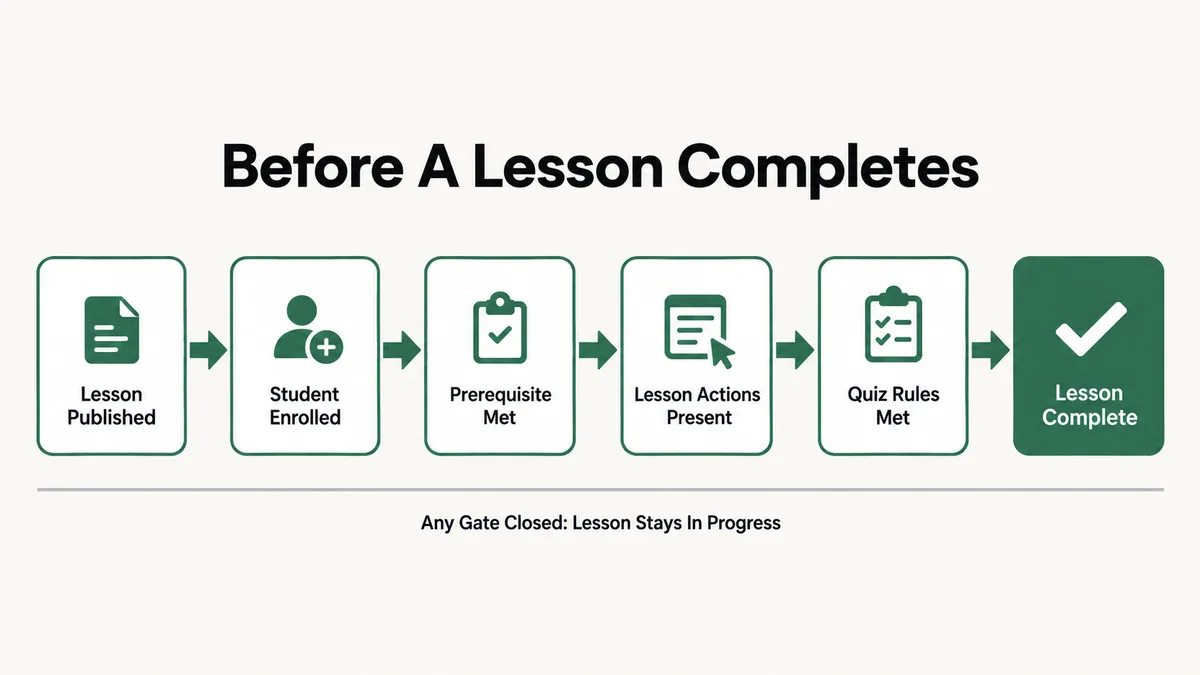
Sensei has three separate ways a lesson can be marked complete, and almost every stuck lesson comes down to the site owner expecting one of them while the settings are configured for another.
- The student clicks Complete Lesson. That button lives inside the Lesson Actions block, which Sensei describes as “a group of buttons that enables a learner to perform specific actions for a lesson”. No block on the page means no button on the page.
- Sensei completes it automatically after a passing quiz grade. This is what happens when the lesson’s quiz has Pass Required turned on. The manual button disappears and the grade becomes the only route through.
- A teacher or administrator marks it complete. From Sensei LMS then Courses then Manage, you can tick “Complete lesson for selected student(s)” and push a student past a lesson by hand.
Sitting on top of those three paths are the gates that decide whether a student reaches the lesson at all: the lesson has to be published, the student has to be enrolled, and any prerequisite lesson has to be finished first. Sensei’s course documentation is blunt about the first one, stating that “lessons must be published before they will be visible to students”.
One more thing worth knowing before the causes: course completion and lesson completion are different settings. Under Sensei LMS then Settings, “Courses are complete” can be set to “Once all the course lessons have been completed” or to “At any time”, where learners mark the whole course done with a single button. If that second option is active, a student can show a completed course while half the lessons underneath it are still In Progress, which looks like a bug and is not one.
Cause 1: Is Pass Required Switched On in the Lesson’s Quiz?
This is the single most common answer, and it catches experienced WordPress developers as often as it catches first time course creators. Open the lesson, open its quiz, and look at the quiz settings panel.
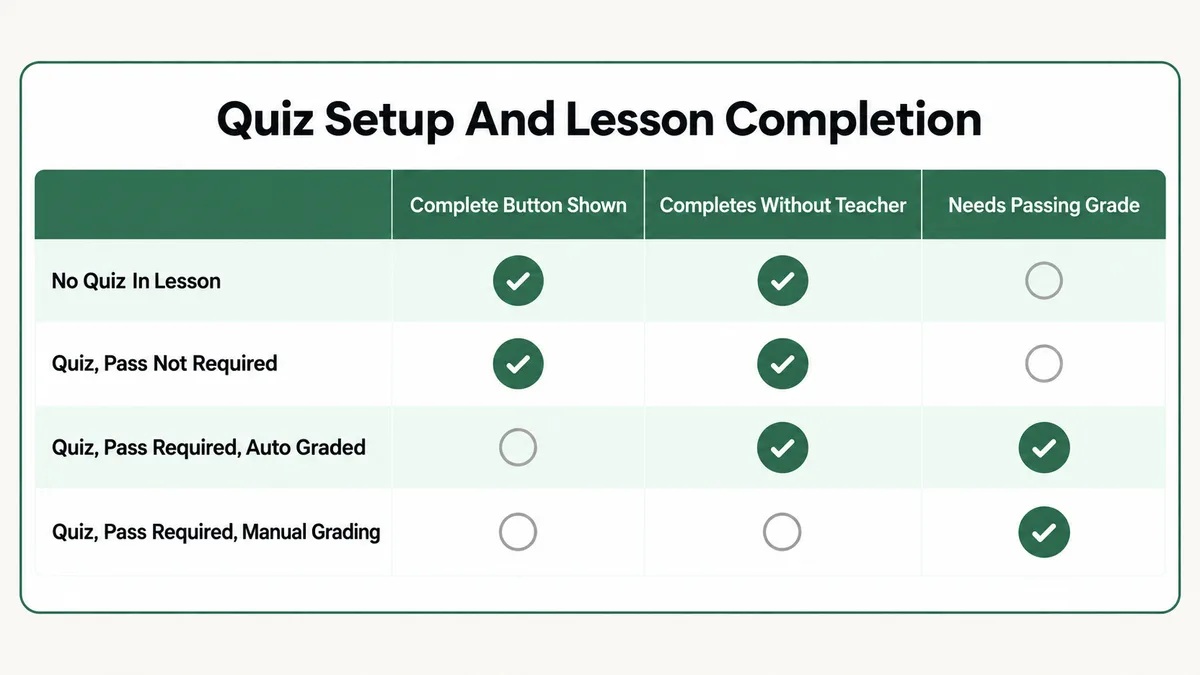
Sensei’s own quiz documentation is explicit about what the Pass Required setting does. With it enabled, “The student must pass the quiz in order for the lesson to be marked as complete”, and “the Complete Lesson button is hidden”. With it disabled, students see the button and can mark the lesson complete at any time, even if they skip the quiz entirely.
So the symptom your students report, a lesson with no completion button anywhere on the page, is the documented behaviour of a setting somebody switched on months ago and forgot about. It usually comes from duplicating an existing lesson that had a graded quiz, since the quiz settings come along with the copy.
Fix: Open the lesson, open the quiz settings, and turn Pass Required off if the lesson is meant to be completed manually. If the quiz genuinely should gate the lesson, leave it on and check the Passing Grade instead. Sensei defines that as “the percent grade that must be obtained by the student in order to pass the quiz”, and a passing grade set higher than the quiz can actually award will lock every student out permanently.
Cause 2: Is the Quiz Sitting Unmarked in the Grading Queue?
If Pass Required is on and the quiz contains anything Sensei cannot grade by itself, the lesson cannot complete until a human opens the grading screen. Students see a submitted quiz, no grade and no progress, and they assume the site is broken.
Sensei auto grades “all multiple choice, true/false, gap fill and ordering (Sensei Pro only) questions”. Anything else, including free text answers and file uploads, waits for the teacher. On the grading screen, Sensei tracks six states: Ungraded, In Progress, Graded, Completed, Passed and Failed. An ungraded quiz shows a Grade quiz button, and once you have graded it that button changes to Review grade.
There is a second trap on that screen. Sensei’s grading documentation states that “Quizzes with the ‘In Progress’ status can’t be reviewed or graded by teachers”. A student who opened the quiz and never submitted it produces exactly that state, so the quiz is invisible to you as something to act on while the student waits for a grade that nobody can give.
Fix: Go to Sensei LMS then Grading and filter for Ungraded. Grade anything waiting there, and check whether the volume is sustainable. If a course runs at scale, replace free text questions with auto gradable types so completion never depends on you clearing a queue. For students stuck In Progress, ask them to submit the quiz, or reset the lesson from the Students screen so they can start it again.
Cause 3: Does a Question Have No Points Assigned?
This one produces the same symptom as cause 2, but the grading queue looks empty so nobody thinks to check it. The quiz documentation includes a requirement that is easy to read past: “Questions must have at least 1 point assigned in order to be eligible for auto-grading.”
A question worth nothing is not auto graded. On a quiz with Pass Required switched on, that one question keeps the whole attempt out of the graded state, and the lesson never completes on its own. It happens most often on questions added quickly during a course rebuild, where the point value was left blank rather than set deliberately.
Fix: Open every question in the quiz and confirm each one carries a point value of one or more. While you are in there, check that the total available points can actually reach the Passing Grade percentage you set. Then reset the lesson for one affected student from Sensei LMS then Students, and have them retake the quiz to confirm the grade lands.
Cause 4: Is the Lesson Actions Block Missing From the Lesson?
Sensei is a block based plugin. The Complete Lesson button is not baked into the theme or drawn by the plugin wherever it likes. It is rendered by the Lesson Actions block, and if that block is not on the page, there is no button for the student to press.
This breaks in two ways I see regularly. Someone builds a lesson from scratch instead of starting from a Sensei lesson pattern, so the block was never added. Or someone tidies up a lesson in the editor, deletes what looks like an empty grey box at the bottom of the content, and removes the block without realising it. Both leave a lesson that reads perfectly and completes for nobody.
Fix: Open the lesson in the block editor, click the list view, and confirm a Lesson Actions block sits in the content. If it is gone, add it back. If dozens of lessons are affected, fix one lesson properly, then use it as the template for the rest rather than repairing each one by hand.
Cause 5: Are Learning Mode and the Lesson Actions Block Colliding?
Learning Mode is Sensei’s distraction free course layout, built on the WordPress Site Editor. Sensei’s own settings page describes it as providing “a distraction-free experience to students”, and it brings its own completion buttons with it.
That is where the conflict starts. Sensei’s lesson documentation states that the Lesson Actions block “doesn’t work when Learning Mode is enabled since Learning Mode already includes the same buttons”. So a site that has both can end up with a block that renders nothing, and a course template that was customised at some point and lost the built in buttons along the way.
Learning Mode also has two switches that override each other, which is why it is often on when you think it is off. It can be enabled globally at Sensei LMS then Settings then the Appearance tab, or per course from the course settings sidebar. Sensei explains the precedence directly: “when you enable it for all courses, it will be enabled regardless of what you selected for a specific course, but if you uncheck the setting, it will work based on the course settings”.
Fix: Decide which one the course uses and commit to it. With Learning Mode on, remove the Lesson Actions block from the lesson content and rely on the template’s buttons, then open the Site Editor and confirm the lesson template still contains its course theme lesson actions block. With Learning Mode off, keep the Lesson Actions block in the lesson itself. Check the global setting and the course level setting together, not just one of them.
Cause 6: Is the Classic Editor Plugin Still Active?
Sensei’s troubleshooting page opens with this, and it is worth taking literally: “Sensei LMS is a block-based plugin, and as such, the Classic Editor plugin is no longer supported.”
Sites that were built years ago, or that run an old page builder workflow, often still have Classic Editor active for the comfort of whoever writes the content. Every Sensei feature that depends on blocks, the Lesson Actions block included, becomes unreliable on that setup. Students get lesson pages missing the pieces that make completion work.
Fix: Deactivate Classic Editor and test a lesson as a student. If your team genuinely needs it for other post types, there are versions of the settings that restrict it by post type, but Sensei lessons and quizzes have to be edited as blocks. Treat that as a requirement of the plugin rather than a preference.
Cause 7: Is a Caching Plugin Serving a Stale Lesson Page?
A lesson page is personalised. It has to know who the student is, whether they are enrolled, and what they have already finished. A page cache that does not understand that will hand every visitor the same stored copy, which means one student’s view of the button, or the absence of it, gets served to everyone.
Sensei names this directly in its troubleshooting guide, warning that “Server caching plugins are known to cause issues with Sensei Courses, such as students not able to view courses after enrolment/purchase”, and recommending that Sensei pages be excluded from caching. The symptom is distinctive: the lesson completes, but the page still shows it as incomplete until the student hard refreshes, or it completes for one student and not another on the same lesson.
Server level caching on managed WordPress hosting causes this as often as a plugin does, and so does an aggressive CDN rule. If your host has its own cache layer, a plugin exclusion list alone will not cover it. The same pattern shows up on any logged in membership area, which is why I wrote about it separately in the context of a slow WooCommerce membership site.
Fix: Exclude every Sensei course, lesson and quiz URL from page caching, in the plugin and at the host or CDN level. Most caching plugins also have a “do not cache pages for logged in users” option, which is the safest setting for a course site. Purge everything afterwards and test in a private window as a real enrolled student, not as an administrator.
Cause 8: Is Another Plugin or the Theme Breaking the Button?
If the block is present, the quiz rules are right, and caching is excluded, the next step is the ordinary conflict test. Sensei’s documented procedure is to deactivate every plugin except Sensei LMS, confirm the problem is gone, then “Reactivate plugins one by one, testing the site after each reactivation”. The conflict announces itself the moment the guilty plugin comes back on.
Sensei calls out two categories specifically as known trouble: translation plugins such as WPML and Loco Translate, and third party page builders. That fits what I see in practice. A translated lesson can end up pointing at a different post ID than the one holding the student’s progress, and a page builder that takes over the lesson template quietly drops the Sensei blocks inside it.
For the theme, Sensei’s advice is to “Temporarily switch to a default WordPress theme like Twenty Twenty-Two” and check whether the problem survives. On a live course site, do that on a staging copy rather than on production, because a theme switch on a Learning Mode site changes the lesson layout for anyone mid lesson.
Fix: Run the conflict test on staging, one plugin at a time, and write down the result for each. When you find the conflict, report it to that plugin’s developer with the specific lesson URL and behaviour, and check whether Sensei’s public GitHub issue tracker already has an open issue describing it. That is often faster than waiting for a reply.
Cause 9: Is a Prerequisite Blocking the Lesson Before It Starts?
Sensei supports prerequisites at both levels. A lesson prerequisite requires another lesson to be finished first, and a course prerequisite requires an entire other course to be finished first. Sensei’s documentation describes the course version plainly: “If you would like students to complete another course before taking this one, you can set a Course Prerequisite.”
A student who has not met the prerequisite sees a notice instead of the lesson content, which means there is nothing to complete. This turns into a chain reaction fast. One lesson stuck for a different reason, a broken quiz or an ungraded answer, blocks the lesson that names it as a prerequisite, which blocks the one after that. Students report the last locked lesson, not the first one, so the reported symptom is usually several lessons away from the real cause.
Prerequisites are also invisible to you while you are logged in as an administrator, because administrators see all content by default. This is why Sensei ships a “Preview as a Student” feature, and why testing while signed in as yourself proves nothing.
Fix: Open the student in Sensei LMS then Students and read their progress from the top of the course down, looking for the first lesson that is not complete. Fix that one. Then use Preview as a Student rather than your own administrator view to confirm the rest of the sequence unlocks properly.
Cause 10: Is the Student Actually Enrolled, or Browsing as a Guest?
Completion is stored against an enrolled student. No enrollment means nothing to store, so the lesson has no way to record anything even if the button appears and responds.
Three settings produce this quietly. “Don’t allow self-enrollment” limits enrollment to manual assignment by a teacher or administrator, so people who found the course and expected to join it never actually did. Access Permissions, which Sensei describes as meaning “users must log in to your site to view lessons and quizzes”, changes what a signed out visitor gets. And Open Access makes a course “available to any site visitor without any registration or sign-in requirement”, tracking progress through session cookies instead of an account.
Open Access is the one that produces the strangest support tickets, because Sensei warns that course progress is not guaranteed to survive if the visitor blocks cookies or switches to a different device. A student who starts on a laptop and continues on a phone genuinely loses their completed lessons, and there is no bug to fix. It is how the setting works.
Fix: Check the course’s enrollment settings and confirm the affected person appears in the course’s student list. If they do not, add them from Sensei LMS then Courses then Manage, using the “Add Student to Course” field. For a paid course, confirm the order actually completed, since a payment stuck in a pending state leaves a student who believes they bought the course and an account that was never enrolled.
Sensei LMS Lesson Not Marking Complete? What Should You Check First?
Work this list top to bottom on one real student and one real lesson. Each step removes a whole group of causes, so the order matters more than the individual checks.
- Open the lesson’s quiz settings and read the Pass Required value. If it is on, the missing button is explained and you are now troubleshooting the grade, not the button.
- Open Sensei LMS then Grading, filter for Ungraded, and check whether this student’s quiz is waiting on you. Check for an In Progress attempt too, since those cannot be graded at all.
- Open every question in that quiz and confirm each carries at least one point.
- Open the lesson in the block editor and confirm the Lesson Actions block is present in list view.
- Check Learning Mode at both levels, the Appearance tab setting and the course’s own setting, and confirm the lesson is not carrying both Learning Mode and a Lesson Actions block.
- Confirm Classic Editor is not active.
- Exclude Sensei URLs from caching at the plugin, host and CDN level, purge, and retest in a private window.
- Open the student’s record in Sensei LMS then Students and find the first incomplete lesson in the course, not the one they reported.
- Confirm the student is genuinely enrolled and that the lesson itself is published, not a draft.
- If all of that is clean, run the plugin and theme conflict test on staging.
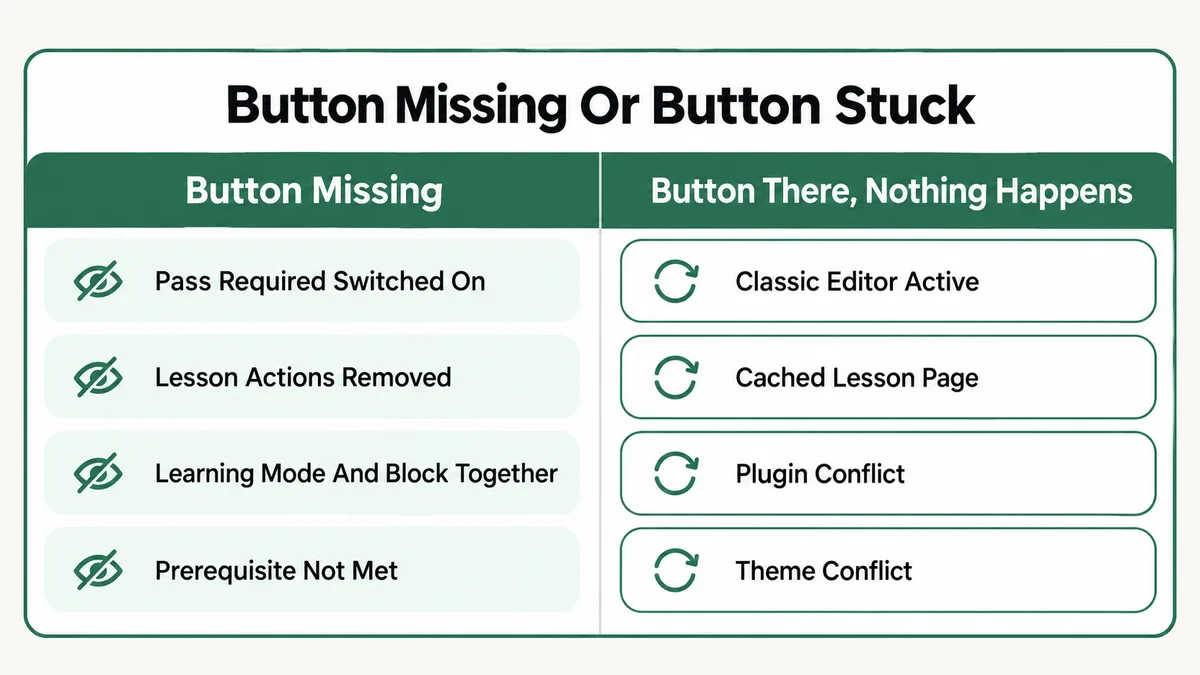
The split in that graphic is the shortcut worth memorising. If the button is missing, the cause is a setting: a quiz rule, a block, a template or a prerequisite. If the button is present but does nothing, the cause is technical: caching, a conflict or an editor that Sensei no longer supports. Ask your student which one they are seeing before you open anything.
Why Do Sensei Lessons Fail Quietly Instead of Showing an Error?
None of these causes produce an error message, and that is deliberate rather than careless. Every one of them is a valid configuration. A hidden Complete Lesson button is the documented result of Pass Required. A locked lesson is what a prerequisite is for. An ungraded quiz is a queue, not a failure. Sensei has no way to tell a rule you meant from a rule you forgot, so it applies all of them the same way and says nothing.
The administrator view makes it worse. Administrators see everything: unpublished lessons, locked lessons, content behind prerequisites. So the person most likely to test a lesson is the one person guaranteed not to reproduce the problem. Preview as a Student exists precisely because the default admin experience is misleading here.
There is history in this too. An old Sensei bug, tracked publicly as GitHub issue 1860, meant quiz settings applied even to lessons that had no quiz at all, so a passmark requirement hid the Complete Lesson button on lessons with nothing to pass. It was fixed in version 1.9.18, but tutorials written around that era still circulate, and they send people looking for a bug that was closed years ago instead of the setting sitting in front of them.
The same shape of problem shows up on every LMS I work on. Completion is never one flag. It is a set of conditions, and any one of them silently holds the rest. I hit an almost identical pattern writing about a LearnDash lesson not marking as complete, where the causes differ but the failure mode is the same, and again with SCORM packages not reporting completion.
On a LearnDash and MemberPress build I delivered for a credit repair academy, listed on my portfolio, most of the launch week was spent on exactly this class of problem: automated lesson delivery working perfectly for the admin account and stalling for real members because access and completion depended on two systems agreeing with each other. Different plugins, same lesson.
How Do You Keep Sensei Lesson Completion Working Going Forward?
Most of the fixes above only have to be found once. Keeping them found is a matter of a few habits.
- Test as a real student, every time. Keep a dedicated test student account enrolled in each live course, and use a private window. Preview as a Student covers most cases, a real account covers the rest.
- Standardise the lesson template. Build one lesson correctly, with the right blocks and the right quiz defaults, and duplicate that. Stray lessons built from a blank page are where missing blocks come from.
- Decide the Learning Mode question once per site. Write down whether the site uses Learning Mode or the Lesson Actions block, and keep every course on the same answer.
- Keep the grading queue visible. If any quiz has a question needing manual grading, someone has to check Sensei LMS then Grading on a schedule. Put it on a calendar rather than relying on student complaints.
- Write caching exclusions down. Course, lesson and quiz URLs excluded at plugin, host and CDN level, recorded somewhere a future developer will read before changing the cache config.
- Be careful editing a live course. Sensei warns that major changes to a running course “will affect the grades and completion status of students who are already taking (or have already completed) the course”. Restructure on staging.
One more habit worth building: when a student reports a stuck lesson, ask for the lesson URL, a screenshot of the bottom of the page and the email on their account before touching anything. Those three things separate a missing button from a stuck button from a student who was never enrolled, and that separation alone resolves most tickets without opening the site.
Frequently Asked Questions
Why is there no Complete Lesson button on my Sensei lesson?
The two documented causes are Pass Required being enabled in the lesson’s quiz settings, which Sensei says hides the button and completes the lesson only after a passing grade, and the Lesson Actions block being missing from the lesson content. Check the quiz setting first, then the block, then whether Learning Mode is supplying its own buttons instead.
Can I mark a lesson complete for a student manually?
Yes. Go to Sensei LMS then Courses then Manage, select the student, and use the “Complete lesson for selected student(s)” option. There is also a “Complete course for selected student(s)” option for the whole course. Use it as a stopgap while you fix the underlying cause, not as a permanent workaround.
Does a quiz have to be passed before a lesson completes?
Only when Pass Required is enabled for that quiz. With it off, students see the Complete Lesson button and can mark the lesson complete at any time, even if they skip the quiz. With it on, the button is hidden and the Passing Grade percentage becomes the only route through.
Why does a lesson complete for me but not for my students?
Because administrators see all content by default, including unpublished lessons and lessons behind prerequisites. Sensei ships a Preview as a Student feature for this reason. Testing with your own admin account will not reproduce prerequisite, enrollment or caching problems.
How do I reset a student’s lesson progress in Sensei?
From Sensei LMS then Students, open the student’s row and choose the reset option. Sensei sets the lesson status back to In Progress, and if the lesson has a quiz it also clears the learner’s grade and removes their answers. Resetting a whole course clears its start date and sets the status to Not Started.
Do caching plugins really break Sensei lesson completion?
Yes, and Sensei documents it. Its troubleshooting guide warns that server caching plugins are known to stop students viewing courses after enrollment or purchase, and recommends excluding Sensei pages from caching. Course pages are personalised per student, so any cache that ignores login state will serve the wrong version.
Does Sensei track progress for students who are not logged in?
Only with the Open Access setting, which makes a course available without registration and tracks progress through session cookies. Sensei warns that progress is not guaranteed to survive if the visitor blocks cookies or moves to another device, and the setting is unavailable for paid courses.
Almost every stuck Sensei lesson I have opened came down to a setting behaving exactly as documented, in a place nobody thought to look. Start with the quiz settings, confirm the Lesson Actions block exists, check the grading queue, then rule out caching and enrollment. If you want a related read, the Thinkific certificate troubleshooting guide covers the same failure pattern one step further along the course, where completion is recorded but the reward never fires.
Still stuck on a Sensei lesson that will not complete?
Tell me which lesson is stuck, what your student sees at the bottom of the page, and whether that lesson's quiz has a passing grade set. I will tell you which of these causes it is and what to change, whether or not you need anyone to build it.