
A learner finishes your Storyline module, sees the final slide, closes the tab, and emails you a day later asking why the lesson still shows as incomplete. You open the course and the Mark Complete button is greyed out. The certificate never appears. If you have been searching “LearnDash SCORM not tracking completion“, you already know how frustrating this is, because nothing on screen tells you which part of the chain broke.
I build and fix LearnDash sites for course creators and training companies, and SCORM tracking problems almost never come from one place. The authoring tool, the SCORM plugin, the WordPress server and the lesson settings all have to agree. Below are the ten causes I check, in the order that finds the problem fastest.
Quick Answer
LearnDash does not track SCORM on its own, so completion depends on a plugin such as Tin Canny Reporting or GrassBlade xAPI Companion. When completion is not recorded, the cause is usually one of four things: the module was published with tracking or reporting settings that never send the status your plugin is waiting for, the plugin’s completion condition does not match what the module actually sends, the learner was not signed in or a security layer blocked the tracking endpoint, or the module is hosted somewhere the plugin cannot record it. Check the plugin’s own report for the learner first. If a statement is there, fix the condition. If nothing is there, fix the connection.
📋 What’s Covered
02Cause 1: Is the Module Embedded Without a Tracking Plugin?
03Cause 2: Do the Storyline Tracking Options Ever Fire?
04Cause 3: Does the Reporting Status Match What the Plugin Expects?
05Cause 4: Is the Tin Canny Completion Condition Wrong?
06Cause 5: Is the Learner Signed In and Can They Reach the Site?
07Cause 6: Is a Security Plugin Blocking the Tracking Endpoint?
08Cause 7: Does the SCORM Driver Need to Be Sync Instead of Async?
09Cause 8: Is the Module Hosted Somewhere Else?
10Cause 9: Is a Long SCORM 1.2 Course Running Out of Resume Space?
11Cause 10: Are GrassBlade Triggers and Activity IDs Set Up Right?
12LearnDash SCORM Not Tracking Completion? What Should You Check First?
13Why Does SCORM Tracking Break So Quietly?
14How Do You Stop SCORM Tracking Breaking Again?
15Frequently Asked Questions
How Does SCORM Completion Reach a LearnDash Lesson?
Start with the fact most people miss. LearnDash itself does not speak SCORM. Its own SCORM and xAPI documentation says SCORM 1.2 and SCORM 2004 content from tools like Articulate, iSpring and Adobe Captivate is supported through third party add-ons, and names two: GrassBlade xAPI Companion and Tin Canny Reporting by Uncanny Owl. It also says content built inside LearnDash is not SCORM compliant.
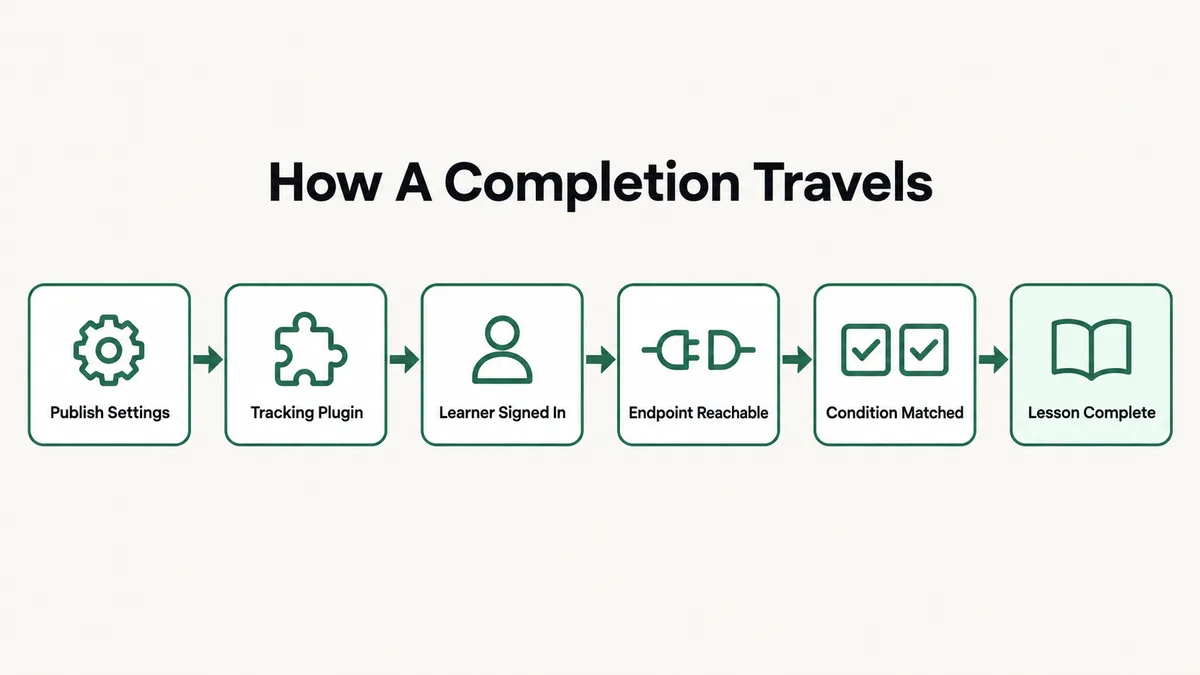
So every completion travels through a chain with four links:
- The module: your authoring tool’s publish settings decide when the course counts as finished and which status word it sends.
- The plugin: Tin Canny or GrassBlade loads the module and passes its data to a record store. Tin Canny has one built in. GrassBlade pairs with GrassBlade LRS.
- The server: the browser has to reach that record store as a signed in user, without a firewall, password wall or maintenance page getting in the way.
- The lesson rule: the plugin compares what arrived against a completion setting, and only then tells LearnDash to mark the lesson or topic complete.
If any link fails, the learner sees the same thing: a lesson that stays incomplete. The trick is working out which link, and the plugin’s report tells you. A record with the wrong status points at the module or the rule. No record at all points at the plugin setup or the server.
Cause 1: Is the Module Embedded Without a Tracking Plugin?
I see this one on inherited sites more than anywhere else. Someone unzipped the Storyline output, uploaded the folder by FTP, and dropped an iframe pointing at story.html into the lesson. The course plays perfectly. It just has nothing to report to. A SCORM package looks for an LMS runtime when it launches, and a bare iframe on a WordPress page does not provide one.
A close cousin is the free “Topic Progression Using Storyline/Captivate for LearnDash” plugin. LearnDash’s documentation lists it for launching Storyline or Captivate content when you do not need xAPI data. It is fine for simple progression, but it is not a SCORM record store, so do not expect scores or detailed reporting from it.
Fix: Open the lesson and look at how the module is added. If it is a raw iframe, an HTML block or a media library link, install Tin Canny or GrassBlade and upload the original published zip through the plugin instead. Then take a test learner through it and confirm a record appears in the plugin’s report before you touch anything else on this list.
Cause 2: Do the Storyline Tracking Options Ever Fire?
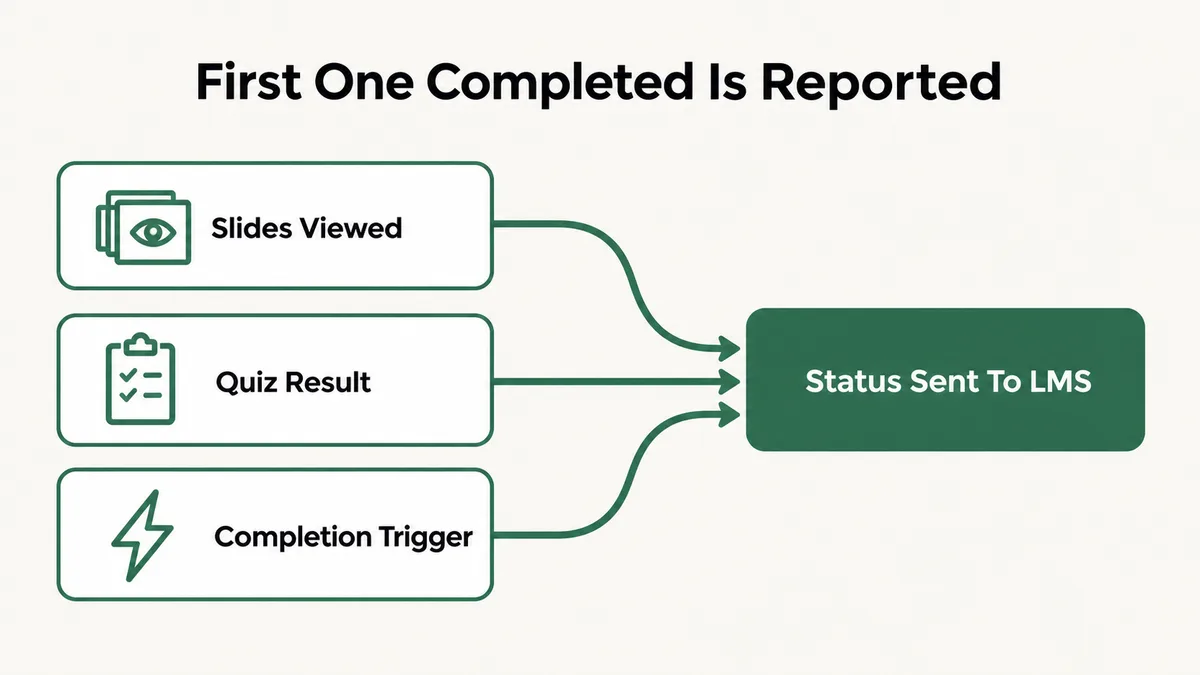
The module decides for itself when it is finished. In Storyline 360 that lives under Publish, then the LMS tab, then Reporting and Tracking, then the Tracking tab. Articulate’s guide to publishing Storyline 360 for LMS distribution lists three options: when the learner has viewed a number or percentage of slides, when the learner completes a quiz, or using completion triggers you add to the project. You can tick more than one, and whichever the learner completes first is the one reported.
Each option has its own trap. A slides viewed count set to every slide fails when the course has a branching slide some learners never see. Quiz tracking fails when the result slide sits on a path the learner can skip. A completion trigger fails when it is attached to a button nobody clicks, such as an “Exit” button on the last slide, because most learners simply close the tab.
Fix: Open the Tracking tab and play the course the way a real learner would, including the shortest path. Pick one option every learner is guaranteed to reach. For linear courses, a slides viewed percentage below every slide works well. For branching courses, add a Complete Course trigger on a slide every path passes through, set to fire when the timeline starts, not on a button click. Republish and upload the new zip.
Cause 3: Does the Reporting Status Match What the Plugin Expects?
Next door to the Tracking tab is the Reporting tab. For SCORM and AICC output, Storyline lets you choose the wording the LMS receives for a learner’s status. SCORM 1.2 has four possible lesson status values, completed, incomplete, passed and failed, so the choices come in pairs such as Complete/Incomplete, Passed/Incomplete, Passed/Failed and Complete/Failed.
This matters because your plugin is waiting for a specific word. If the module is published as Passed/Failed and the lesson is set to complete on “completed”, a learner who scores well sends “passed” and the lesson waits forever. A learner who fails sends “failed”, which is still not “completed”. Both cases look identical from the front end.
The reverse also happens. A course published as Complete/Incomplete with a quiz inside sends “completed” as soon as the tracking option fires, even for a learner who failed the quiz. The lesson completes when you did not want it to. That one is not a tracking failure, but it gets reported to me as one surprisingly often.
Fix: Decide what “done” means for the lesson. If a pass is required, publish as Passed/Failed or Passed/Incomplete and set the plugin to complete on “passed”. If viewing the content is enough, publish as Complete/Incomplete and complete on “completed”. Then open the plugin’s report for one test learner and confirm the status word recorded matches the word in your lesson setting exactly.
Cause 4: Is the Tin Canny Completion Condition Wrong?
On Tin Canny sites, two settings control what happens to the Mark Complete button on a lesson or topic with a module in it. Uncanny Owl’s article on Tin Can lesson and topic completion tracking lists five button behaviours: Always Enabled, Disabled until complete, Hidden until complete, Hidden and autocomplete, and Hidden and autoadvance. They can be set site wide or overridden per lesson through the Restrict Mark Complete field.
“Always Enabled” is the quiet one. With it, the button works whether or not the module sent anything, so a learner who clicks it completes the lesson and one who does not stays incomplete. Nothing is actually linked to the module.
The other four depend on the Completion Condition, and that value has to match the report exactly. Tin Canny accepts a verb such as completed or passed, a score rule such as result > 60, or a slide and verb pair such as uotarget Slide 2::experienced. Some modules send an “experienced” statement for every slide and no single statement at the end. A condition of completed never matches on those.
Fix: Open the Tin Can report for a test learner who finished the module and read the last statement it recorded. Copy that verb, or that slide and verb pair, into the lesson’s Completion Condition. Start with a single verb before trying score rules. Set the button to Disabled until complete while testing, so you can see the moment it becomes clickable, then switch to the hidden options once it works.
Cause 5: Is the Learner Signed In and Can They Reach the Site?
Tracking is tied to a WordPress user. Uncanny Owl’s Tin Canny FAQ states that no data is tracked if the user completing the activity is not signed in, or if the site is behind a sitewide .htaccess password. Staging sites are the usual victim. The client tests on a password protected staging copy, nothing tracks, and everyone assumes the plugin is broken.
The same thing happens when a learner’s session expires halfway through a long module. The module keeps playing because it is already loaded, but the statements sent at the end arrive from someone WordPress no longer recognises. Coming soon and maintenance mode plugins that block the whole site for visitors cause the same silent failure.
Fix: Test with a real learner account, never as an admin previewing the lesson, and never on a password protected staging site. Remove any sitewide .htaccess password and pause maintenance plugins while testing. If long modules are the problem, check your session length and any security plugin setting that logs users out after a short idle period.
Cause 6: Is a Security Plugin Blocking the Tracking Endpoint?
When the module reports, the browser sends a request to an endpoint on your own site. Anything that stops that request stops tracking. Uncanny Owl calls out security and firewall plugins, REST API restrictions, maintenance plugins and proxies. The symptom is specific: the module plays, the learner finishes, and the report has no record for them at all.
Plugins that disable the REST API for logged out users, or lock it down entirely to hide the user list, are frequent culprits. So are server level firewall rules added by hosts, and Cloudflare rules that challenge automated looking requests.
Fix: Open the browser’s developer tools on the lesson, go to the Network tab, and finish the module. Look for requests that return 403 or 500. Note the URL and whitelist it in the security plugin, firewall or Cloudflare rule responsible. If nothing obvious shows, switch to a default theme and disable plugins other than LearnDash and the SCORM plugin on a staging copy, then add them back one at a time. The console also shows JavaScript errors from other plugins, which Uncanny Owl lists as a cause in its own right.
Cause 7: Does the SCORM Driver Need to Be Sync Instead of Async?
Tin Canny has a setting called SCORM Driver Compatibility with two values, Async and Sync. Async is the default, and Uncanny Owl says it performs best in most environments. Their guidance is to switch to Sync only when SCORM or xAPI results are not being tracked the way you expect, and some authoring tools need it.
The detail that trips people up is that the mode is fixed when the module is uploaded. Change the setting, reload the lesson, and the old module still behaves exactly as before. People flip it, see no difference, flip it back, and conclude it did nothing.
Fix: Only try this after causes 2 to 6 check out. Set SCORM Driver Compatibility to Sync, upload the module again as a new upload, swap it into the lesson, and test with a fresh learner. If Sync tracks and Async did not, keep Sync for modules from that authoring tool and note it somewhere your team will see it.
Cause 8: Is the Module Hosted Somewhere Else?
Media offload plugins are great for video and images. They are a problem for SCORM. Uncanny Owl states plainly that Tin Canny’s record store is local to your WordPress site and cannot store statements from modules hosted externally or offloaded to another service, Amazon S3 included. A module served from a bucket or a CDN on a different domain plays, but its reports go nowhere.
Two related server issues show up here too. If the front end runs on https but the WordPress Address and Site Address under Settings, General still start with http, Tin Canny modules can load as a blank screen. And after cloning a site to a new server, learners can lose access to modules because the protection rules were written for the old environment. That second one only applies if the Protect SCORM/Tin Can modules setting is on, which relies on a host that supports mod_rewrite.
Fix: Exclude the SCORM upload folder from any offload or CDN rewrite and make sure modules load from your own domain. Match both URLs in Settings, General to https. After a migration or clone, toggle Protect SCORM/Tin Can modules off and back on, which is Uncanny Owl’s documented way to regenerate the rules. If uploads stall between 80 and 99 percent, use their partial FTP upload method rather than retrying the same large zip.
Cause 9: Is a Long SCORM 1.2 Course Running Out of Resume Space?
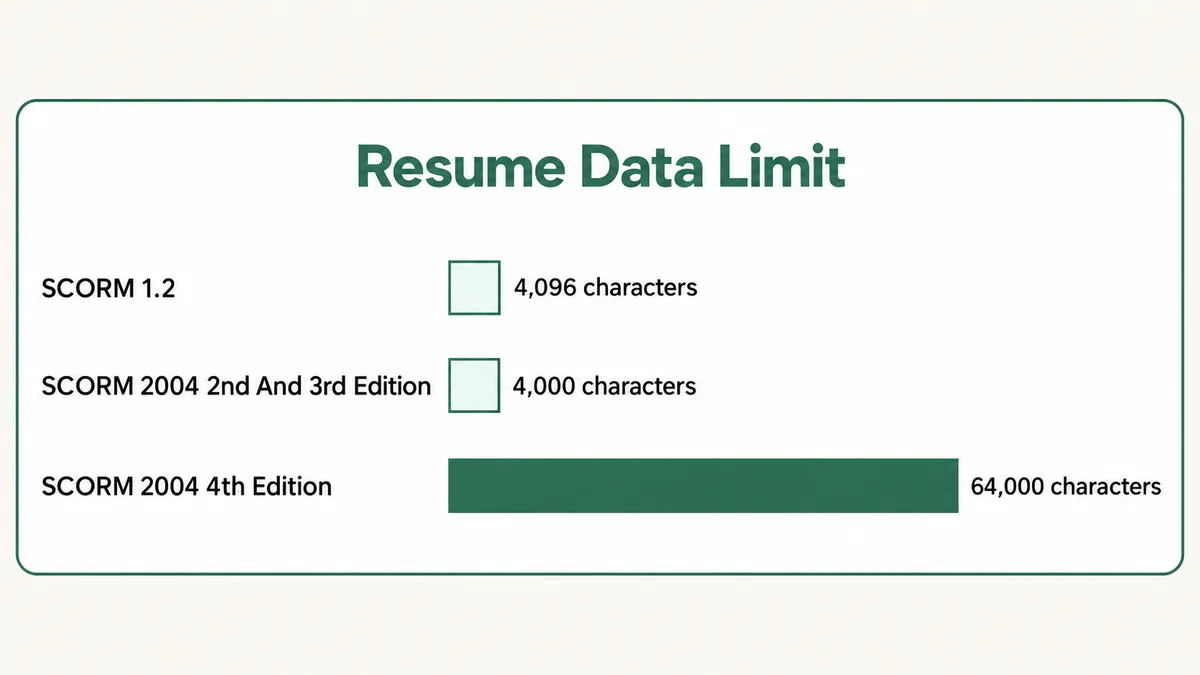
This one looks like tracking but is really about resume data. SCORM stores a learner’s bookmark, variables and interactions in a field called suspend data. The SCORM run-time reference puts the limit at 4,096 characters for SCORM 1.2 and 4,000 for SCORM 2004 2nd and 3rd editions, while SCORM 2004 4th edition raises it to 64,000. Storyline compresses its data to squeeze under the 1.2 limit, but long courses with lots of slide states, variables and quiz questions still overflow it.
When that happens, learners who leave and come back start from the beginning, lose their answers, or lose the progress that was going to count them as finished. They then never reach the slide that triggers completion, and the lesson stays incomplete. If complaints come from people who finished over several sittings, and one sitting learners are fine, look here.
Fix: Republish the course as SCORM 2004 4th edition, the only version with the larger limit, provided your SCORM plugin supports that output, and upload it fresh. If you have to stay on SCORM 1.2, cut what the course stores: set slides that do not need to remember anything to reset to their initial state when revisited, and remove unused variables. Splitting one very long module into shorter modules across separate topics also helps, and it makes reporting easier to read.
Cause 10: Are GrassBlade Triggers and Activity IDs Set Up Right?
GrassBlade works differently from Tin Canny, so it gets its own section. Next Software Solutions’ page on GrassBlade completion tracking not working says automatic completion tracking needs GrassBlade LRS. Without it, learners can only click Mark Complete themselves. The LRS sends completion back to WordPress through triggers, and those triggers are where most setups fail.
Their checklist is specific, and every item on it is something I have seen:
- Missing triggers: the Completed, Passed, Failed and Attempted triggers were never generated in the LRS, or point at the wrong WordPress URL.
- Trigger URL blocked: logged out, the trigger URL should load and show “0”. If it returns an error or a login page, something on the server is blocking it.
- Activity ID: some Articulate and Captivate versions do not support a custom Activity ID. Leave the field blank on new uploads, or switch existing content to Original Activity ID. Two contents sharing one ID also breaks tracking.
- Placement: the content must sit on a lesson, topic or quiz, not the course page, and on only one page. A lesson with other topics or quizzes attached causes problems too.
- Shortcode: completion tracking should use the block or the metabox, not the shortcode.
Fix: Run the LRS Connection Test under GrassBlade Settings, then click Test Setup on the xAPI Content edit page, which gives setup suggestions for that content. Tick the Completion Tracking box on the content. Check the LRS error logs for the test learner’s email. GrassBlade also checks passed and failed statements against the passing percentage you set on the content, so confirm that number is what you intended.
LearnDash SCORM Not Tracking Completion? What Should You Check First?
Guessing wastes hours, because republishing a Storyline course and re-uploading it takes a while each round. Work through this order instead, and stop as soon as one step fails:
- Confirm a plugin is involved. The module should be added through Tin Canny or GrassBlade, not a raw iframe.
- Create a fresh test learner. Enrol them, sign in on a private browser window on the live site, and complete the module along the shortest path.
- Open the plugin report for that learner. This is the fork in the road.
- No record at all: check sign in and password walls (cause 5), blocked requests in the Network tab (cause 6), external hosting and URL settings (cause 8), then the SCORM driver (cause 7) or GrassBlade triggers (cause 10).
- Records, but no completion statement: the module’s tracking options never fired (cause 2).
- A completion statement with the wrong word: fix the reporting status or the completion condition (causes 3 and 4).
- Single sitting works, multiple sittings fail: look at suspend data (cause 9).
If the lesson completes but the course still does not, the SCORM side is working and the problem is in LearnDash itself. My guide to a LearnDash lesson not marking complete covers progression settings, and LearnDash certificates not generating picks up from there.
Why Does SCORM Tracking Break So Quietly?
SCORM was designed in an era when the course and the LMS were one product from one vendor. On WordPress they are three or four products that were never tested together: an authoring tool, a SCORM plugin, LearnDash, and whatever security, caching and hosting setup the site runs. Each one does its own job correctly, and each one assumes the others are fine.
Nothing in that chain is responsible for telling the learner a statement failed. The module does not show an error when a request returns 403, because from its side the data was sent. The plugin cannot report a statement that never arrived. LearnDash only knows the lesson is not complete. The failure lives in the gap between tools, which is why it looks like nothing is wrong.
Updates add to it. A security plugin update tightens the REST API. An authoring tool update changes how Activity IDs work. A host adds a firewall rule. Tracking that worked for a year stops on a Tuesday, and the first sign is a support ticket. That is also why the plugin report is the most useful tool you have: it is the one place where the chain leaves evidence.
How Do You Stop SCORM Tracking Breaking Again?
Standardise your publish settings. Pick one output format, one reporting status pair and one tracking method for each type of module, write them down, and give that note to anyone who builds content for you. Most of the problems above start with a freelancer publishing with whatever settings were left from the last client.
Keep one test learner account for good. After every plugin update, theme update or new module, run that account through one lesson and check the report. It takes five minutes, and it catches a blocked endpoint before a cohort does.
Keep modules short. Shorter modules stay well under suspend data limits, report more clearly, and are quicker to republish when something needs fixing.
Finally, ask whether a piece of content needs to be SCORM at all. If it is mostly video, text and a knowledge check, LearnDash’s own lessons and quizzes track completion without any extra layer. The Certified Boater course on my portfolio, a NASBLA approved boater safety course, runs its quizzes and certificates on LearnDash itself. Save SCORM for interactive simulations that genuinely need an authoring tool, and if you need help deciding, my notes on hiring a LearnDash developer cover what to ask about SCORM experience.
Frequently Asked Questions
Does LearnDash support SCORM without a plugin?
No. LearnDash’s documentation says SCORM 1.2 and SCORM 2004 content is supported through third party add-ons, and names GrassBlade xAPI Companion and Tin Canny Reporting by Uncanny Owl. Content built inside LearnDash is not SCORM compliant, so SCORM packages have to come from an authoring tool such as Articulate, iSpring or Captivate.
Why is the Mark Complete button still greyed out after the module?
On Tin Canny, the button is set to Disabled until complete and the completion condition has not matched anything the module sent. Open the Tin Can report for that learner. If there is no record, it is a connection problem. If there is a record with a different verb, such as “passed” instead of “completed”, change the condition to match.
Should I publish Storyline as SCORM 1.2, SCORM 2004 or xAPI for LearnDash?
Use whatever your SCORM plugin documents as supported for your authoring tool. Between the SCORM versions, SCORM 2004 4th edition gives much more room for resume data, 64,000 characters against 4,096 for SCORM 1.2, which matters for long courses. The 2nd and 3rd editions do not, at 4,000. xAPI sends richer statements and suits Tin Canny’s built in record store or GrassBlade LRS.
Why does SCORM tracking work for me but not for my learners?
Usually because you test as an administrator. Admin accounts skip security rules, idle logouts and firewall challenges that apply to learners, and previewing a lesson is not the same as being enrolled. Test with a separate learner account in a private browser window, on the live site rather than a password protected staging copy.
Can I host SCORM files on Amazon S3 with Tin Canny?
Not if you want tracking. Uncanny Owl states that Tin Canny’s record store is local to your WordPress site and cannot store statements from modules hosted externally or offloaded to a service such as Amazon S3. Keep SCORM uploads on your own server and exclude that folder from media offload plugins.
Do I need GrassBlade LRS to track completion with GrassBlade?
For automatic completion tracking, yes, according to Next Software Solutions’ own troubleshooting page. Without GrassBlade LRS, learners can still view the content and click Mark Complete manually, but the lesson will not complete on its own when the module finishes.
From what I have seen, LearnDash SCORM not tracking completion is rarely a single broken plugin. It is a publish setting nobody reviewed, a condition waiting for the wrong word, or a security rule sitting between the learner and the record store. Use the plugin report to find which link failed, fix that one, and test with a real learner account.
If SCORM is only part of a bigger LearnDash build, the same test learner habit helps with quiz retakes that will not work and most other progression problems.
SCORM lessons still not completing?
Tell me which authoring tool you publish from, which SCORM plugin you use, and what the report shows for one learner. I will tell you where the chain is breaking and what to change.