
A student pays for your course, gets the confirmation email, and then messages you an hour later saying they cannot get in. Maybe the login page rejects them. Maybe they log in and the course is not there. Maybe the course is there but every module after the first one shows a lock. If you are searching for why a Podia student cannot access course content they paid for, you are dealing with a customer who is annoyed right now and a refund request that is one reply away.
I build and fix course platforms for creators, and access problems are the support ticket I see most on every one of them. Podia is simpler than most, which is part of why its access problems confuse people: there are fewer settings, so creators assume there is nothing to check. There are in fact ten separate things that block a student, and they sit in four different places in the dashboard. Below is each one, what it looks like from the student’s side, and the exact fix, all checked against Podia’s own help center as of September 2026.
Quick Answer
When a Podia student cannot access a course, the cause is usually one of three things: they are logging in on podia.com instead of your own site URL, they are using a different email from the one they bought with, or the course itself is holding them back through a Draft status, a future start date, a drip delay or an expired access period. Send them to your site URL with /login on the end, confirm their email under Admin, then Audience, and open the Sales tab on their profile to see exactly what they have access to.
📋 What’s Covered
02Cause 1: Is the Student Logging In on the Wrong Site?
03Cause 2: Are They Using a Different Email Address?
04Cause 3: Was the Course Moved Back to Draft?
05Cause 4: Has the Course Start Date Arrived Yet?
06Cause 5: Is a Drip Delay Still Counting Down?
07Cause 6: Is the Section Locked Behind Course Progress?
08Cause 7: Are the Lessons Set to Hidden?
09Cause 8: Has the Access Period Expired?
10Cause 9: Did a Subscription or Payment Plan Fail?
11Cause 10: Is the Browser Holding On to Old Details?
12Podia Student Cannot Access Course: What Order Should You Check Things In?
13Why Do Setting Changes Not Reach Existing Students?
14How Do You Stop Access Problems Before Students Report Them?
15Frequently Asked Questions
How Does Podia Decide Who Can Open a Course?
Before the causes, it helps to see access the way Podia sees it. A student opening a lesson is not one check. It is five checks in a row, and the student only gets to the lesson if every one of them passes.
- They sign in on your site. Every Podia creator has their own site, and student accounts belong to it. The podia.com homepage and app.podia.com are not where students log in.
- Their email matches an enrollment. Access is tied to the email used at checkout or when you granted access. A second address means a second, empty account.
- The product is published. A course in Draft is invisible to everyone, including people who already paid.
- The enrollment is active. A start date in the future, an access period that ran out, or a canceled subscription all switch this off.
- The section is open. Drip delays, progress locks and hidden lessons all act at this final level, inside a course the student can otherwise see.
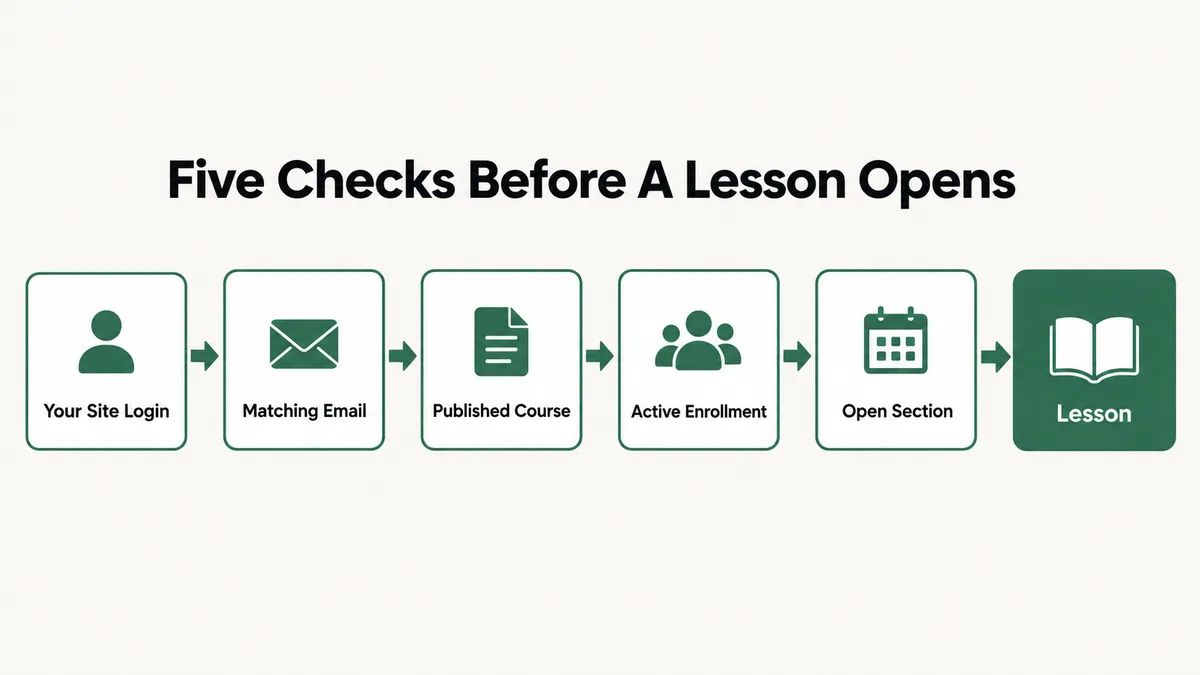
The useful part of this model is that the student’s description tells you roughly which level failed. “It will not let me log in” points at the first two. “The course is gone” points at levels three and four. “It shows a lock” points at level five. The ten causes below follow the same order.
Cause 1: Is the Student Logging In on the Wrong Site?
This is the most common cause by a distance, and it is the fastest to confirm. The student searches for “Podia login”, lands on Podia’s own website, types their details, and gets told the account does not exist or the password is wrong.
Podia’s guide to member login issues puts this first for a reason. Student accounts live on your site, not on podia.com. Podia’s member experience guide is just as direct about app.podia.com: that address is for admin access only. A student who signs in there is knocking on the wrong door, and nothing you change in the course settings will help.
The quick way to tell is Podia’s own test. Ask the student for a screenshot of the page they are signing in on. If it shows the Podia logo, they are in the wrong place. If it shows your branding, they are on your site and you can move on to Cause 2.
Fix: Send the student your site’s login page directly: your site URL with /login added to the end, for example yoursite.podia.com/login or yourdomain.com/login on a custom domain. Put that link in your welcome email and in a pinned post so the next student never has to search for it.
Cause 2: Are They Using a Different Email Address?
The student is on the right site, but the account they are signing into is not the one that bought the course. They paid with a work address and log in with a personal one. They typed the address with a typo at checkout. Or their password manager filled in an address from a different site.
This one produces the most confusing report of all, because sometimes the student does get in. If they created a second account with the other address, they land on an empty home feed and tell you the course has disappeared. Podia’s login guide also notes that the address has to be entered exactly as it appears in your contacts, and describes the login process as case sensitive, so treat capitalisation as something to check rather than assume.
If the address at checkout had a typo and the student cannot receive email there, they cannot reset their password either. Podia’s guide says the student should email Podia support with the address currently on the account so the team can verify them and update it.
Fix: In your dashboard, go to Admin, then Audience, and search for the student by name and by every address they have given you. Open their profile and compare the email character by character with what they type. If they have two contacts, the one with the purchase on its Sales tab is the right account. Have them reset the password for that address at yourdomain.com/account/password_reset/new.
Cause 3: Was the Course Moved Back to Draft?
This is the cause that locks out everyone at once, and it is usually self inflicted. A creator wants to rework the course, or stop new sales for a while, and switches the status from Published to Draft without realising what else that does.
Podia’s help article on unpublishing products spells out the effect. Moving a product to Draft revokes access for every existing customer. Draft products are hidden entirely, regardless of visibility settings. If the course is included in a bundle or included in another product, it is also removed from those, and those customers lose it as well. And Podia confirms no email goes out: the product simply vanishes from each student’s product list.
There is a second version of this problem. You can only grant access to published products, so if you try to add a student to a Draft course by hand, the Grant access option is not there at all.
Fix: Open Admin, then Products, edit the course, go to the Availability tab and check Status. If it says Draft, set it back to Published. To stop new sales without touching existing students, leave the status on Published and set Access to Closed instead. Podia’s availability settings say closing access only prevents new signups. To rework content quietly, hide individual lessons (Cause 7), not the whole product.
Cause 4: Has the Course Start Date Arrived Yet?
Start dates exist for pre-sales and cohorts. The student pays today, and the course opens on a date you choose. That is exactly what it is meant to do, and students still report it as broken.
Here is why. According to Podia’s help article on start dates, customers are charged immediately, see the course in their Products tab with the date it becomes available, and cannot open any content until then. Podia does not send an email when the course opens. So a student who bought during a pre-sale gets a receipt, sees a locked course, and hears nothing further. When the date arrives they have no reason to check back, and the ones who try early think the purchase failed.
Start dates also move your drip schedule. For students who bought while the start date was set, delayed sections count from the start date, not from their purchase date.
Fix: Check the Availability tab for a start date. If a specific student needs in early, open the course under Admin, then Products, click the three dots next to their name and choose Give early access. Early access does not change their drip schedule, which still follows the original start date. Schedule an email broadcast for launch day so every student knows the course is open.
Cause 5: Is a Drip Delay Still Counting Down?
The student can open the course, but modules further down show a lock. If you use drip content, this is the schedule working. The confusion usually comes from how the schedule is calculated and from what happens when you change it.
Podia’s guide to delaying section access explains that delays are set in days and count from the date and time each student gained access, whether they bought, were imported or were added by hand. So two students who joined a week apart see different modules open. That part is easy to explain to a student.
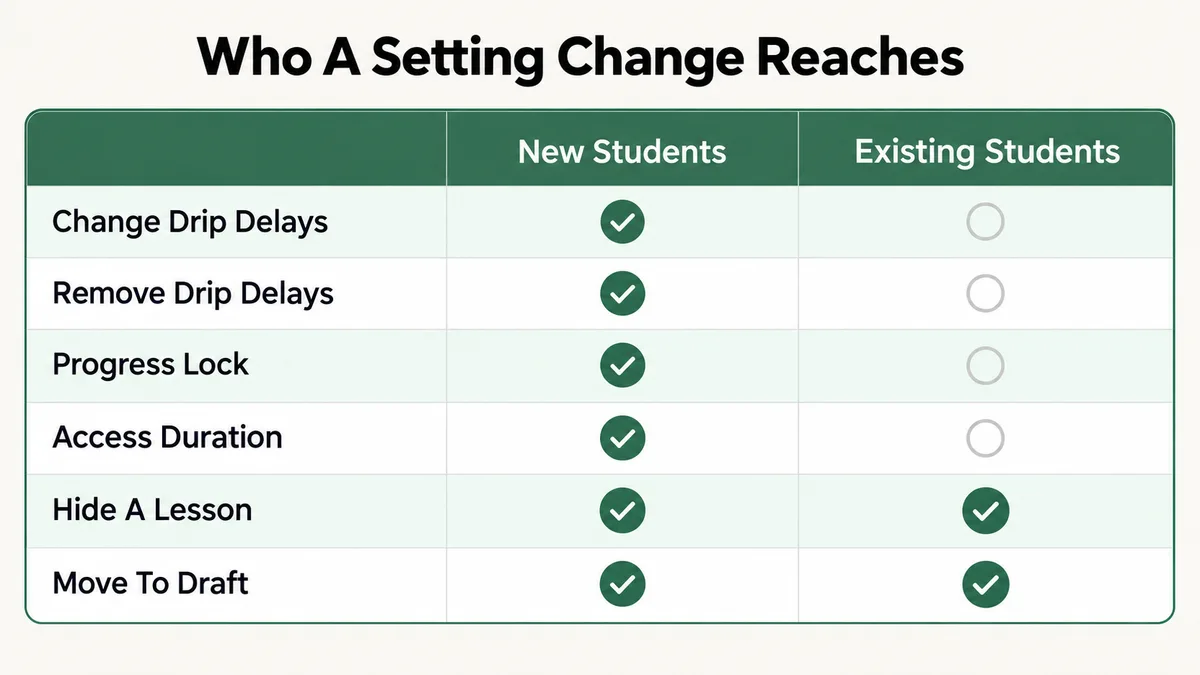
The part that catches creators is this: delays are locked in at enrollment. If you shorten or remove a delay later, existing students keep the schedule they started with. Podia says plainly that deleting delays to open sections for current students will not work, because it only affects future enrollees. A creator removes every delay, tells the class everything is open, and gets a flood of replies saying it is not.
One more detail. If you remove a student and add them back, their progress is kept but their delays reset from the date they regain access, so a returning student can find modules locked again that were open before.
Fix: For existing students, open the delayed sections manually from each student’s profile using Podia’s Unlock sections option. Removing delays in the course editor only helps people who enroll afterwards. Set delays before you open enrollment, and tick “Send email notification to customers when available” on each delayed section so students hear when a module opens.
Cause 6: Is the Section Locked Behind Course Progress?
Podia also lets you lock a section until a student finishes earlier material. In the section settings, Available after course progress opens it either after all previous lessons and quizzes, or after one specific lesson or quiz you choose.
The student sees a lock and assumes a fault. Usually they have skipped a lesson without marking it complete, or not passed the quiz the section depends on. On a long course, one unticked lesson three modules back is enough to hold everything after it.
Two quieter details come from Podia’s own documentation. First, like delays, progress locks only apply to students who enroll after you set them, so older students can open sections that new ones cannot, which looks inconsistent but is expected. Second, if you set a specific lesson as the trigger and later hide that lesson, Podia switches the rule to “All previous lessons and quizzes”, which can suddenly demand far more of the student than you intended.
Fix: Open the locked section in the course editor and read its Availability setting. Then check the student’s progress in the course to find the lesson or quiz they have not completed, and point them to it. If the rule is wrong for current students, Podia’s suggested route is to remove them from the course and add them back, which keeps their progress.
Cause 7: Are the Lessons Set to Hidden?
Hidden lessons are Podia’s way to prepare new content inside a live course. A hidden lesson does not appear in the curriculum or on the sales page, for anyone, until you make it visible.
The trap is at section level. Podia’s help article on hiding lessons notes that if every lesson in a section is hidden, the section itself disappears, just as if it were empty. So a creator who hides the lessons in a module to rework them has removed the whole module from view, and students report that part of the course is missing, not locked.
Hiding is also all or nothing. There is no per-student release for a hidden lesson, and the Unlock sections option you use for drip content does not appear for it, because hiding and delaying are separate features.
Fix: In the course editor, click the three dots next to each lesson in the missing section and switch Hidden off. Making a lesson visible opens it immediately to every student who has the course. If you need to give one student early access to new material, use a delayed section rather than a hidden lesson, since delayed sections can be unlocked per student.
Cause 8: Has the Access Period Expired?
By default, Podia gives students lifetime access. You can change that with a Duration setting, and when the set number of days passes the student loses access and their enrollment is marked as expired.
Podia’s help article on setting an access duration period covers how it behaves. The clock starts on the signup date, or on the course start date if there is one. Podia emails the student seven days before access ends, and that email copy cannot be edited. Students can see their expiry date in their account, and expired courses still show on their dashboard, which is why the report often reads “my course is there but I cannot open it”.
Two details matter for troubleshooting. Changing the duration only affects new customers, so extending it does nothing for someone who has already expired. And if the course was bought on a subscription, the subscription is canceled automatically when the access period ends.
Fix: Check the Availability tab under Limits for a Duration setting. To give an expired student more time, remove their access from the Sales tab on their profile, then add them back with Grant access. The new expiry is calculated from the re-enrollment date, and their progress carries over.
Cause 9: Did a Subscription or Payment Plan Fail?
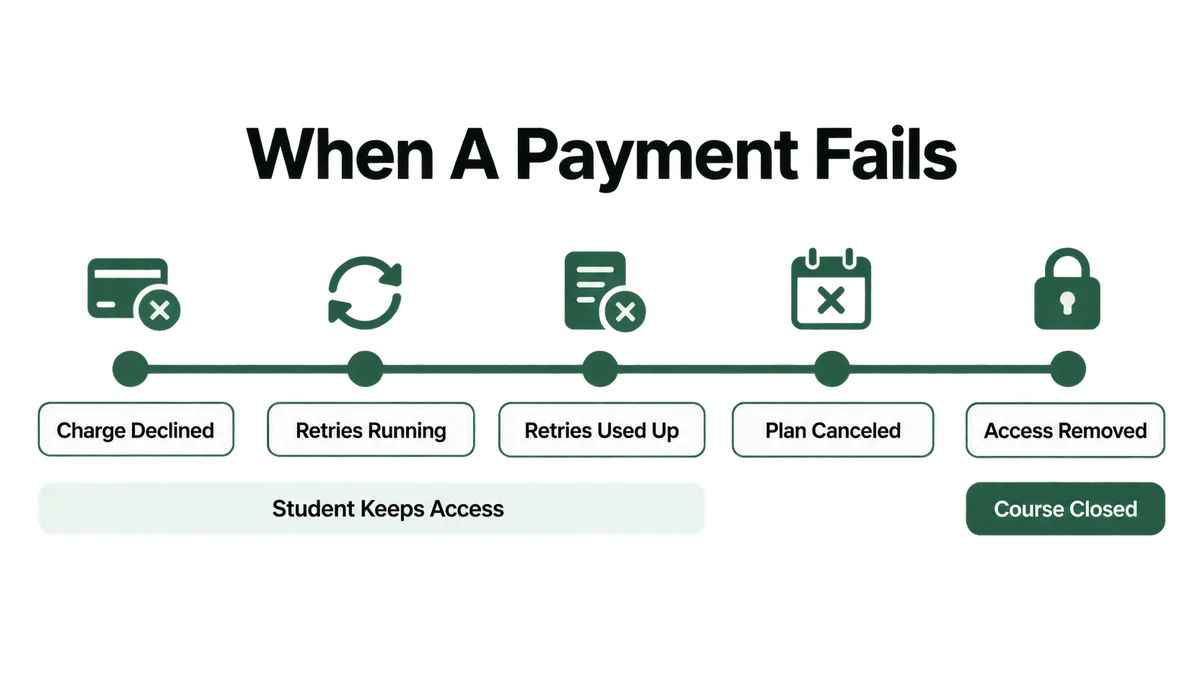
Courses sold on a subscription or a payment plan stay open only while the payments keep going through. When a charge fails, Podia does not cut the student off straight away, and that delay is what makes this cause hard to spot.
Podia’s help article on managing subscriptions explains the sequence. A failed charge starts a retry schedule that follows your Stripe account’s Smart Retries settings, which by default retry up to eight times over two weeks. The student keeps access while retries are running. If every retry fails, the subscription or payment plan is canceled and the student loses access. The student gets an email asking them to update their card. You get nothing: Podia states it does not notify creators about failed subscription payments.
So from your side, a student who was fine two weeks ago suddenly cannot get in, and there is no record of it in your inbox. The answer is sitting in Sales, then Subscriptions, or on your Invoices page.
Fix: Check the student’s subscription status under Sales, then Subscriptions. While retries are still running, ask them to update their payment method, and Podia will attempt the charge again, usually within 15 minutes. If the plan has already been canceled, they need to buy again or you can grant access manually. Turn on failed payment alerts in your Stripe account’s communication settings so the next one reaches you before the student does.
Cause 10: Is the Browser Holding On to Old Details?
When every setting checks out and the student still cannot sign in, the problem is often on their device. Podia’s login guide lists three culprits: browser extensions that interfere with the page, password autofill quietly entering an old password, and cookies or cache storing outdated information.
Autofill is the one I see most. The student reset their password last week, typed the new one correctly once, and the browser has been filling in the old one ever since. From their side, the reset “did not work”.
Fix: Ask the student to open your login page in a private or incognito window and type the password by hand. If that works, clearing cookies and cache for your site fixes the normal window. If it still fails, have them try a different browser or network, which rules out extensions and network filtering in one step.
Podia Student Cannot Access Course: What Order Should You Check Things In?
Ten causes is a lot to work through with a frustrated student waiting. This order puts the quickest checks first, and each step rules out a whole group of causes.
- Ask what they see. A login error, a missing course, or a lock inside the course? That one question narrows ten causes to three or four.
- Ask for a screenshot of the login page. A Podia logo means Cause 1. Send them yoursite/login.
- Search Admin, then Audience for every address they use. A second contact or a typo means Cause 2.
- Open their Sales tab. No course listed means they never enrolled on that account. An expired or canceled entry points to Causes 8 and 9.
- Open the course’s Availability tab. Check Status, Start date and Duration in one screen for Causes 3, 4 and 8.
- If a section is locked, open that section’s settings. A delay, a progress rule or all-hidden lessons covers Causes 5, 6 and 7.
- If everything checks out, send them to a private window. Success there means Cause 10.
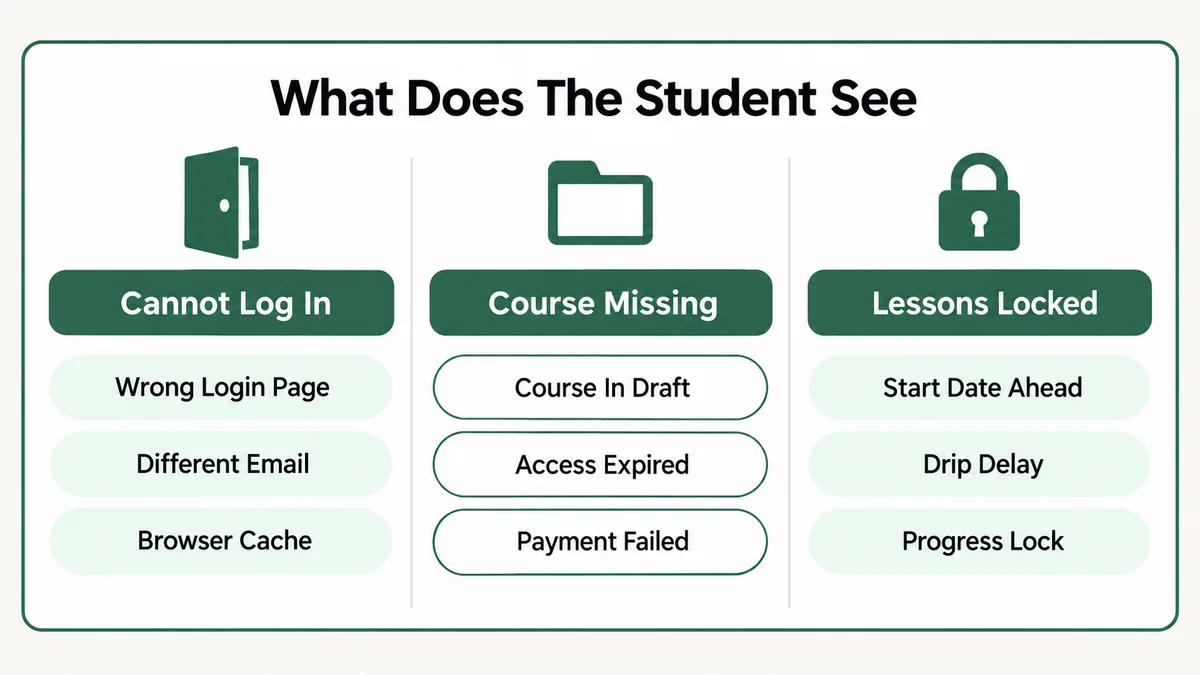
Steps two to five take a few minutes and need nothing but your dashboard. Most tickets end there. If you want to see the course exactly as a student does, Podia recommends a separate test account on your site using an email alias such as name+test@gmail.com, since you cannot check out with your admin email.
Why Do Setting Changes Not Reach Existing Students?
Once you see the pattern, a lot of Podia’s access behaviour stops looking random. Podia treats an enrollment as a contract taken at the moment the student joined. Drip delays, progress locks and access duration are all copied into that contract at signup, and later edits to the course do not rewrite it.
There is a good reason for this. If editing a delay changed it for everyone, a creator tweaking next month’s cohort would accidentally lock or open modules for students halfway through. Locking the rules at enrollment protects students from surprise changes. The cost is that fixing a mistake for current students is manual: opening sections one student at a time, or removing and re-adding them.
Only two settings break that rule. Product status acts at product level, so Draft closes the course for everyone at once. Hidden lessons act at content level, so visibility flips for everyone at once. Those are the two to be most careful with on a live course.
This is not unique to Podia. When I built Jen’s Cook, a cooking education platform on Kajabi with more than seven courses, membership access, subscription billing and drip content, the same three layers applied: who the student is, whether their payment is current, and where they sit in the release schedule. The platforms name things differently, but the questions are the same. My guides to Teachable students who cannot access a course and Skool courses locked for members follow the same structure for those platforms.
How Do You Stop Access Problems Before Students Report Them?
Six habits remove most of these tickets before they start. None of them take long.
- Put your /login link everywhere students look. Welcome email, course description, community pin and email footer. It removes Cause 1 almost entirely.
- Never use Draft to pause a live course. Close access to stop new sales, and hide lessons to rework content.
- Decide on delays, progress locks and duration before launch. Changing them afterwards only affects new students and leaves you with manual fixes for the rest.
- Schedule a launch email for every start date. Podia does not send one, and pre-sale students will not know the course has opened.
- Turn on failed payment alerts in Stripe. Podia does not tell you, and a heads up two weeks before access ends turns a lost student into a card update.
- Keep a test student account. Walk through the course as that account after every structural change, and you see what students see before they do.
If you are outgrowing Podia’s access controls, for example you need per-student expiry dates or release rules based on something other than time and progress, that is usually the point where a move to a WordPress LMS starts to make sense. I compared the realistic options in this breakdown of Kajabi alternatives, which includes Podia itself.
Frequently Asked Questions
Where do Podia students log in?
On your own site, not on podia.com or app.podia.com. Add /login to the end of your site URL, for example yoursite.podia.com/login, and send students that link. The app.podia.com address is for admin access only.
How do I give a student access to a Podia course manually?
Go to Admin, then Products, click the three dots next to the course and choose Grant access. Enter their email and confirm. They get an email with a link to set a password, or a welcome email with a login link if they already have an account. This only works on published products.
I removed my drip delays. Why are modules still locked?
Delay changes in Podia are not retroactive. Students keep the schedule that was in place when they enrolled. To open the modules for current students, open the sections manually from each student’s profile.
Does Podia tell students when they lose access?
It depends on why. Access duration sends an automatic reminder seven days before it ends, and a failed subscription charge sends the student an email asking them to update their card. Moving a product to Draft sends nothing at all.
Will a student lose their progress if I remove and re-add them?
No. Podia keeps their previous progress. Delay settings reset from the date they regain access, so check which modules should be open and open any that are locked again.
Does Podia have a mobile app for students?
No. Podia’s help center confirms there is no mobile app. Students use your site in a mobile browser, so the same /login link works on a phone.
Almost every time a Podia student cannot access course content, the platform is doing exactly what it was told to do: the student is on the wrong login page, using another email, or held back by a status, date or schedule set months ago. Start with what the student sees, then open their Sales tab and the course’s Availability tab, and the cause is usually on one of those two screens. If your students are on a different platform, the same step by step approach works for Teachable access problems as well.
Students still stuck outside your course?
Tell me what the student sees, what their Sales tab shows, and whether the course uses a start date, drip delays or a subscription. I will tell you which of these ten causes it is and what to change, whether or not you need anyone to do the work.