
A learner emails you: they watched every video, passed the quiz, and the course still says 60 percent. Or the opposite happens. Your report says nobody has finished the course, while learners are sending you screenshots of a full progress bar. If you have been searching “LearnWorlds course progress not updating“, you have probably already clicked through the course player yourself and found nothing obviously broken.
I build and fix online course platforms for creators and training teams, and LearnWorlds progress problems are almost never a platform outage. They come from the rules. LearnWorlds keeps several separate ideas of “done”: one for each activity, one for the course, and one for the bar the learner sees. When those rules disagree, progress looks frozen. Below are the ten causes I check, in the order that finds the problem fastest.
Quick Answer
When LearnWorlds course progress is not updating, the activity usually has not met its completion rule, or the learner did the work somewhere LearnWorlds cannot see it, such as a YouTube video opened on YouTube or an offline video in the mobile app. The other common cause is a mismatch between the course completion rule and the progress bar: the bar counts every activity, while the completion rule counts only what it requires. Check the rule under Course settings, then User progress, check where the learner actually studied, and use Update progress on the user’s card to correct anyone already affected.
📋 What’s Covered
02Cause 1: Is the Activity Using a Completion Rule You Did Not Expect?
03Cause 2: Why Is My Custom Video Completion Rule Being Ignored?
04Cause 3: Did the Learner Watch the Video Outside the Course Player?
05Cause 4: Is the Learner Watching Offline in the Mobile App?
06Cause 5: Does the Course Completion Rule Match What the Course Contains?
07Cause 6: Did You Add New Activities After Learners Finished?
08Cause 7: Is a SCORM Package Failing to Report Completion?
09Cause 8: Is Sequential Navigation Locking the Next Activity?
10Cause 9: Has Drip Feed or a Subscription Change Reset Access?
11Cause 10: Are You Testing Progress From an Admin Account?
12LearnWorlds Course Progress Not Updating? What Should You Check First?
13Why Does LearnWorlds Progress Drift Out of Sync?
14How Do You Keep LearnWorlds Progress Accurate Going Forward?
15Frequently Asked Questions
How Does LearnWorlds Decide an Activity Is Complete?
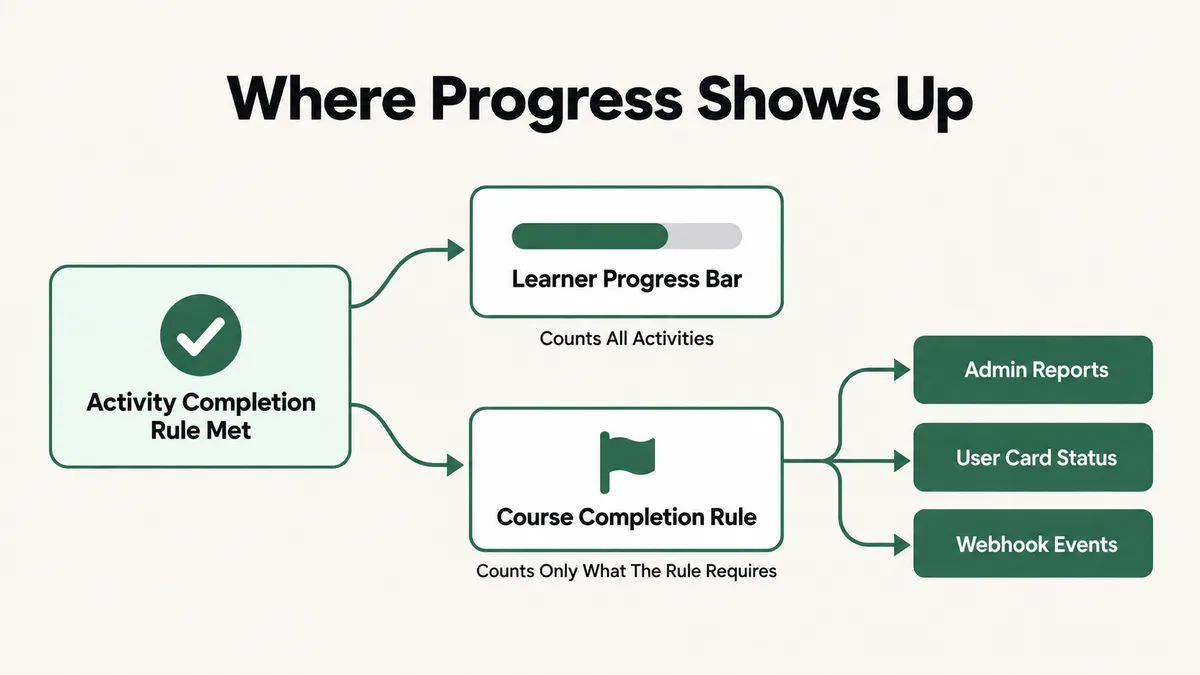
Most people picture course progress as one number. In LearnWorlds it is three separate things that happen to sit next to each other on screen, and troubleshooting gets much easier once you stop treating them as one.
- Activity completion: every learning activity has a completion rule. A video, an ebook, an exam and a certificate each have their own default, such as “When visited”, “Successfully passed” or “When claimed”. Until that rule is met, the activity stays incomplete, no matter how long the learner spent on it.
- The learner’s progress bar: LearnWorlds describes it as the percentage of learning units considered completed. It counts every activity in the course, including optional ones.
- Course completion: a separate course completion rule decides when the course itself counts as finished. That event is what shows up in admin reports and what fires the “Course is completed” webhook and Zapier event.
So “progress not updating” really means one of three different failures. The activity never met its rule. The activity met its rule but the bar is counting something else. Or the course completion rule is looking for something the course does not contain. Each has a different fix, and changing the wrong setting only adds a second problem to the first.
Cause 1: Is the Activity Using a Completion Rule You Did Not Expect?
Start here, because it explains a surprising share of tickets. The completion rules live in Courses, then Course manager, then your course, then Course settings, then User progress. That screen lists each activity type in use with four columns: the type, its default rule, any custom rule you set, and the actions available. Some types show “Non-customizable”, which means you are stuck with the default.
Ebooks are a good example of how a rule changes the learner’s experience. The default is “When visited”, so opening the ebook completes it. Switch to “Percentage of the auto-calculated reading time” and LearnWorlds estimates reading time at 180 words per minute, then waits for the learner to spend that share of it on the page. A 3,600 word ebook is a 20 minute read, so a 50 percent rule needs 10 real minutes before the activity ticks over. The “Stays at least X seconds” option works the same way with a fixed timer.
There is a second layer. A rule set at the activity type level applies to every activity of that type in the course. To give one specific ebook or video a different rule, you open that activity from the Course outline, go to its Settings, and set a custom completion rule there. The “Custom” option at the type level then defers to each activity’s own setting. LearnWorlds notes the default custom rule for an ebook completes it five seconds after it loads unless you change it.
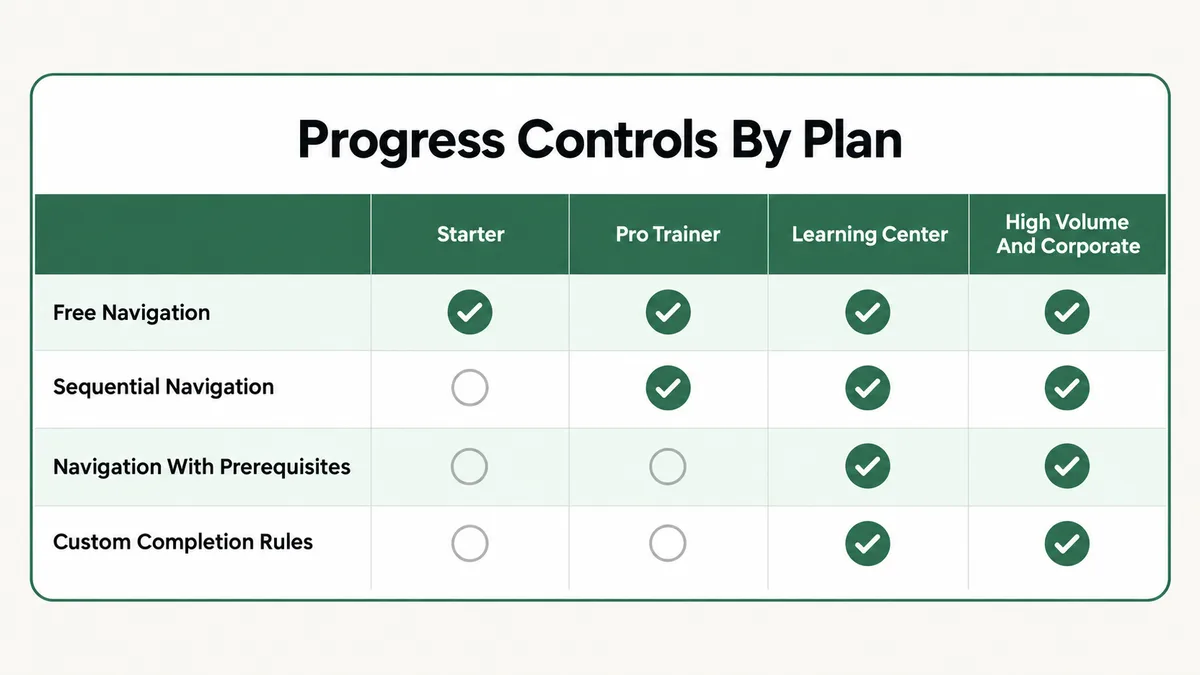
Plan matters too. According to LearnWorlds’ article on customizing learning activity completion rules, custom rules are available on Learning Center plans and higher. Starter and Pro Trainer schools only get the defaults. If someone set custom rules during a trial or on a higher plan and the school later moved down, check what is actually in force today.
Fix: Open Course settings, then User progress, and write down the rule for every activity type the stuck learner has touched. Then open the specific activity in the Course outline and check its own Settings for a custom rule. Compare that rule with what the learner actually did. If the rule asks for more than your course needs, relax it. If it is correct, the learner simply has not met it yet, and the fix is a clearer instruction in the activity description rather than a settings change.
Cause 2: Why Is My Custom Video Completion Rule Being Ignored?
You set videos to complete at a watch percentage, you test it, and the video completes the moment it opens. Or it never completes at all. The detail that explains both is one line in LearnWorlds’ own documentation: custom completion rules for videos only apply if the LearnWorlds interactive video player is selected on your Player Appearance page.
That setting sits at school level, not course level, so it is easy to change for a design reason months later and forget it controls progress tracking too. If the school is no longer on the interactive player, your percentage rules are silently out of the picture.
When the rule does apply, pick the threshold with care. LearnWorlds recommends setting a video’s percentage close to the end, around 90 to 95 percent, rather than 100. In practice that is a sensible call: plenty of learners stop a video during the closing slide or the outro, and a 100 percent rule turns those people into support tickets. Remember too that the video learning activity can play files from your LearnWorlds library, Vimeo or Wistia, but a school uses one video storage provider at a time.
Fix: Go to Settings, then Video, and confirm the school is using the LearnWorlds interactive video player on the Player Appearance page. Then set video completion to a percentage in the 90 to 95 range. Test with a fresh test user, watching to just past that point, and confirm the activity ticks over before the video ends.
Cause 3: Did the Learner Watch the Video Outside the Course Player?
LearnWorlds can only record what happens inside its own course player. That sounds obvious until you meet the YouTube learning activity. It works by pasting YouTube’s embed code into the activity, and the embedded player still shows a YouTube link. LearnWorlds states that if a learner clicks through and watches on YouTube itself, their progress in that activity is not tracked, because they are watching outside the course player.
Learners do this constantly and for good reasons. They want a bigger window, they want to cast to a TV, or they want to watch at a speed the embed does not offer. From their side, they watched the whole video. From LearnWorlds’ side, they opened the activity and left.
Be careful with other external content too. H5P activities, for example, go into a course through the Embed activity type, pasted from your own H5P hosting account. The embed can be interactive and polished, but it is still someone else’s content inside a LearnWorlds frame. Before you make an embed a required step under sequential navigation, test with a real test user that finishing it actually registers.
Fix: For any video that gates progress, upload it to LearnWorlds or your connected Vimeo or Wistia account and use the Video (Interactive) activity instead of a YouTube embed. If a YouTube activity has to stay, add one line to its description asking learners to watch inside the course, and mark affected learners complete manually with Update progress rather than asking them to watch again.
Cause 4: Is the Learner Watching Offline in the Mobile App?
If your school has a branded mobile app, check this before anything else for learners who say “I watched it all on my phone”. LearnWorlds lets you enable offline video under the Mobile App tab, then App settings, then Learner Tools, and learners can download whole courses to watch on a train or a flight.
The catch is written plainly in LearnWorlds’ offline video documentation: there is currently no way to sync course progress when offline. If a learner watches part or all of a video offline, that viewing does not sync to the unit or to overall course progress. Interactive video elements, captions and subtitles are not supported offline either, so any completion logic tied to an interaction inside the video has nothing to work with.
This is the cruelest version of the problem, because the learner did everything right with a feature you switched on for them. Handle it kindly.
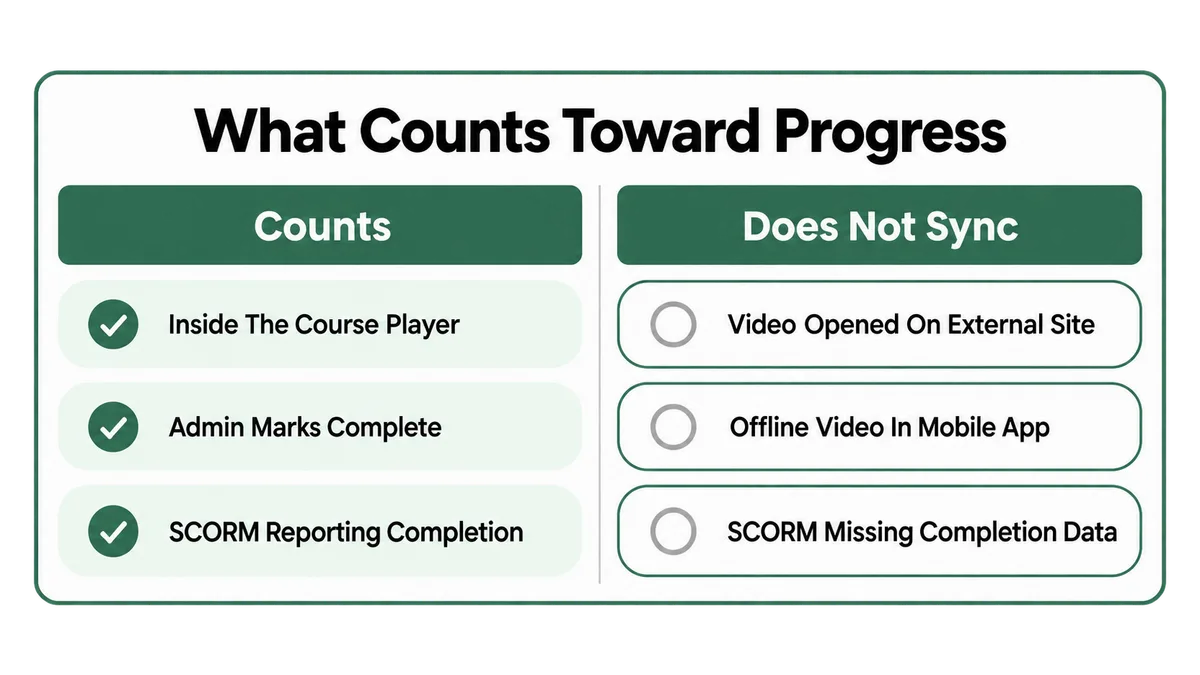
Fix: Tell app users, in the course welcome and near the download button, that offline viewing does not count toward progress and that they should replay the final part of each video online to record it. For learners already affected, open All users, select the user, click Update progress, and mark the relevant activities complete.
Cause 5: Does the Course Completion Rule Match What the Course Contains?
This is the cause behind “my learners see 100 percent but my reports say nobody finished”. The course completion rule lives in the Course Player settings, and one of its options is that the course is completed when the user passes all exams and certificates. LearnWorlds warns about exactly what happens when a course has no exams or certificates and that option is still selected: the course is never marked completed in the User Card or User Progress reports.
The learner’s progress bar still reaches 100 percent, because the bar counts activities, not the rule. Admins and reporting managers see an unfinished course. Anything downstream that listens for course completion, such as a Zapier flow that issues a badge or a webhook that updates your CRM, never fires.
The reverse also happens. If the rule is met, for example the learner passes every exam or claims the certificate, the course is marked completed and the webhook fires. But the learner’s bar can still show incomplete if there are other activities they skipped, because the bar reflects the share of all learning tasks, not only the ones the rule required. Both people are looking at accurate numbers. They are just looking at different numbers.
Fix: Open Course settings, then Course Player, and read the course completion rule. If the course has no exams or certificates, switch it to “Course is completed when the learner completes all learning activities”, which is LearnWorlds’ own recommendation for that case. If the course does have exams and you want exam based completion, keep the rule but make optional material clearly optional, or move it to a separate resource course so it does not drag the bar down.
Cause 6: Did You Add New Activities After Learners Finished?
Updating a course is good practice. It also quietly rewrites the progress of everyone who finished the old version. LearnWorlds documents both halves of what happens when you add a learning activity to a course that users have already completed.
In admin analytics, the course still appears as completed, and the new activity shows as not completed. On the learner’s side, the course now appears incomplete, and the new activity pulls their progress below 100 percent. A graduate logs in to download their certificate again and finds they are “not finished”.
This also explains a pattern I see in older schools: a course that looked perfect at launch, with completion numbers that slowly worsen after each round of content updates, even though nobody changed a single rule. LearnWorlds says the learner has to complete the new activity, or an admin has to update their progress manually, and it notes the manual route for this case on the Learning Center plan and above.
Fix: Before adding content to a course with graduates, decide whether they should do it. If yes, email them about the new lesson so the drop in progress makes sense. If no, select those users in All users, click Update progress, and mark the new activity complete for them in bulk. Adding bonus material to a separate course avoids the question entirely.
Cause 7: Is a SCORM Package Failing to Report Completion?
SCORM moves the decision about “done” out of LearnWorlds and into the package. When you upload a SCORM file, two options appear: “Use SCORM completion rules” and student time on activity. With the first switched on, LearnWorlds tracks completion based on the rules inside your SCORM file, which means the package has to include those rules and actually send a completion status. If the authoring tool exported it without a completion trigger, nothing arrives and the activity stays open.
A few other SCORM facts from LearnWorlds’ SCORM upload guide cause real confusion:
- HTML5 packages get neither option. Completion rules and time tracking are available for SCORM, not for HTML5 files.
- Replacing a non graded package resets progress. The new file is treated as a new file, so learners’ progress in it starts again.
- Graded packages reset on revisit. If you update a graded SCORM and choose Keep Scores, existing Gradebook scores stay, but a learner who opens the activity again has their SCORM progress reset to 0 and their Gradebook grade updated to 0. Overall course progress, the unit completion, is not affected.
- No sub module tracking. LearnWorlds tracks the package’s overall completion, not individual pieces inside it.
- Supported formats are specific. SCORM 1.2, SCORM 2004 3rd and 4th Edition, and Captivate CAM 1.3, with a manifest file inside the zip and a 400MB limit per file.
I wrote a longer breakdown of how packages report completion to an LMS in my guide to SCORM not tracking completion. The platform is different, but the export settings that cause the failure are the same ones.
Fix: Re-export the package from your authoring tool with a clear completion trigger, such as slides viewed or quiz passed, and confirm it is SCORM rather than HTML5. Test it on a single test user before replacing the live file, because replacing it resets progress. If learners are already stuck, mark the activity complete for them with Update progress.
Cause 8: Is Sequential Navigation Locking the Next Activity?
Sometimes progress has updated and the learner still reports it as stuck, because what they actually see is a lock. LearnWorlds offers three course navigation modes. Free Navigation lets learners open any activity in any order and is on all plans. Sequential Navigation, from Pro Trainer up, makes each activity count as completed before the next one opens. Navigation with Prerequisites, from Learning Center up, locks only the activities that follow ones you mark as prerequisites.
Under sequential navigation, the completion rule becomes a gate. A learner who stopped a video at 88 percent against a 90 percent rule cannot open the next lesson. They see a message telling them to finish the current activity, which to them reads as a bug.
One detail from the manual progress tools matters here. You can mark a locked activity as complete, but the learner still cannot open it until it unlocks under your drip feed, sequential navigation or prerequisite rules. Marking the wrong activity complete therefore changes the numbers without freeing the learner.
Fix: Find the activity just before the lock, not the locked one, and check its completion rule against what the learner did. Mark that earlier activity complete if the learner genuinely finished it. If the same activity locks people out repeatedly, switch the course to Navigation with Prerequisites and make only the activities that truly matter into prerequisites.
Cause 9: Has Drip Feed or a Subscription Change Reset Access?
Drip feed releases course sections by date or by days after enrollment, and it interacts with progress in two ways that are easy to miss.
First, only sections set as Free or Paid open through drip feed. Sections left as Draft or Coming Soon do not open automatically, and no drip email goes out for them. A learner who has finished every available section sits below 100 percent waiting for content that will never open on its own. Under Drip by Date, a section with no date set is available straight away, so an unset date opens content you meant to hold back.
Second, subscriptions. LearnWorlds notes that drip progress does not update automatically when a user changes subscription plans. By default the user is unenrolled and re-enrolled in the same course, which restarts their drip schedule. The learner upgrades, and their unlocked sections disappear. It looks like lost progress, and from the learner’s side it effectively is.
Course status is worth a glance while you are here. If a course moves to Draft, learners lose access even though it stays visible on their user card. Access comes back once you restore the original status. Drip behaves the same way on other platforms, and it is one of the first things I look at when a student cannot access a course they paid for.
Fix: In the Course outline, open Drip Feed and check every section’s status and date. For a learner whose schedule restarted after a plan change, use Drip by Days’ Users button next to the section, click the pencil icon, and move them to the correct drip day. That early release is not available when the learner came in through a Learning Program that uses its own Drip by Days rules.
Cause 10: Are You Testing Progress From an Admin Account?
A lot of “progress is broken” reports start with the course owner testing their own course. Admin accounts are a poor stand in for a learner. The clearest example is certificates: LearnWorlds states that admins cannot be issued a certificate even when enrolled, and anything generated from an admin submission is a dummy certificate for preview only. Test completion as an admin and the last step behaves differently from what your learners get.
“Login as a User” is better, but it has sharp edges. Anything you do while logged in as a learner is permanent, including time spent. If an activity completes “When visited”, simply opening it to look around marks it complete on the learner’s real record. LearnWorlds also recommends keeping only one tab open while impersonating, so activity from other tabs does not carry over.
Fix: Create a dedicated test user account and enroll it in the course. Run every completion test from that account, in a private window, and reset its progress between tests with Update progress, then Reset progress. Use Login as a User only to look at a real learner’s screen, and avoid opening activities you do not want marked complete.
LearnWorlds Course Progress Not Updating? What Should You Check First?
When a learner reports a problem, work through this order. It moves from the cheapest checks to the ones that involve changing settings, and most cases end by step four.
- Read the learner’s actual record. Go to Users, then All users, select the learner, and open their products. You can see completed sections, time spent per activity, and whether anything was completed manually. Also look for a red unenrolled or expired tag, which explains missing access before any progress question.
- Identify which number is wrong. Is it the learner’s bar, a single activity, or the admin report? Each points at a different cause above.
- Ask where they studied. Browser, app online, app offline, or a video opened on YouTube. Causes 3 and 4 are settled by that one question.
- Check the completion rule for the stuck activity. Type level rule, then that activity’s own Settings, then the video player setting for videos.
- Check the course completion rule. Especially if the course has no exams or certificates.
- Check recent course edits. New activities, a replaced SCORM file, a changed status, or a new drip date.
- Reproduce it with a test user. Not an admin, and not your own account.
- Correct the record. Use Update progress to mark complete or reset, fix the setting that caused it, then check the learner’s card again.
For the correction itself, LearnWorlds gives you several routes. One user at a time from their card, several users at once by multi selecting in All users and clicking Update progress, the “Mark the product(s) as completed” option inside the Enroll Users and Import and Enroll Users bulk actions, and the API. The full behaviour is in LearnWorlds’ guide to managing user progress. Two notes worth knowing before you use it: marking forms, exams and certificates complete grades them at 100 percent unless the learner already completed them, and Zapier and webhook events fire as normal. Managing progress is also not available for Legacy learning activities, apart from Legacy ebooks.
Why Does LearnWorlds Progress Drift Out of Sync?
The short version is that LearnWorlds gives you a lot of control, and every control is a rule someone has to keep consistent with the course as it changes. Completion rules by activity type, custom rules per activity, a course completion rule, three navigation modes, drip feed by date or days, subscription enrollment, SCORM rules inside the package, and a mobile app with offline mode. Each is reasonable alone. Together they create many ways for one part to fall out of step with another.
Courses also change more than their settings do. A creator launches with free navigation and simple videos, adds a quiz a year later, switches to sequential navigation after a complaint about people skipping ahead, then adds a certificate, then an app. Nobody goes back and asks whether the course completion rule chosen at launch still matches. The pattern I see most often is not one broken setting. It is a rule chosen at launch and a course that has grown well past it.
Then there is the gap between what LearnWorlds can observe and what learners do. It sees activity inside its own player. It cannot see a YouTube tab, an offline phone, or a SCORM package that never reports back. As learners use more devices, that gap produces more reports, even when every setting is technically right.
None of this is special to LearnWorlds. LearnDash lessons that will not mark complete and Thinkific certificates that never issue fail for the same underlying reason: the rule for “done” and the learner’s idea of “done” have drifted apart.
How Do You Keep LearnWorlds Progress Accurate Going Forward?
Write your completion logic down in one place. A short note per course that says which activities are required, what rule each uses, what the course completion rule is, and which navigation mode is on. It takes ten minutes and turns every future support ticket into a comparison rather than an investigation.
Treat course edits as a release. Before adding activities, replacing a SCORM package or changing a status, check the list: who has already finished, will this reset anyone, does the completion rule still fit, and does a drip section need a date. Then test the change with your test user before learners see it.
Keep required and optional material apart. The progress bar counts everything, so bonus videos, downloadable extras and community prompts inside a core course make completion look worse than it is. A separate resources course keeps the main bar honest.
Prefer tracked formats for anything that gates progress. Native videos on the interactive player over YouTube embeds, SCORM with a real completion trigger over HTML5, and a clear note for app users about offline viewing.
Finally, check reports monthly instead of waiting for complaints. Report Center, then User progress, shows where learners stall. A sudden cluster of people stuck on one activity is almost always a rule problem, not a motivation problem, and you can fix it before anyone emails you.
Frequently Asked Questions
Why does my LearnWorlds progress bar show incomplete when the course is completed?
Because they measure different things. The course is marked completed when its course completion rule is met, for example passing all exams. The progress bar shows the share of all learning activities completed, including ones the rule did not require. A learner who passed the exams but skipped optional lessons has a completed course and a bar below 100 percent.
How do I manually mark a LearnWorlds course as complete for a learner?
Go to All users, select the learner, click Update progress, choose the activity, the course or the learning program, and click Mark Complete. You can choose whether to send the completion email. For several learners, multi select them in the users list first. The record then shows a “Manually” label under User Progress and in the Events log.
Does watching LearnWorlds videos offline in the app count toward progress?
No. LearnWorlds states there is currently no way to sync course progress when offline, so video watched offline in the mobile app does not update the unit or overall course progress. Ask app users to finish each video online, or mark the activities complete for them manually.
Why did a learner’s progress drop after I updated my course?
Adding a new activity to a course someone already completed lowers their progress below 100 percent on their side, while admin analytics still shows the course as completed. Replacing a non graded SCORM package also resets progress in that package. Mark the new activity complete for past graduates if they should not have to do it.
Can I set custom completion rules on the LearnWorlds Starter plan?
No. Per LearnWorlds’ help center, custom learning activity completion rules are available on Learning Center plans and higher. Starter and Pro Trainer plans use the default rules only. Sequential navigation needs Pro Trainer or higher, and navigation with prerequisites needs Learning Center or higher.
Why can’t I get a certificate when I test my own LearnWorlds course?
Admins cannot be issued a certificate, even when enrolled. Any certificate produced from an admin submission is a dummy for testing and preview. Create a separate test user account, enroll it, and complete the course from that account to see what learners actually receive.
In my experience, LearnWorlds course progress not updating is rarely a fault in the platform. It is an activity rule stricter than anyone remembers, a video watched where LearnWorlds cannot see it, a course completion rule looking for an exam that does not exist, or a course that grew after its rules were set. Find which of the three numbers is wrong, trace it back to the rule behind it, fix that rule, and correct the learners already affected with Update progress.
If you are weighing whether LearnWorlds is still the right home for your courses, my roundup of course platform alternatives compares it with the other main options.
Learner progress still out of sync?
Tell me which number looks wrong, what the learner’s record shows, and how the course is set up. I will tell you which rule is causing it and what to change.