
You launched a Squarespace site weeks ago, you have typed your own business name into Google a dozen times since, and nothing comes up. Not your homepage, not your contact page, nothing. Squarespace website not showing up on Google is one of the most unsettling problems a site owner can hit, because the site itself looks completely fine. It loads. It looks professional. It just does not exist anywhere Google will show a stranger.
That gap almost never means your site is actually broken. It usually means one specific, identifiable setting is quietly telling Google not to look, or that your site was never properly introduced to Google in the first place. Squarespace, like any hosted platform, has to be explicitly indexed before it can rank, and a surprising number of real, documented settings can block that step without ever showing an error anywhere in your dashboard.
I build and maintain client websites across several platforms, and a site with zero search visibility is one of the most urgent problems a business owner can have, because every dollar spent on the site itself is wasted until this is fixed. Below are nine real causes, cross-checked against Squarespace’s own support documentation and its live community forum as of October 2026, in the order I actually check them.
Quick Answer
A Squarespace site usually fails to show up on Google for one of three reasons: the site is still on a trial or was never actually published, a site-wide or page password is blocking crawlers from seeing anything behind it, or a leftover noindex tag from code injection is explicitly telling Google to skip it. Start by searching site:yourdomain.com in Google. If nothing at all comes back, the problem is almost always one of those three, not a ranking or content issue.
📋 What’s Covered
02Cause 1: Your Site Is Still a Trial, or Was Never Actually Published
03Cause 2: A Site-Wide or Homepage Password Is Still Turned On
04Cause 3: A Leftover Noindex Tag Is Blocking the Whole Site
05Cause 4: The Site Was Never Verified With Google Search Console
06Cause 5: One Specific Page Is Disabled or Hidden From Search
07Cause 6: The Content Is Gated Behind a Paywall
08Cause 7: Old URLs Changed During a Redesign With No Redirects Set
09Cause 8: The Custom Domain Isn’t Fully Connected
10Cause 9: The Domain Is Genuinely New, and This Is a Timing Problem
11Squarespace Website Not Showing Up on Google: What Order Should You Check Things In?
12Why Does This Happen So Easily on Squarespace?
13How Do You Stop This From Happening Again?
14Frequently Asked Questions
What Actually Has to Happen Before Google Shows Your Squarespace Site?
A website does not show up on Google just because it exists. It has to clear four separate gates first, and any one of them can quietly fail without ever producing an error message you would notice.
- The site has to be published and public. A trial site, an expired subscription, or a password-protected page all fail this gate silently.
- Nothing can be actively blocking it. A noindex tag left over from code injection does exactly what it says, with no warning in your dashboard.
- Google has to actually find it. Submitting a sitemap through Search Console is what starts this process on purpose, instead of waiting on luck.
- The page has to be eligible to index. A page-level hide setting or a pricing-plan paywall removes a specific page from consideration even when the rest of the site is fine.
That is the real reason the exact same complaint, “my site doesn’t show up on Google,” shows up for completely different reasons across Squarespace’s own support documentation and its community forum. The nine causes below move through that chain roughly in order, starting with the one that catches new site owners more than any other: a site that was never actually live in the first place.
Cause 1: Your Site Is Still a Trial, or Was Never Actually Published
This is the single most common reason a brand-new Squarespace site is invisible, and Squarespace’s own documentation states it plainly: search engines will not find trial, expired, or canceled sites. A site built on a free trial can look completely finished to you and anyone you send a preview link to, because you are viewing it as the logged-in owner. To an outside crawler, it is not public at all.
The same thing happens with a site that was built, styled, and left sitting in Draft, because the owner assumed saving the pages was the same thing as going live. Squarespace treats publishing as its own deliberate step, separate from building, and a site that skips that step never becomes crawlable, no matter how much content is on it.
Fix: Open a private or incognito browser window and load your domain directly, logged out of your Squarespace account entirely. If you see a trial banner, a payment prompt, or a built-in Squarespace placeholder page instead of your real site, go to Billing in your dashboard and confirm you have an active paid subscription, then confirm the site status shows Published rather than Draft or Not Published.
Cause 2: A Site-Wide or Homepage Password Is Still Turned On
A password screen is one of the most common things a site owner forgets to remove. It is a genuinely useful feature while a site is being built, a client is previewing it, or a launch date has not arrived yet. The problem is that a site-wide password, or even just a password on the homepage, blocks a crawler exactly the same way it blocks a human visitor. Google cannot see past a login screen, so as far as indexing is concerned, a password-protected site does not have any content at all.
This cause is easy to miss specifically because the owner never sees the password screen themselves. Once you are logged into Squarespace as the site owner, you browse your own site without ever hitting the lock screen a stranger would see.
Fix: Check your site in a private browser window, the same way as Cause 1. If a password prompt appears anywhere, including just on the homepage, go to Website Tools, then Password, and remove it site-wide. For an individual page that still needs a password for a legitimate reason, such as a client-only resource page, open that page’s settings and confirm the password only sits on that one page, not the whole site.
Cause 3: A Leftover Noindex Tag Is Blocking the Whole Site
Squarespace supports code injection, a real and often useful feature that lets you add custom scripts or meta tags to your site’s header. It is also the single most direct way to accidentally tell Google to ignore your entire site, because a noindex meta tag does exactly what its name says: it is a direct, explicit instruction, not a suggestion. Squarespace’s own documentation confirms this is a real, documented cause, and specifically calls out checking both site-wide code injection and the homepage’s own individual code injection settings, since a noindex tag can be added in either place.
This usually happens for one of two reasons: a developer or a previous agency added a noindex tag deliberately while the site was still in development, meaning to remove it before launch, and never did. Or a tracking script or SEO snippet copied from a tutorial or forum included a noindex tag the person pasting it never noticed.
Fix: View your live site’s page source in a browser and search for the word “noindex” in the <head> section. If you find it, go to Website Tools, then Code Injection, and check both the site-wide Header field and the Advanced section of your homepage’s own page settings. Remove any noindex tag you did not add on purpose, and if you are not sure who added it or why, treat finding one as reason enough to remove it rather than leaving it in place.
Cause 4: The Site Was Never Verified With Google Search Console
A public, unlocked, fully indexable site can still take a long time to appear on Google simply because nobody ever told Google it exists. Google does eventually discover public websites on its own, but that process can be slow and unpredictable, especially for a new domain with no existing links pointing to it. Verifying your site with Google Search Console and submitting a sitemap is the deliberate, direct version of that same introduction, and it is a real, separate step that Squarespace does not do for you automatically.
A real pattern shows up repeatedly in Squarespace’s own community forum: a site owner waits weeks or months for organic discovery, assumes something is broken, and the actual fix turns out to be a five-minute Search Console setup they simply never did.
Fix: Follow Squarespace’s own guide to verifying your site with Google Search Console, then submit your sitemap, which for a Squarespace site is almost always located at yourdomain.com/sitemap.xml. Once verified, use the URL Inspection tool to check individual important pages, such as your homepage and your main service or product pages, and request indexing directly for any that still show as not indexed after a few days.
Cause 5: One Specific Page Is Disabled or Hidden From Search
Sometimes the site itself shows up fine, but one specific page that matters, often the exact one a client complains about, does not. Squarespace gives you several legitimate, page-level ways to keep something out of search results on purpose: a page can be disabled entirely, a page’s own SEO settings include a direct “Hide this page from search results” checkbox, and a page can carry its own individual password separate from any site-wide one.
The most common real-world version of this is a page that someone disabled temporarily months ago, during a redesign or while content was being rewritten, and then simply forgot to re-enable once the work was finished. Nothing about a disabled page looks broken in the page editor itself, which is exactly why it gets missed.
Fix: Open that specific page’s settings. In the General tab, confirm Enable is checked. Still in the General tab, confirm there is no page password. In the SEO tab, confirm “Hide this page from search results” is unchecked. If your plan supports Advanced code, also check that page’s own Advanced settings for a page-specific noindex tag, separate from the site-wide one covered in Cause 3.
Cause 6: The Content Is Gated Behind a Paywall
Squarespace’s Member Areas feature lets you gate content such as a blog, a video library, or a course behind a specific pricing plan. That gating is a deliberate business decision in most cases, but it has a direct, documented side effect: Squarespace’s own support documentation confirms pages and member sites sitting behind a paywall are not indexed by search engines, by design, regardless of how well written or keyword-rich the content behind it is.
This becomes a real problem specifically when a business wants that gated content to also do double duty as SEO content, pulling in search traffic that eventually converts into paying members. Those two goals genuinely conflict with each other on a page that is fully locked, because a page Google cannot see cannot rank for anything, no matter how relevant it is.
Fix: If a specific gated page is meant to attract new search traffic, remove it from the pricing plan that locks it, which Squarespace’s own documentation confirms makes the page indexable again. For content that genuinely needs to stay behind a paywall, write a separate, free, public-facing page summarizing the topic and linking to the paid area, so the free page can carry the SEO weight the locked one never will.
Cause 7: Old URLs Changed During a Redesign With No Redirects Set
A site that used to show up fine and then partly disappeared after a redesign is usually not a new indexing problem at all. It is an old, already-indexed URL that no longer exists, with nothing telling Google where the content moved to. Changing a page’s URL slug, restructuring your navigation, or moving to a new template during a redesign can quietly break every previously indexed link to that page, even though the content itself still exists somewhere on the new site.
Google does eventually notice a page is gone and drops it from search results, but there is a real, costly gap in between: searchers clicking an old indexed link land on a broken page, and any ranking authority that old URL had built up does not automatically transfer to wherever the content lives now.
Fix: Before changing any URL slug during a redesign, set up a URL Mapping in Squarespace, under Website Tools, pointing the old URL to its new equivalent. If a redesign already happened without this step, check Google Search Console’s Page Indexing report for “Not Found” errors, cross-reference those against your old site structure if you still have a record of it, and add the missing mappings retroactively rather than leaving the old links dead.
Cause 8: The Custom Domain Isn’t Fully Connected
Every Squarespace site is built on a default, built-in address first, and a custom domain is connected on top of it afterward. When that connection is incomplete, because a DNS record was entered wrong, the domain was never fully verified, or propagation is still in progress, visitors and search engines alike can end up seeing an inconsistent site: sometimes the real content at the custom domain, sometimes a placeholder, sometimes nothing at all.
This cause is particularly confusing because the symptoms are inconsistent by nature. A site owner checking their own domain often sees it load correctly, because their own device has already picked up the correct DNS record, while a crawler or a visitor on a different network sees something else entirely, depending on how far DNS propagation has spread.
Fix: In Squarespace, go to Settings, then Domains, and confirm your custom domain shows a “Connected” status, not “Pending” or an error state. If you manage DNS outside Squarespace, verify every required record matches Squarespace’s current documentation exactly, since a single incorrect A or CNAME record is enough to break the connection. Use an independent DNS checker to confirm the records have actually propagated before assuming the fix did not work.
Cause 9: The Domain Is Genuinely New, and This Is a Timing Problem
Sometimes none of the above is actually wrong, and the honest answer is simply that not enough time has passed. A genuinely brand-new domain, with no history and no existing backlinks, realistically takes Google real time to crawl, evaluate, and begin indexing, often weeks and sometimes a few months, even when everything on the technical side is set up correctly from day one.
This is the one cause on this list that is not really a bug to fix so much as an expectation to set correctly, and it is worth ruling in or out early, because it changes how you read every other cause. A new site that is public, unlocked, noindex-free, and already submitted to Search Console, but still has zero indexed pages after only a few days, is very likely just waiting, not broken.
Fix: If every other cause on this list checks out clean, confirm the domain’s actual age and how long it has been live in its current form. For a domain under roughly one to three months old, give it real time after completing Search Console verification and sitemap submission before concluding something is broken. Use the URL Inspection tool’s “Request Indexing” option on your most important pages to speed discovery along, rather than waiting passively.
Squarespace Website Not Showing Up on Google: What Order Should You Check Things In?
Nine causes is too many to check at random while a real business sits invisible. Work through them in this order, the same order I actually use on a client site.
- Search
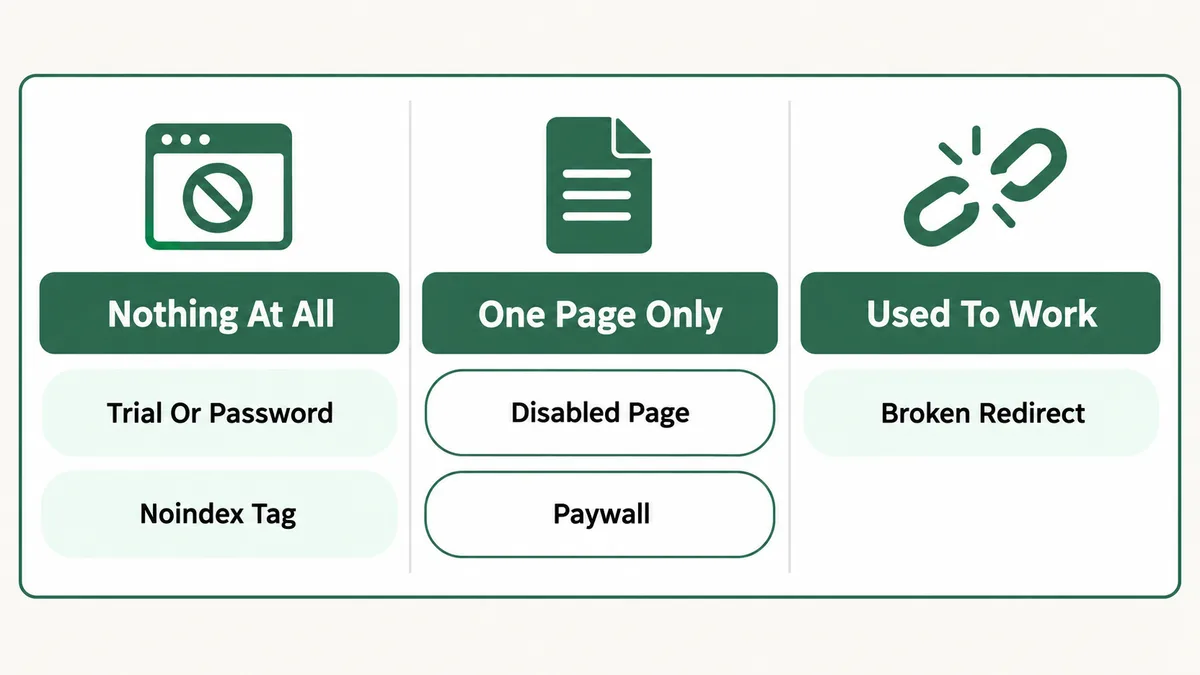
site:yourdomain.comin Google. Zero results at all points straight at Cause 1, 2, 3, or 8. Some results but not the specific page you expected points at Cause 5, 6, or 7 instead. - Load the site logged out, in a private browser window. This single check rules Cause 1 and Cause 2 in or out in under a minute.
- View page source and search for “noindex.” This covers Cause 3 directly and takes less time than almost anything else on this list.
- Check Search Console verification and sitemap status. This covers Cause 4, and if it was never set up, do it now regardless of what else you find.
- Open the specific missing page’s own settings. This covers Cause 5 and Cause 6 together, since both live in that page’s General and SEO tabs.
- Check Search Console’s Page Indexing report for Not Found errors. This covers Cause 7, especially if the site recently went through a redesign.
- Confirm your domain’s connection status. This covers Cause 8, and matters most if different people are reporting seeing different things.
- Check the domain’s real age last. This covers Cause 9, and is the right explanation only once everything above it has already checked out clean.
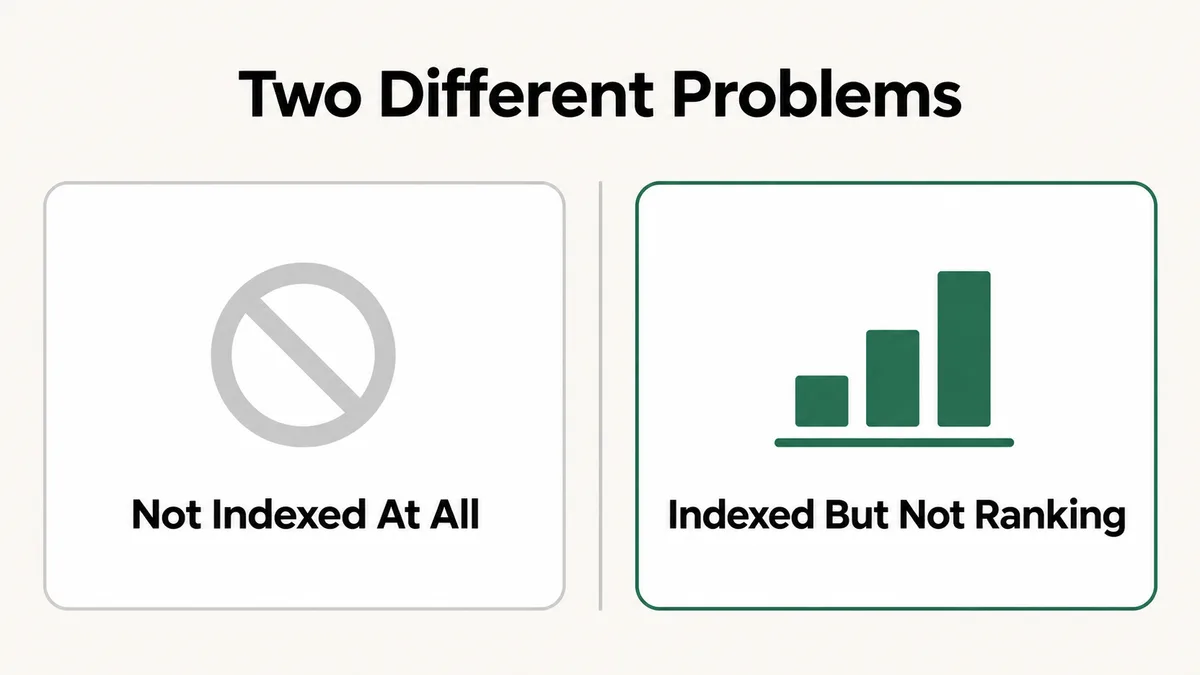
A site showing zero results anywhere usually points to Cause 1, 2, 3, or 8, since each of those blocks the entire site the same way. A site that is partly visible, with some pages indexed and one specific page missing, points much more directly at Cause 5, 6, or 7, since those are specific to that one page rather than anything account-wide.
Why Does This Happen So Easily on Squarespace?
Looking back across all nine causes, a pattern shows up: nearly every one of them is a legitimate, useful feature behaving exactly as designed, not a bug. Passwords, member paywalls, page hiding, and code injection all exist because real site owners genuinely need them at different points in a site’s life. The failure mode is almost always the same: a setting that made sense temporarily, during development, a client preview, or a gated launch, never gets revisited once its original purpose has passed.
Squarespace’s own interface does not go out of its way to warn you that a password or a disabled page is actively keeping Google out, because from the platform’s point of view, you set that configuration on purpose. The responsibility for remembering to undo a temporary setting sits entirely with whoever set it, which is exactly why a site:yourdomain.com search in a logged-out browser window is worth running on a schedule, not just when something feels wrong.
The same kind of silent, settings-level failure shows up on other website platforms too, just with different specific switches involved. I cover a related pattern, where a feature that looks identical between two systems actually behaves completely differently under the hood, in my guide to Wix forms not sending email notifications, and the broader lesson, that a silent failure rarely has one single cause, applies just as directly here.
How Do You Stop This From Happening Again?
Most of these nine causes are preventable with a short, recurring routine, rather than something you only think about after a client calls asking why they cannot find their own site.
- Run a logged-out
site:yourdomain.comsearch monthly. It takes ten seconds and catches Cause 1, 2, and 8 before anyone else notices. - Set up Search Console on day one, not after something goes wrong. A site introduced to Google immediately after launch never has to rely on passive discovery.
- Treat a URL Mapping as a mandatory step of any redesign, not an optional cleanup task. Set the redirect at the same time you change the slug, not after someone reports a broken link.
- Remove a temporary password or disabled-page setting the same day its purpose ends. Treat “turn it back on” as part of the original task, not a separate one to remember later.
- Decide paywalled content’s SEO role before gating it, not after. If a page is meant to attract search traffic, it cannot also be fully locked behind a pricing plan.
- Document any custom code injection and why it is there. A noindex tag with no record of who added it or why is far more likely to be forgotten and left in place long after it stopped being needed.
A site that has been live for a while and never gets this kind of periodic check is exactly the profile most likely to be caught by Cause 2 or Cause 3, since both can sit unnoticed for months once the person who set them moves on to other work. The same discipline, actually verifying a system is doing what you assume it is rather than trusting that it must be, is just as relevant on a different kind of automated system entirely, which I cover in my guide to a Divi builder not loading.
Frequently Asked Questions
Why does my Squarespace site not show up at all when I search for it?
Start by searching site:yourdomain.com in a logged-out browser window. If absolutely nothing comes back, the most common real causes are a trial or unpublished site, a site-wide password still turned on, or a leftover noindex tag from code injection. Those three account for the large majority of real reports on Squarespace’s own community forum.
How long should I wait before assuming my Squarespace site is actually broken?
For a genuinely new domain, give it several weeks to a few months after verifying it with Google Search Console and submitting a sitemap, since Google’s own crawling and indexing process for a brand-new domain with no history simply takes real time. If your site is older than a few months and still shows nothing, that timing explanation no longer applies, and one of the other eight causes is far more likely.
Does a page behind a Squarespace Member Area paywall ever show up on Google?
No. Squarespace’s own documentation confirms pages and member sites sitting behind a pricing-plan paywall are not indexed by search engines, by design, regardless of how the content itself is written. A page meant to attract search traffic has to be removed from that pricing plan, or a separate free page has to be built to carry the SEO weight instead.
My site used to show up on Google and then one page disappeared. What changed?
The most common real-world cause is a URL that changed during a redesign with no URL Mapping set to redirect the old address to the new one. Check Google Search Console’s Page Indexing report for Not Found errors on the pages that disappeared, and add the missing redirects rather than assuming Google will figure it out on its own.
Does Squarespace automatically submit my site to Google?
No. Publishing a Squarespace site makes it technically public, but introducing it to Google is a separate, manual step. Verifying your site with Google Search Console and submitting your sitemap, which usually lives at yourdomain.com/sitemap.xml, is what actually starts the deliberate discovery process rather than waiting on Google to find it on its own.
How do I check if my Squarespace site has a hidden noindex tag?
View the page source of your live site in a browser and search for the word “noindex” inside the <head> section. If you find one, check both your site-wide Code Injection header and the Advanced settings of the specific page’s own settings panel, since Squarespace allows a noindex tag to be added in either location separately.
A Squarespace site not showing up on Google is almost never a ranking problem in disguise. It is one specific gate, publication status, a password, a noindex tag, Search Console verification, or a paywall, quietly not open. Work through the nine causes in the order above rather than guessing, and the real cause usually shows up in the first three or four checks. If a different website platform in your stack is showing a similarly silent, settings-level failure, my guide to Wix forms not sending email notifications works through the same kind of layered troubleshooting in more depth.
Still invisible on Google?
Tell me whether it’s the whole site or just one page, and how long it has been happening. I will tell you exactly which of these nine causes it is and what to change, whether or not you need anyone to do the work.