
A client fills out your Wix contact form, you never see it, and three days later they book with someone else instead. Wix forms not sending email notifications is one of the most frustrating problems a site owner can run into, because the form itself almost always looks fine. The submission shows up in your Wix dashboard. The email that was supposed to tell you about it never arrives.
That gap between “the form worked” and “I never knew” is almost never one single bug. Wix runs two genuinely different form systems under the same name, and the notification email has to survive several separate steps after a visitor clicks submit, any one of which can quietly fail on its own.
I build and maintain client websites across several platforms, and a missed form notification is one of the costliest problems a site owner can have, because the lead looks dead when it was actually just unread. Below are nine real causes, cross-checked against Wix’s own support documentation and its live community forum as of September 2026, in the order I actually check them.
Quick Answer
Wix forms usually stop sending email notifications for one of three reasons: you are on the newer Forms App, which only notifies collaborators through an automation rather than a plain email address, the notification is landing in spam, or the recipient address in your automation is outdated and was never updated after you changed your business email. Start by opening Automations in your dashboard and checking exactly which address the “Send an email” action is pointed at, before assuming the form itself is broken.
📋 What’s Covered
02Cause 1: You’re on the New Wix Forms App, and It Only Notifies Collaborators
03Cause 2: Notification Emails Are Landing in Spam or Junk
04Cause 3: Your Automation’s Recipient Email Is Outdated
05Cause 4: The Recipient Isn’t a Collaborator With Inbox Permissions
06Cause 5: The Automation’s Trigger Conditions Don’t Match the Submission
07Cause 6: The Form Field Isn’t Actually Set to the “Email” Type
08Cause 7: The Contact Is Inactive or Unsubscribed
09Cause 8: The Automation Was Edited and Silently Reset
10Cause 9: A Custom Coded Form Was Never Wired to an Automation at All
11Wix Forms Not Sending Email Notifications: What Order Should You Check Things In?
12Why Do Wix Form Notifications Break So Easily?
13How Do You Stop Wix Form Notifications From Failing Again?
14Frequently Asked Questions
What Actually Has to Happen for a Wix Form Notification to Arrive?
A Wix form submission is not one event, it is a short chain of separate steps, and the notification email only arrives if every step completes. First, the form itself has to be built on the system that actually sends notifications the way you expect. Second, an automation has to recognize the submission as a trigger. Third, that automation’s “send an email” action has to fire and point at a real, correctly configured recipient. Fourth, the message has to clear the recipient’s spam filter once it is sent.
- The right form system has to be in use. Classic Wix Forms and the newer Wix Forms App handle notifications in genuinely different ways.
- An automation has to trigger. Filters, delays, and once-per-person settings can all silently stop a trigger from firing.
- The recipient has to be correctly configured. An outdated address or a non-collaborator with no inbox access both break this step quietly.
- The email has to survive spam filtering. Wix sends from its own domains, and an unwhitelisted inbox can swallow the message with no bounce notice.
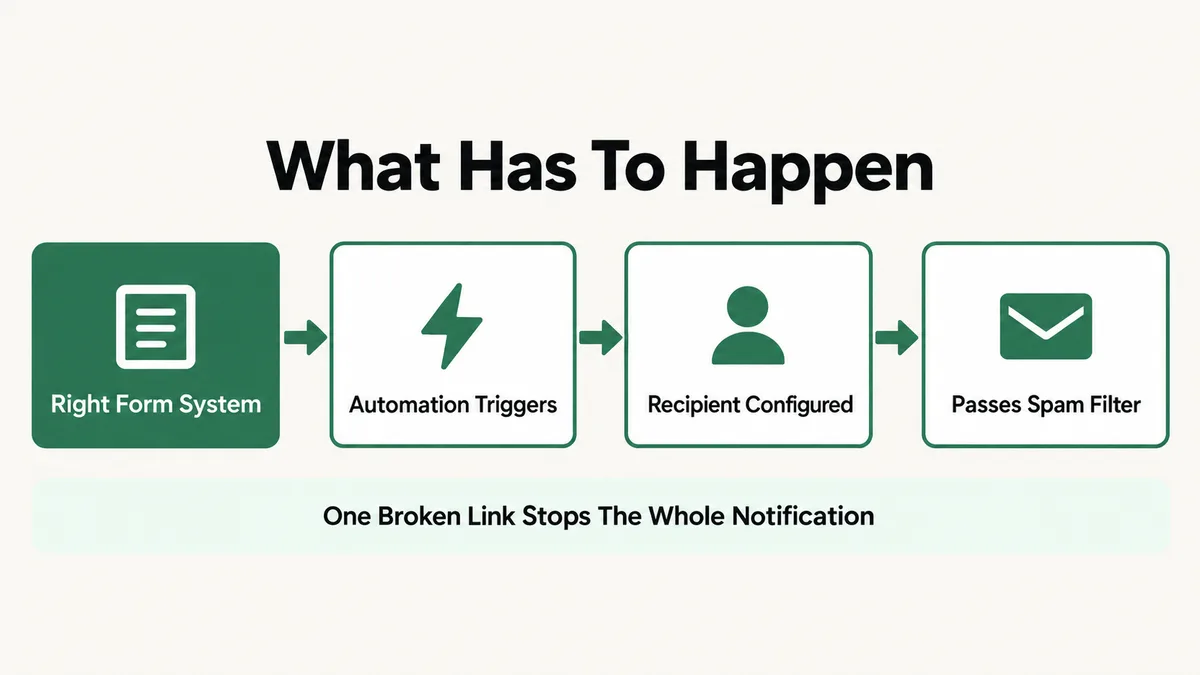
That is the real reason the exact same complaint, “my Wix form isn’t sending email,” shows up for completely different reasons on the Wix community forum. The nine causes below move through that chain roughly in order, starting with the single biggest source of confusion: which form system you are actually using.
Cause 1: You’re on the New Wix Forms App, and It Only Notifies Collaborators
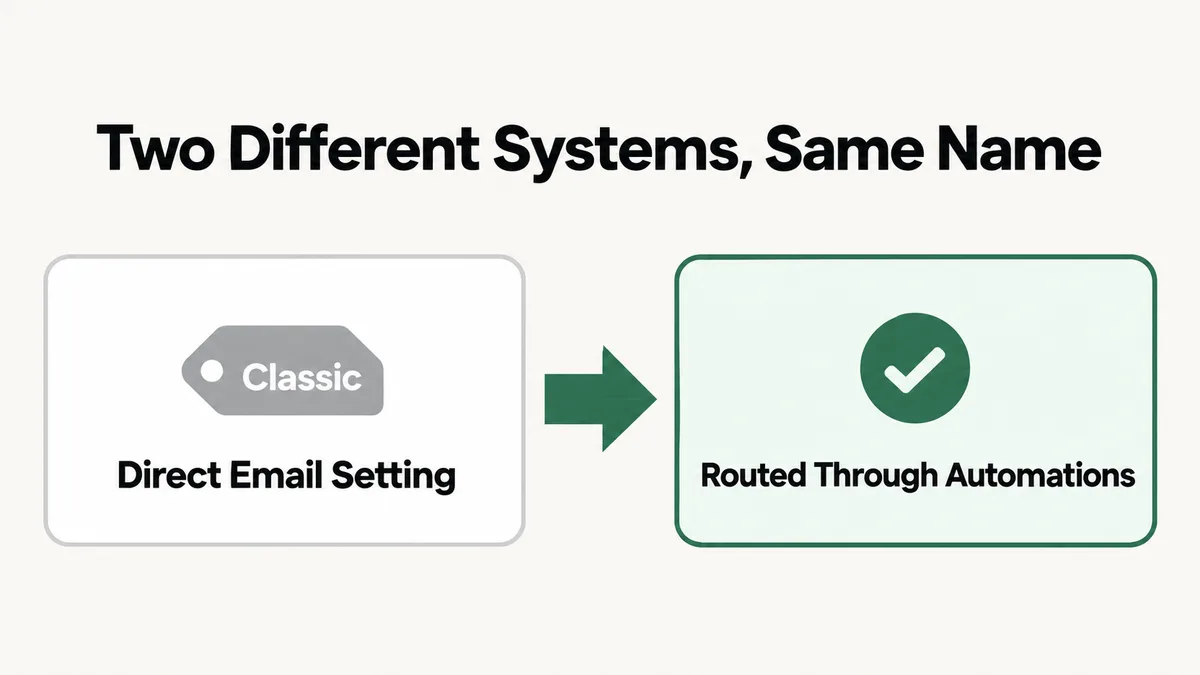
This is the cause behind most of the confusion, because the two systems look almost identical in the editor. Classic Wix Forms let you type a plain destination email address directly into the form’s own settings panel, under “Email Only” notifications. The newer Wix Forms App does not work that way at all. It routes every notification through Automations, and by default it only notifies site collaborators, not an arbitrary email address typed into a settings field.
A site owner who built a form years ago, under the classic system, and then adds a second form today under the new app, often assumes both work the same way. They do not. If you never set up a dedicated automation for the new form, there is no notification path at all, not a broken one.
Fix: Check which system the form uses by opening it in the editor and looking for an “Email Only” notification setting (classic) versus an Automations-based setup (new app). If it is the new app, go to Automations in your dashboard, find or create the “Form Submission” automation for that specific form, add a “Send an email” action, and set the recipient explicitly rather than assuming collaborators alone will cover it.
Cause 2: Notification Emails Are Landing in Spam or Junk
The form submission can succeed, the automation can fire correctly, and the email can still never reach your actual inbox view, because it landed in a spam or junk folder with no warning. Wix’s own support documentation is specific about this: notification emails come from addresses under the automations.ascendbywix.com, crm.wix.com, and wixforms.com domains, plus no-reply@test.wixshoutout.com, none of which your email provider has any reason to trust by default.
This cause is easy to miss specifically because nothing in Wix’s dashboard shows you that the send actually succeeded. From Wix’s side, the email went out exactly as configured. The failure happens entirely on the receiving end, inside Gmail, Outlook, or whatever provider hosts your business inbox.
Fix: Check your spam or junk folder first for a message from no-reply@wixsiteautomations.com or reply-to@wixforms.com. Then add the full domains *@automations.ascendbywix.com, *@crm.wix.com, and *@wixforms.com, plus the single address no-reply@test.wixshoutout.com, to your email provider’s safe sender or allow list, including the asterisk so every address under each domain is covered. Republish your site afterward, since Wix’s own documentation notes the change needs a fresh publish to take full effect.
Cause 3: Your Automation’s Recipient Email Is Outdated
Business email addresses change. You switch from a personal address to a branded one, or you move providers entirely, and you naturally update your Wix account’s own login or contact email while you are at it. What a lot of site owners do not realize is that changing your Wix account email address does nothing to the recipient address saved inside an existing form automation. Those two fields are completely unlinked.
The result is an automation that keeps firing exactly as configured, sending notifications correctly and on schedule, to an inbox nobody checks anymore. Nothing in Wix flags this as broken, because nothing is broken from the system’s point of view. The address is just wrong.
Fix: Go to Automations in your dashboard, open the “More Actions” menu on your form submission automation, choose Edit, open the “Send an email” action, click “Show additional settings,” and check the Recipients field directly. Update it to your current address, and do the same check for the Reply-To address under Sender Details, since an outdated reply-to address causes a related but separate problem: a form submitter who replies gets bounced right back to an address that no longer exists.
Cause 4: The Recipient Isn’t a Collaborator With Inbox Permissions
Wix’s documentation on form notifications is explicit about a requirement that is easy to miss entirely: site collaborators have to be specifically granted Wix Inbox permissions, under Roles & Permissions in the dashboard, before they can receive form notifications as a collaborator. Simply being added to the site as a collaborator in some other role does not automatically include that permission.
This matters most on team sites, where a business partner, a virtual assistant, or a developer has editor access to the site but was never specifically granted inbox permissions, or where a non-collaborator, such as a client who should see their own leads, was never added at all.
Fix: For a team member, open Roles & Permissions in your dashboard and confirm they have Wix Inbox permissions specifically, not just general site access. For someone who should not be a full collaborator, such as an external client, you do not need to add them as one at all: add their address to your site’s contact list first, then select them directly as a recipient inside the automation’s email action.
Cause 5: The Automation’s Trigger Conditions Don’t Match the Submission
An automation can exist, point at the right recipient, and still never fire, because the trigger itself never recognized the submission as a match. Wix’s own troubleshooting guide for Automations lists several real settings that cause exactly this. A trigger can be filtered to a specific form, so a submission from a different form on the same site never qualifies. “Trigger once per person” can be enabled, which silently blocks every repeat submission from the same contact after the first one. And an automation only runs for triggers that happen after it was activated, so testing it against a submission made before the automation existed will always look like a failure that is not actually a bug.
A configured delay adds one more wrinkle: editing an automation’s delay setting resets any actions that were already pending, which can make a notification appear to vanish on a submission that was mid-flight when the change was saved.
Fix: Open the automation and check its trigger’s statistics to see whether it has been triggered at all recently. Confirm any form filter matches the exact form in question, turn off “trigger once per person” if repeat notifications are actually needed, and test with a brand new submission made after any recent edit, not an older one, since past events do not retroactively trigger a changed or newly created automation.
Cause 6: The Form Field Isn’t Actually Set to the “Email” Type
A form can visually look exactly like it is collecting an email address, with a field labeled “Email” and placeholder text that says “Enter your email,” while the field itself is still configured as a plain text input under the hood. Wix’s automation actions that depend on a real email, including sending a reply or routing based on the submitter’s address, specifically require a field set to the “Email” field type, not text. A form built by adding individual input elements, rather than starting from a Wix Form template, is the most common way this happens, since nothing visually distinguishes the two field types to a visitor filling out the form.
The practical effect is that the submission itself can save correctly into your contact list, while any automation action that depends specifically on the email field, rather than just logging the raw text, has nothing valid to act on.
Fix: Open the form in the editor, click directly on the email input field, and check its field type setting in the properties panel. If it is set to plain text, change it to the “Email” type, which also typically adds real format validation on the front end as a side benefit. If the form was built with Velo custom code rather than native Wix Form elements, confirm the underlying data type specifically, since custom-coded fields do not inherit this setting automatically.
Cause 7: The Contact Is Inactive or Unsubscribed
This cause usually confuses people in the opposite direction from the others on this list, because it is about a notification sent to someone other than you, not the one you receive. If an automation is configured to email the form submitter back, such as an automatic confirmation, and that submitter’s contact record in your Wix CRM is marked inactive or unsubscribed, the email action does not go through, and nothing in your dashboard flags it as a failed send.
This matters most on returning-visitor forms and repeat-customer sites, where someone unsubscribed from a marketing email months ago and that status now silently blocks an unrelated, purely transactional notification tied to a new form submission.
Fix: Open the contact’s record in your Wix Contact List and check their subscription status. An inactive or unsubscribed label on a contact who should be receiving a transactional confirmation needs to be corrected directly on that contact record, since an automation cannot override a contact-level subscription status on its own. For the specific recipient of your own owner notification, make sure that address is set up as a collaborator or added contact, not left to depend on marketing subscription status at all.
Cause 8: The Automation Was Edited and Silently Reset
An automation that worked correctly for months can stop working the moment it gets edited, even for an unrelated change. Wix’s own troubleshooting documentation confirms this directly: editing an automation’s triggers or actions can reset parts of its configuration, which is exactly the kind of change that produces a real, confirmed thread on the Wix community forum describing notifications that “worked fine until September 2nd” with no obvious cause the site owner could point to.
The pattern is specific enough to recognize: a notification automation that was reliable for a long stretch suddenly stops, right around a date when someone on the team made an unrelated edit somewhere in the automation, such as adjusting a delay or adding a new condition.
Fix: If a previously working automation stops right after any edit, do not assume the edit itself was the only change. Re-check every setting in the automation from scratch, the trigger, any filters, the recipient, and the action, rather than assuming only the specific field you touched could have been affected. If the automation is important and heavily customized, consider duplicating it before making further changes, so you always have a known-working version to revert to.
Cause 9: A Custom Coded Form Was Never Wired to an Automation at All
Some Wix sites use Velo, Wix’s own custom code platform, to build a form from individual input elements rather than the Form Builder, often to get a specific layout or a custom submission flow a template cannot produce. A real thread on the Wix community forum describes exactly this situation: the site owner built a custom form by adding inputs, could not find any setting to configure email notifications, and even an automation covering “all forms on the website” did not pick it up.
The reason is structural, not a bug. Automations trigger off Wix’s own native form submission events. A form built entirely from individual elements and custom Velo code does not automatically fire that event just because it visually resembles a form, unless the code specifically calls the right API to register the submission as one.
Fix: For a new form, use the native Wix Form Builder instead of assembling individual input elements whenever automated email notifications are required, since that is the supported path Automations actually listens to. For an existing custom-coded form, add the email-sending logic directly inside its own Velo submission handler using Wix’s Triggered Emails API, rather than trying to route it through the native Automations panel, which was never built to see that form’s submissions in the first place.
Wix Forms Not Sending Email Notifications: What Order Should You Check Things In?
Nine causes is too many to check at random while a real lead sits unanswered. Work through them in this order, the same order I actually use on a client site.
- Confirm which form system you’re on. One look at the form’s settings panel rules Cause 1 in or out immediately and reframes everything else.
- Check your spam or junk folder. A thirty second check that rules out Cause 2 before you touch any settings at all.
- Open the automation and read the Recipients field directly. This covers Cause 3 and Cause 4 together, since both live in the exact same settings screen.
- Check the automation’s trigger statistics. Zero recent triggers points straight at Cause 5, a filter or a once-per-person setting blocking the submission before it ever reaches the email action.
- Check the email field’s actual type. This rules Cause 6 in or out, especially on any form that was assembled from individual elements rather than a template.
- Check the relevant contact record’s subscription status. This covers Cause 7, and matters most for a submitter-facing confirmation rather than your own owner notification.
- Note the date notifications stopped, and check for an edit around that date. This covers Cause 8, and is worth checking even when nothing else on this list points there.
- Confirm whether the form is native or custom-coded. This covers Cause 9, and changes the entire fix if it is Velo-built rather than a standard Wix Form.
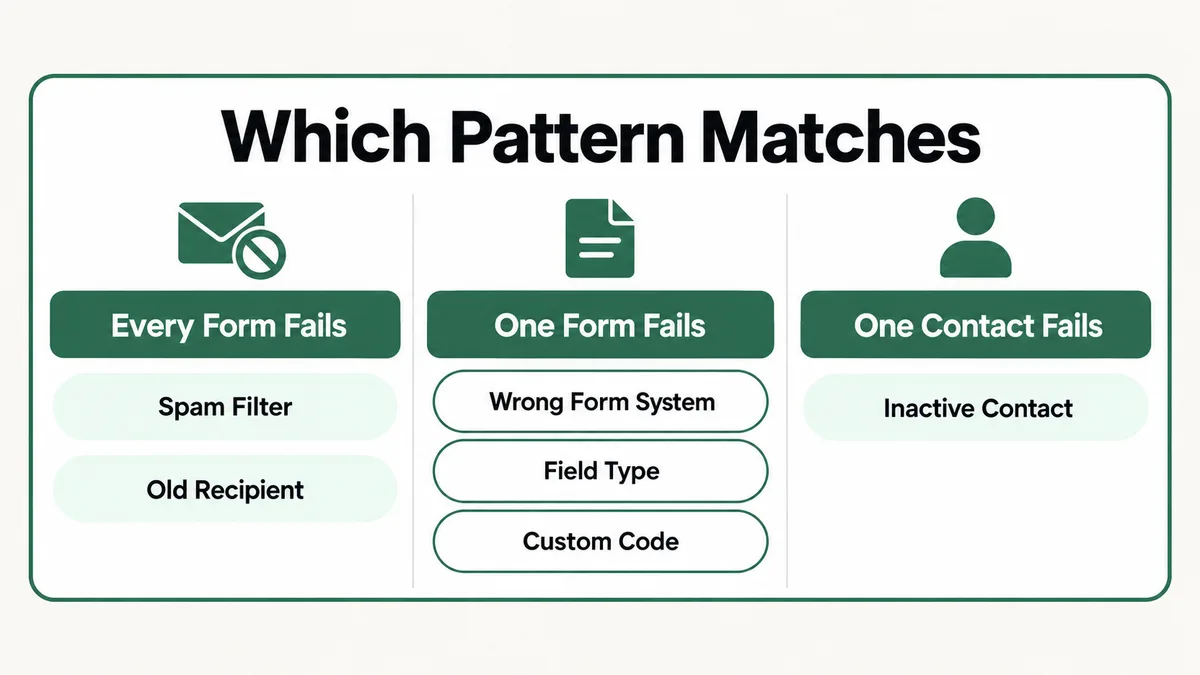
A notification that stops for every form on the site at once points toward Cause 2 or Cause 3, since both affect every automation’s output the same way. A notification that fails for one specific form only points toward Cause 1, Cause 6, or Cause 9, since those are specific to how that one form was built rather than anything account wide.
Why Do Wix Form Notifications Break So Easily?
Looking back across all nine causes, a pattern shows up: a Wix form notification is not one feature, it is several independent systems agreeing to pass a message along. The form has to be built on the system that actually supports notifications the way you expect. An automation engine has to recognize the event. A separate permissions system has to allow the recipient to receive it. And a completely external system, the recipient’s own email provider, has to decide the message is not spam.
Wix migrating from a simple “type an email address into a settings box” model to an Automations-based model is a real, deliberate product direction, not a mistake. The newer system lets you build genuinely more complex notification logic: route different forms to different people, add conditions, trigger follow up sequences, and show submissions directly inside Wix Inbox. The cost of that flexibility is that there are now more individual settings that have to be correct at once, compared to the older model where one field either had the right address in it or did not.
The same layered-failure pattern shows up on other automation platforms too, just with different specific settings involved. I cover the same underlying problem, a trigger that should fire and quietly does not, on a different platform in my guide to a Zapier zap not triggering, where the causes are things like polling intervals and deduplication rather than form field types, but the lesson that a silent automation failure rarely has one single cause holds just as true there.
How Do You Stop Wix Form Notifications From Failing Again?
Most of these nine causes are preventable with a short routine, rather than something you only think about after a lead has already gone cold.
- Submit a real test entry on every form after any edit. Not just to the automation, to the form itself, its fields, or its page. A live submission catches what a settings review alone can miss.
- Whitelist Wix’s sending domains before you ever need to, not after. Adding
*@automations.ascendbywix.com,*@crm.wix.com, and*@wixforms.comto your allow list on day one means a spam filter never gets the first chance to hide a lead. - Update automation recipients the same day you change your business email. Treat it as one task with two steps, not one, since Wix will never link the two for you.
- Check automation trigger statistics on a regular basis, not just when something feels wrong. A sudden drop to zero triggers is the earliest, clearest warning sign available, and it shows up before anyone notices a missing lead.
- Duplicate a working automation before editing it. A known-good copy means one bad edit never costs you the whole notification path while you debug it live.
- Use the native Form Builder for anything that needs automated email. Reach for Velo custom code only when you also build the notification logic directly into it, not as an afterthought.
A site that has been live for years and never revisits these settings is exactly the profile most likely to be caught by Cause 3 or Cause 8, since both develop quietly, long after the form was first built and tested. The same discipline, checking whether a trigger-based system actually fired rather than assuming it did, applies just as much to a marketing automation as it does to a simple contact form, which I cover in more depth in my guide to an ActiveCampaign automation not triggering.
Frequently Asked Questions
Why am I not getting Wix form submissions in my email at all?
Start by checking whether your form uses the newer Wix Forms App, which routes notifications through Automations rather than a plain settings field, then check your spam folder for messages from Wix’s own sending domains. Those two causes account for the majority of real reports on Wix’s own community forum.
Does changing my Wix account email fix form notifications automatically?
No. Wix’s own documentation confirms that changing your account email address does not update the recipient address saved inside an existing form automation. You have to open Automations and edit the Recipients field in the “Send an email” action manually, every time your business email changes.
Can I still get form notifications sent to a plain email address instead of Automations?
Only on classic Wix Forms, which still offer an “Email Only” setting where you type a destination address directly. The newer Wix Forms App does not support that option; it relies on an Automations email action, which gives you more flexibility but also more settings that have to be correct.
Why does my custom coded Wix form never trigger an automation?
Automations trigger off Wix’s own native form submission event, and a form built from individual Velo elements does not fire that event automatically just by resembling a form. Either rebuild it with the native Form Builder, or add the email logic directly inside the Velo submission handler using Wix’s Triggered Emails API.
My form notifications worked for months and then just stopped. What changed?
The most common real-world cause is an unrelated edit to the automation itself. Wix’s own troubleshooting documentation confirms that editing a trigger or action can reset parts of an automation’s configuration. Re-check every setting from scratch rather than assuming only the field you touched could be affected.
How do I test whether a Wix form notification is actually working?
Submit a real, live test entry on the published form, not a preview, then check both your inbox and your spam folder. Separately, open Automations and check that specific automation’s trigger statistics; a real count greater than zero confirms the trigger side is working even if the email itself never surfaces in your inbox.
Wix forms not sending email notifications is almost never one single bug. It is one specific link in a short chain, the form system, the automation trigger, the recipient setup, or spam filtering, quietly not holding. Work through the nine causes in the order above rather than guessing, and the real cause usually shows up in the first three or four checks. If a similar silent trigger failure is showing up on a different automation platform in your stack, my guide to a Zapier zap not triggering works through the same kind of layered troubleshooting in more depth.
Still missing form submissions?
Tell me which form system you’re on, whether it’s every form or just one, and how long it has been happening. I will tell you exactly which of these nine causes it is and what to change, whether or not you need anyone to do the work.