

The migration goes fine. Contacts import cleanly, the workflows rebuild in an afternoon, the funnels look better than the ones you left behind. Then you send the first broadcast and open rates fall off a cliff. Same list, same offer, same subject line that worked last month on the old platform, and now half of it is sitting in Promotions or nowhere at all. GoHighLevel email deliverability is the part of the move that nobody budgets time for, and it is the part that decides whether the rest of the migration was worth doing.
Here is the thing that catches agencies out. Deliverability does not travel with your list. It is attached to the domain you send from and the IP address that carries the message, and when you switch platforms you are usually changing both at once. To Gmail and Outlook you are not the sender who has been mailing this list for three years. You are a stranger, sending in volume, on day one. I build and repair CRM and email automation stacks for course platforms, membership sites and agencies, and the pattern below is the one I work through every time.
Quick Answer
GoHighLevel email deliverability comes down to three things done in order. Set up a dedicated sending subdomain in Settings, Email Services, Dedicated Domain and IP, so you are no longer sharing a pooled reputation with every other account on the platform. Add SPF, DKIM and DMARC for that subdomain and make sure your From address sits on the same domain you authenticated. Then send slowly for the first few weeks, starting with your most engaged contacts, because the sub account ramp up starts you at 1,000 emails a day and only raises the cap as your delivery rate holds. Skipping the third step is what turns a clean migration into a spam folder.
📋 What’s Covered
02Step 1: Are You Still Sending From the Shared Pool?
03Step 2: Should the Sending Domain Be a Subdomain or Your Root Domain?
04Step 3: Are SPF, DKIM and DMARC All Actually in Place?
05Step 4: Does Your From Address Match the Domain You Authenticated?
06Step 5: What Happens If You Send the Whole List on Day One?
07Step 6: Do You Need a Dedicated IP, or Will One Set You Back?
08Step 7: Did the List You Imported Bring Its Bounce Rate With It?
09Step 8: Are You Meeting Google and Yahoo’s Bulk Sender Rules?
10Step 9: How Do You Know Whether Any of This Is Working?
11GoHighLevel Email Deliverability: What Order Should You Do This In?
12Why Does Deliverability Collapse Right After a Migration?
13How Do You Keep Deliverability Stable Once It Recovers?
14Frequently Asked Questions
How Does GoHighLevel Actually Send Your Email?
The built in sending system is called LC Email, short for LeadConnector Email, and it does not run on servers the platform built itself. HighLevel’s own migration documentation states plainly that LeadConnector Email uses Mailgun’s infrastructure, which is why an agency moving across from a standalone Mailgun account often finds its existing SPF, DKIM, MX and CNAME records carry over untouched.
That one detail explains most of what follows. The same documentation makes a second point that matters even more: your domain’s external sending reputation, as far as receiving mail servers are concerned, is tied to your DNS records and IP addresses rather than to the account they sit behind. Reputation belongs to the domain and the IP, not the platform login. So the question is never whether GoHighLevel has a good reputation. It is whether your sending domain has one, and on a fresh subdomain the honest answer on day one is that it has none at all.
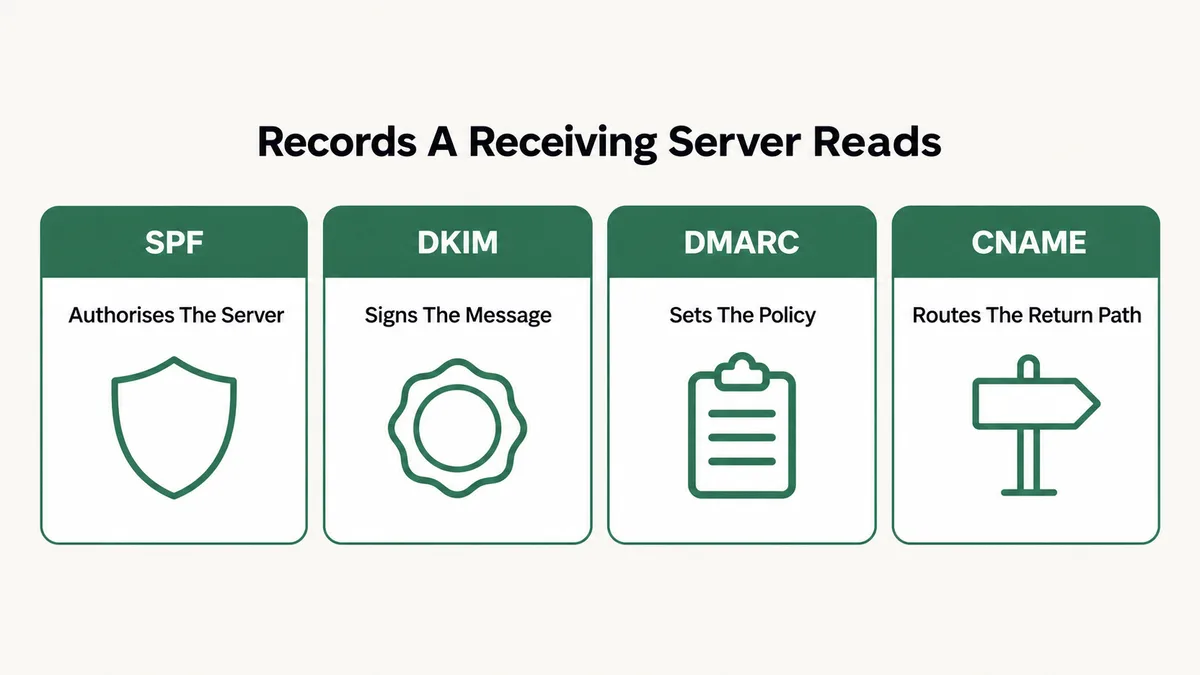
A receiving server decides where to put your message using a short list of signals. Did the sending server have permission to send for this domain. Was the message signed by a key that belongs to this domain. Does the domain publish a policy for what to do when those checks fail. Has this domain sent mail before, and did people open it or complain about it. Four DNS records carry the first three answers.
Step 1: Are You Still Sending From the Shared Pool?
Every new sub account starts out sending through a shared pool. Your mail leaves on the same domain and the same IP ranges as a large number of other accounts, which means you inherit their behaviour. When one of them blasts a purchased list and collects complaints, the whole pool absorbs the damage, and your carefully written onboarding sequence pays part of the bill.
HighLevel is direct about this in its own ramp up documentation: shared domain reputation is shared across every sub account on it, and manual overrides on a single account can pull the reputation down for everyone else. That is the argument for a dedicated sending domain in one sentence. You are not buying better infrastructure. You are buying isolation, so that your numbers are yours.
Fix: Open Settings, then Email Services, then the Dedicated Domain and IP tab, and click Add Domain. Enter the subdomain you intend to send from, then Add and Verify. The platform generates the DNS records for you to create at your registrar. Do this before you send anything at volume, not after the first broadcast underperforms, because a domain that has already collected complaints starts its life on the back foot.
Step 2: Should the Sending Domain Be a Subdomain or Your Root Domain?
A subdomain, and HighLevel’s setup guide says so directly: use a unique subdomain that is not used for any other purpose, with something like mg.yourbrand.com as the shape to copy rather than the root domain itself.
The reasoning is containment. Marketing email is the riskiest mail your business sends, because it goes to the most people and gets the most complaints. Your invoices, password resets, contract notifications and one to one replies are not risky at all, and you do not want them sharing a reputation with a campaign that misjudged its audience. Put bulk sending on its own subdomain and a bad month for marketing does not take your transactional mail down with it.
Two setup details trip people up here, and both are called out in the documentation. Multiple DKIM records for the same domain are not supported, so a leftover key from a previous provider has to go before the new one will verify. Wildcard DNS records cause verification errors and need to be removed while you complete setup. If you are moving in from a standalone Mailgun account, HighLevel’s migration article also warns about the gap between deleting the domain on one side and finishing verification on the other, where mail on that domain will not send. Plan that window for a quiet hour.
Fix: Pick a subdomain you will never use for anything else, add the generated records at your DNS host exactly as given, and allow up to 24 hours for propagation before you treat a failed check as a problem. Clear out any old DKIM key and any wildcard record first. A green check next to the domain in the Dedicated Domain and IP tab is the only confirmation that counts.
Step 3: Are SPF, DKIM and DMARC All Actually in Place?
SPF and DKIM authenticate individual messages. SPF lists which servers are allowed to send for your domain, DKIM signs each message with a key that only your sending service holds. DMARC is the one people skip, and it is the one that tells a receiving server what to do when either of the other two fails.
The minimum valid DMARC record HighLevel documents is short: v=DMARC1; p=none;. That publishes a policy of monitor only, which takes no action against failing mail but satisfies the requirement that a policy exists. From there the ladder goes to p=quarantine, which sends failures to spam, and then to p=reject, which blocks them outright and is the state to aim for once you are confident every legitimate stream passes.
Do not start at reject. If any system still sends on your behalf without authentication, and there is almost always one, a reject policy will silently kill it. Start at none, read the aggregate reports for a few weeks, fix what fails, then tighten. The documentation describes exactly this staged rollout, including moving to quarantine at a partial percentage before going all the way.
Fix: Publish all three. Use the SPF and DKIM values the platform generates, and add a DMARC TXT record at _dmarc on the organisational domain starting with p=none and a reporting address. Then tighten one step at a time, with weeks between steps, not hours.
Step 4: Does Your From Address Match the Domain You Authenticated?
This is the quiet failure. Everything verifies, the green check is there, and campaigns still land badly because the From address on the send does not sit on the domain that was authenticated. DMARC does not only check that authentication passed. It checks alignment, meaning the domain in the SPF return path or the DKIM signature has to match the domain in the visible From header.
There are two alignment modes. Relaxed allows a subdomain to align with its parent organisational domain, which is what lets you send from hello@yourbrand.com while the technical plumbing runs through mg.yourbrand.com. Strict demands an exact match. Sending from a Gmail or Outlook address you do not own, which people still do out of habit, aligns with nothing and fails every time.
Worth knowing about the fallback, too. If every sender field is left blank, the platform builds a From address itself in the shape reply@your-subdomain. It is technically aligned and perfectly deliverable, and it looks like a machine wrote it. Set a Default Header with a name and address you would be happy to see in an inbox.
Fix: Audit every From address in use, across workflows, campaigns, calendars, payment receipts and one to one email, and confirm each one sits on the organisational domain you authenticated. Assign the dedicated domain to each of those email types in the settings panel rather than assuming it applies everywhere by default. Then send one test to a Gmail address and check the message headers for a DMARC pass.
Step 5: What Happens If You Send the Whole List on Day One?
A brand new subdomain has no history. Twenty thousand messages arriving from it in one hour is, from a filter’s point of view, the exact profile of a compromised domain being used for a spam run. The filters do not know your list is clean. They know they have never seen you before.
The platform builds a limit around this rather than trusting you to be careful. Sub accounts progress through a ramp up ladder of daily sending caps, starting at 1,000 emails a day at stage one and rising through 2,500, 5,000, 6,500, 8,000, 10,000, 14,000 and 15,000, with a higher tier at 25,000. Movement up the ladder is earned by sending, and the documentation names a delivery rate falling below 95 percent as a trigger for being moved back down. The email sending guide adds hourly ceilings alongside the daily ones: up to 100 an hour at the first stage, 300 an hour at the second.
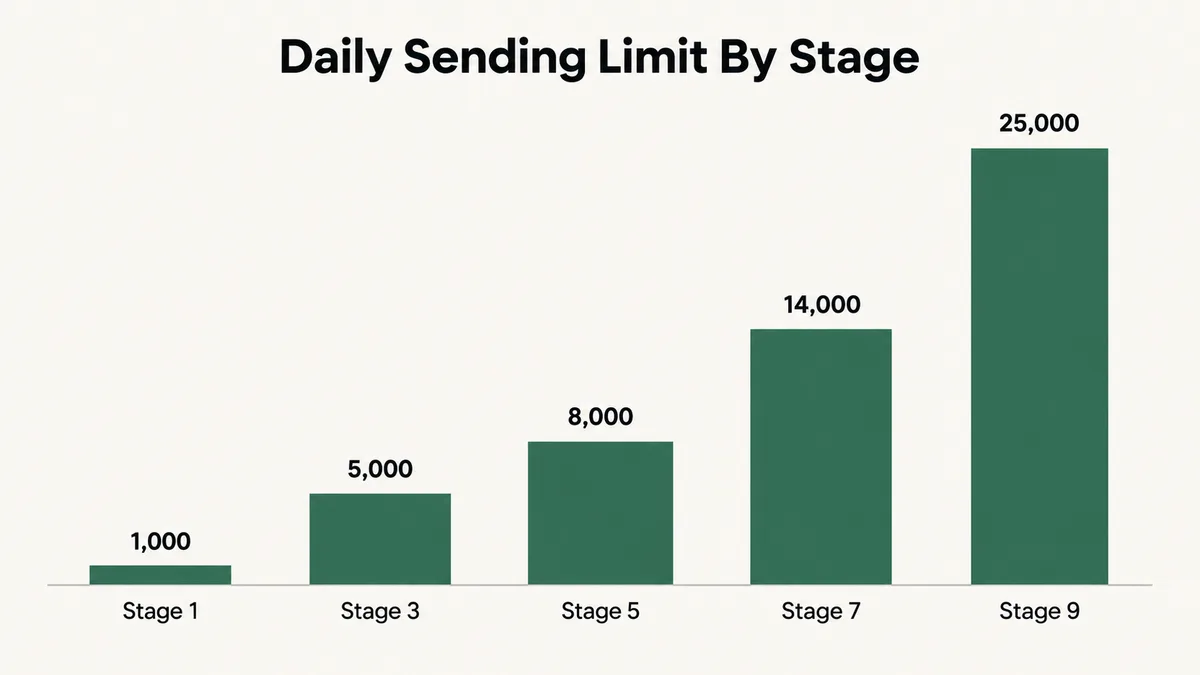
One nuance that catches agencies who assume warm up is something the platform does for them. A domain warms only to the extent that you send genuine email through it. Enabling the setting and then sending nothing warms nothing. The cap is a ceiling, not an engine.
Fix: Sort the imported list by engagement and send the first two weeks only to people who opened or clicked in the last 90 days. Those are the contacts most likely to open again, and opens are the signal that lifts a new domain. Hold the dormant segment back until the delivery rate has been steady for several sends, then add it in slices rather than all at once.
Step 6: Do You Need a Dedicated IP, or Will One Set You Back?
For most agencies, no. A dedicated IP is the right answer at high, steady volume and the wrong answer below it, and the platform’s own guidance draws that line clearly. It advises sending a minimum of 50,000 messages a week to keep the reputation on a dedicated IP healthy, and suggests one IP for every million messages a month.
Below that threshold a dedicated IP works against you. Reputation on an IP is built from consistent volume, and an IP that sends 4,000 messages one week and nothing the next never establishes a pattern a filter can trust. HighLevel’s dedicated IP documentation puts it bluntly: sporadic, high volume sending can be counterproductive and can get you flagged as a spammer.
The practical details, if you do qualify. It is available to agencies on the 297 and 497 dollar monthly plans at 59 dollars a month per IP. During the transition your mail alternates between the new dedicated IP and the old shared one in roughly a 50 50 split until the new one is warm, and the documentation is honest that this phase can last longer than people expect. Link more than one IP to a domain and sending rotates across them in round robin.
Fix: Work out your actual weekly send volume before ordering anything. Under 50,000 a week, stay on the shared pool with a dedicated domain and put the effort into list quality instead. Over it, and sending consistently every week rather than in bursts, a dedicated IP is worth the 59 dollars and the warm up period.
Step 7: Did the List You Imported Bring Its Bounce Rate With It?
This is the migration specific one, and it is the cause I see most often. The old platform had been quietly suppressing bad addresses for years. Every hard bounce, every unsubscribe, every complaint sat on a suppression list you never looked at, and that list is usually the one thing that does not come across in a CSV export.
So the import brings back the dead. Addresses that bounced eighteen months ago are live rows again, and the first broadcast on a brand new domain goes out to a list with a bounce rate the old platform had spent years hiding from you. High bounce rates on a domain with no history is the single fastest way to get filtered, and it happens on the exact send where you have the least margin for error.
The built in validation feature exists for this. It checks whether an address is deliverable before you send to it, costs 2.50 dollars per 1,000 validations, and is available on every plan, with rebilling on the 297 and 497 dollar tiers. There is also a 90 day re verification option under Advanced Settings, Advanced Email Settings, which catches addresses that go bad after the initial check. On a list of 20,000 imported contacts, validation costs 50 dollars. Landing in spam costs considerably more.
Fix: Export the suppression list from the old platform before you cancel the account, and import it as a suppressed segment on the new one. Then run validation across the whole imported list and remove hard bounces straight away. Turn on 90 day re verification so the list keeps cleaning itself instead of decaying quietly.
Step 8: Are You Meeting Google and Yahoo’s Bulk Sender Rules?
Since February 2024 these stopped being best practice and became entry requirements. Google’s email sender guidelines apply the strict set to anyone sending more than 5,000 messages a day to Gmail addresses, and Yahoo published matching rules. Worth noting for agencies: HighLevel aggregates that 5,000 across every sub account using a shared sending domain, so you can cross the threshold without any single client looking like a bulk sender.
The requirements themselves are short. Authenticate with SPF and DKIM, publish DMARC even if the policy is only p=none, support one click unsubscribe and include a visible unsubscribe link in the message body, keep valid forward and reverse DNS records where the sending IP matches the hostname in the PTR record, and transmit over TLS. Then there is the number everything else feeds into: keep the spam rate reported in Postmaster Tools below 0.10 percent, and never let it reach 0.30 percent.
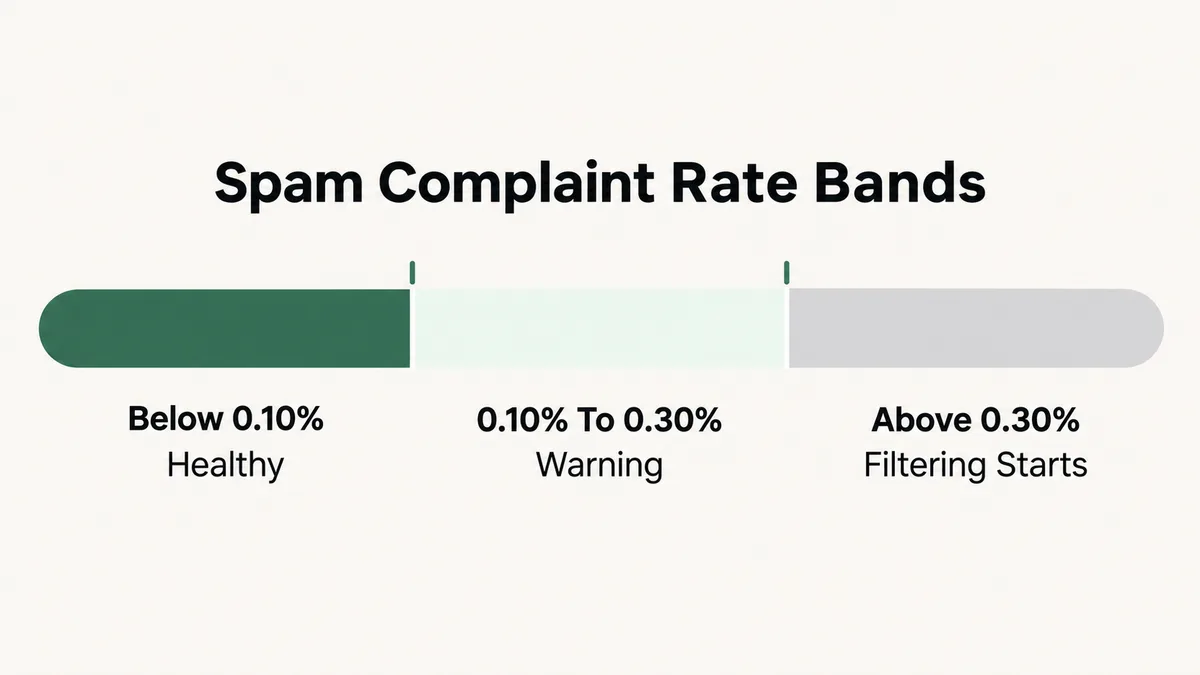
Put that in context. A list of 20,000 crosses the hard limit when 60 people mark one campaign as spam. That is a very small number of annoyed readers, which is why the dormant segment you were tempted to include in the first send is such an expensive shortcut.
Fix: The platform adds the one click unsubscribe header automatically to everything except one to one email, so your job is the visible link in the body and the DNS side. Confirm DMARC exists, confirm the From alignment from step 4, and check your spam rate weekly rather than after a campaign goes wrong.
Step 9: How Do You Know Whether Any of This Is Working?
Open rates will not tell you. Apple Mail Privacy Protection pre loads images for a large share of recipients, which inflates opens regardless of where the message actually landed, and a campaign sitting entirely in the spam folder can still report a respectable looking open rate.
The instruments that do tell you sit outside the platform. Google Postmaster Tools reports your domain reputation, spam rate, authentication pass rates and delivery errors for Gmail traffic specifically, which is where most lists concentrate. Verifying it takes one TXT record. Yahoo’s sender best practices cover the equivalent on their side. Inside the platform, the delivery rate is the number to watch, since it is the one the ramp up ladder acts on.
Fix: Verify the sending subdomain in Postmaster Tools on day one, before the first campaign, so you have a baseline to compare against. Give it a week to populate, then check domain reputation and spam rate after every large send. Clicks and replies are better health signals than opens, so judge the warm up on those.
GoHighLevel Email Deliverability: What Order Should You Do This In?
Order matters more than completeness here, because several of these steps are wasted effort if an earlier one is missing. This is the sequence I use on a migration, front loaded so that nothing goes out at volume until the foundation exists.
- Export the old platform’s suppression list before the account is cancelled. It is unrecoverable afterwards.
- Choose a sending subdomain used for nothing else, and add it under Settings, Email Services, Dedicated Domain and IP.
- Clear out old DKIM keys and wildcard records, add the generated records, and wait for verification rather than retrying every ten minutes.
- Publish DMARC at
p=nonewith a reporting address. - Set the Default Header and check every From address across workflows, campaigns, calendars and payments for alignment.
- Verify the subdomain in Google Postmaster Tools while it still has no data, so you can see the ramp.
- Validate the imported list and suppress hard bounces and anyone on the old suppression list.
- Segment by engagement, then send weeks one and two only to the recently engaged group.
- Widen the audience in slices, watching delivery rate and spam rate after each send rather than at the end.
- Revisit DMARC after a month of clean reports and move toward quarantine, then reject.
Why Does Deliverability Collapse Right After a Migration?
Because a migration changes three variables at the same moment, and each one on its own would be enough to cause a dip.
The first is identity. New domain, new IP range, no history. Whatever reputation the old sending domain accumulated stays with it, and none of it transfers, because reputation attaches to the DNS records and IPs rather than to your brand or your list.
The second is the list itself. Years of quiet suppression get undone by a clean import, and the bounce rate that surfaces is the one the old platform had been absorbing on your behalf. The third is volume. People migrate and then immediately want to prove the new system works, so the first send is a full list blast, which is precisely the shape of sending that a domain with no history cannot support.
Stack those three and the outcome is predictable. It also explains why the recovery is slower than the fall. A domain earns trust one clean send at a time, and there is no setting that shortcuts it. The same principle applies to any hosted automation tool that sends on your behalf, which is why the diagnostic habits here overlap so heavily with the ones in my guide to an ActiveCampaign automation not triggering and to a FluentCRM automation not running.
How Do You Keep Deliverability Stable Once It Recovers?
Send on a rhythm. A domain that mails every Tuesday builds a pattern receiving servers learn to expect, while one that goes silent for six weeks and then sends 30,000 messages looks like a domain that changed hands. Regular and measured beats occasional and large, every time.
Stop mailing people who have stopped reading. The sending guide makes the point better than I can: it is better to stop sending to an unengaged recipient than to have them unsubscribe or mark the message as spam. Set a sunset rule, something like no opens in 180 days moves a contact to a quarterly re engagement sequence, and out of the main list if that fails too.
Keep double opt in on for public facing forms, which stops typo and bot signups from entering the list at all, and keep validation re verification running so the list cleans itself. If you manage several clients from one agency account, watch whether they are sharing a domain, because one client’s bad month becomes everyone’s problem on a shared reputation.
Where the budgets support it, a dedicated subdomain per client is the cleaner arrangement, and it is the kind of decision worth pricing properly before the build rather than after, which is something I covered in the breakdown of what a GoHighLevel developer costs. If you would rather hand the whole setup to someone who has done it before, that is part of my automation and integration work.
Frequently Asked Questions
How long does a GoHighLevel sending domain take to warm up?
Plan for several weeks rather than several days, and judge it by the numbers rather than the calendar. The sub account ramp up ladder raises your daily cap in stages as you send, starting at 1,000 a day, and you climb by sending well rather than by waiting. A domain warms only to the extent that genuine email goes through it, so a quiet week is a week with no progress. Watch the delivery rate and the Postmaster Tools spam rate, and widen the audience when both hold steady.
Does GoHighLevel use Mailgun to send email?
Yes. HighLevel’s own documentation on migrating a Mailgun sending domain states that LeadConnector Email uses Mailgun’s infrastructure, which is why an agency moving across from a standalone Mailgun account often finds its existing SPF, DKIM, MX and CNAME records do not need to change. The same article makes the more useful point: your sending reputation belongs to your DNS records and IP addresses, not to the account that sits behind them.
Why are my GoHighLevel emails going to spam after a migration?
Usually three causes at once. The sending domain is new and has no history with the filters. The imported list has quietly restored addresses the old platform had been suppressing, so the bounce rate jumps. And the first send is a full list blast, which is the volume profile filters associate with abuse. Work through the steps above in order, starting with a dedicated subdomain and list validation, and send only to recently engaged contacts for the first fortnight.
Do I need a dedicated IP in GoHighLevel?
Only at volume. The platform advises a minimum of 50,000 messages a week to keep a dedicated IP’s reputation healthy, and roughly one IP per million messages a month. Below that, a dedicated IP sends too irregularly to build a pattern and works against you, and the documentation warns that sporadic high volume sending can get a sender flagged. Under 50,000 a week, a dedicated sending domain on the shared pool plus a clean list is the better setup.
What DMARC policy should I start with?
Start at v=DMARC1; p=none; with a reporting address. That publishes a policy, which is what Google and Yahoo require, without breaking any system that still sends on your behalf without authentication. Read the aggregate reports for a few weeks, fix whatever fails, then move to quarantine at a partial percentage and to reject once every legitimate stream passes cleanly.
Should each client have their own sending domain in an agency account?
Where the budget allows, yes. Shared domain reputation is shared across every sub account on it, so one client’s complaint rate affects everyone else sending on that domain. A separate subdomain per client contains the damage and gives each account its own ramp up ladder. It also means the 5,000 a day bulk sender threshold is measured per client rather than aggregated across the whole agency.
If you have worked through all nine steps and campaigns still land badly, the cause has usually moved outside the setup. Content that trips filters, a link shortener with a poor reputation, a shared domain someone else damaged, or a list that was never as opted in as it looked. Those are worth chasing once the nine above are genuinely settled, and not before.
The pattern underneath all of it is the same. GoHighLevel email deliverability is not a setting you switch on and it is not something the platform owes you. It is a reputation you build on a domain you control, one clean send at a time, and every step above either protects that reputation or earns it.
Migrated in, and the first campaign landed nowhere?
Tell me what you moved from, how big the list is, and what the delivery rate looked like on the first send. I will tell you which part of the setup is missing and what it takes to recover, whether or not you need anyone to do the work.