
You click Edit with Elementor, wait, and get a gray spinner that never finishes, or worse, a blank white screen with no error anywhere on it. If you landed here because your Elementor not loading issue is holding up a client edit or a launch, the first useful thing to know is that Elementor itself almost never “breaks” on its own. It fails loudly when something around it, your server, your cache, a plugin, or your browser, is not holding up its end.
The Elementor editor is not a simple text box. It is a full JavaScript application that has to boot inside your WordPress admin, download a large script bundle, open a live preview of your page in an iframe, and keep talking back to your server over the REST API and admin-ajax the entire time you are editing. Any single weak link in that chain can stop the whole thing, and most of the time it fails silently, with no message telling you which link broke.
I build and maintain WordPress sites for a living, including ones running Elementor alongside LearnDash, WooCommerce and Divi, and “the editor won’t load” is one of the most common tickets I get across all of them. It is almost always one of the same ten things, in roughly the same order of likelihood. Below are the ten causes I check, each with the exact fix, cross-checked against Elementor’s own official troubleshooting documentation as of October 2026.
Quick Answer
When Elementor is not loading, the cause almost always sits in one of three places: your server falls short of Elementor’s PHP and memory requirements, a cache layer or Cloudflare’s Rocket Loader is serving stale or broken scripts, or a plugin, theme or browser extension is conflicting with the editor’s JavaScript. Start with the fast, reversible checks first: open the page in a private browser window, enable Elementor’s Safe Mode, and clear every cache layer, before touching server settings or editing files.
📋 What’s Covered
02Cause 1: Is Your Server Short on PHP Memory or Below Elementor’s Requirements?
03Cause 2: Are Elementor and Elementor Pro on Mismatched Versions?
04Cause 3: Is a Plugin or Theme Blocking the Editor’s Scripts?
05Cause 4: Is a Cache Layer Serving You an Old Copy of the Editor?
06Cause 5: Is Cloudflare Rocket Loader Breaking the Editor?
07Cause 6: Do Your Site Address and WordPress Address Not Match?
08Cause 7: Is a Browser Extension Blocking the Editor’s Scripts?
09Cause 8: Is Custom Code Conflicting With the Editor?
10Cause 9: Is Your Theme’s Preloader Never Finishing?
11Cause 10: Is a Restrictive X-Frame-Options Header Blocking the Canvas?
12Elementor Not Loading: Which Symptom Points to Which Cause?
13Why Does the Elementor Editor Break More Often Than a Simple Page?
14How Do You Stop the Elementor Editor From Breaking Again?
15Frequently Asked Questions
What Actually Has to Succeed for the Elementor Editor to Load?
When you click Edit with Elementor, four separate things have to happen one after another, and every one of them can fail quietly, with nothing on screen telling you which step it was.
- The page has to render in WordPress at all. Your theme, Elementor, and every other active plugin have to finish their hooks inside the PHP memory and time limits your server allows.
- The editor’s own script bundle has to download and run. This is a genuinely large JavaScript application, and anything that defers, blocks, or strips part of it stops the whole interface from initializing.
- Your browser has to keep talking to the server. Elementor relies on the WordPress REST API and admin-ajax constantly, for autosave, widget data, and loading the panel on the left.
- The live canvas has to render inside its own frame. Elementor draws your actual page inside an iframe that mirrors the front end, so any conflict on the live page itself shows up here too.
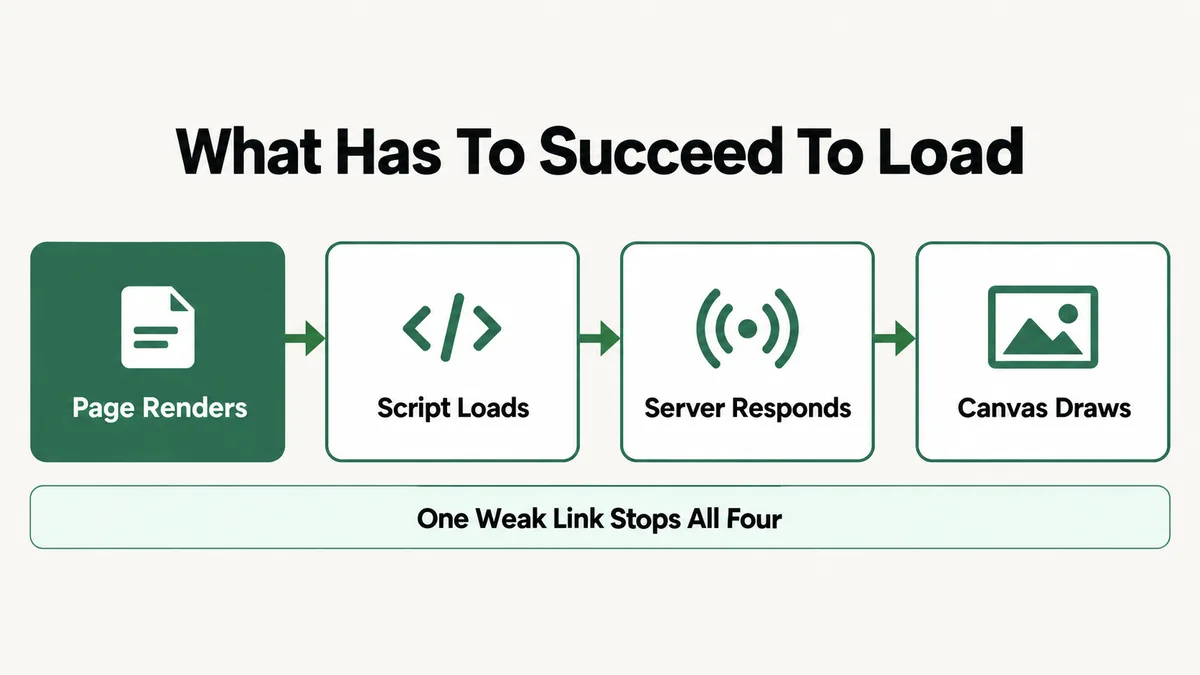
That is exactly why the editor can fail with zero visible feedback. A PHP timeout, a blocked script, and a stuck REST request all produce the same symptom from where you are sitting: nothing happens. Elementor’s own Help Center groups the symptoms into a handful of real categories: a white screen of death, a gray page with endless loading, a widget panel that stays grayed out, or clicking Edit with Elementor and landing on the live page instead. The ten causes below map onto these four stages, working from the server outward to your browser.
Cause 1: Is Your Server Short on PHP Memory or Below Elementor’s Requirements?
This is the single most common cause on budget or shared hosting, and it is also the hardest to spot, because nothing tells you “out of memory.” The editor just stalls. Elementor’s own system requirements call for WordPress 6.5 or newer, PHP 7.4 or newer, and MySQL 5.6 or newer, and Elementor’s hosting guidance recommends a WordPress memory limit of at least 256MB set aside for Elementor and Elementor Pro alone, on top of whatever your theme and other plugins already use.
A lot of entry-level shared hosting plans default to 128MB or less for the whole site, which is fine for a small blog running a block theme, but gets squeezed fast the moment Elementor Pro, a page builder add-on pack, and a handful of other plugins are all competing for the same ceiling. The squeeze shows up first in the editor, since it is the single heaviest thing WordPress tries to load at once.
Fix: Confirm your WordPress memory limit under Tools, then Site Health, then Info, then Server, and raise it to 256M or higher through your hosting control panel, or by adding define('WP_MEMORY_LIMIT', '256M'); to wp-config.php if your host allows it. While you are there, confirm your PHP version is 7.4 or newer under the same Site Health report. If your host caps memory below 256M and will not raise it on request, that is a genuine plan limitation worth moving away from rather than fighting indefinitely.
Cause 2: Are Elementor and Elementor Pro on Mismatched Versions?
If you run both the free Elementor plugin and Elementor Pro, they ship on separate update schedules, and Elementor’s own troubleshooting guidance calls this out directly as a cause of editor failures: a newer version of one calling code or functions the older version of the other has never seen. The mismatch does not always show an obvious warning. Sometimes the editor simply refuses to initialize.
This is worth checking before anything more invasive, because the fix takes thirty seconds and the symptom, an editor that just will not open, looks identical to half the other causes on this list.
Fix: Go to Plugins in your WordPress dashboard and check the installed version numbers for Elementor and Elementor Pro side by side. Update both to their latest versions at the same time rather than one and not the other, then clear every cache layer covered in Cause 4 before testing again, since an old cached script paired with a freshly updated plugin is its own separate failure mode.
Cause 3: Is a Plugin or Theme Blocking the Editor’s Scripts?
Security plugins, SEO plugins, other page-building tools installed alongside Elementor, and script-minification tools are the repeat offenders here. Any one of them can enqueue a script handle that collides with Elementor’s own, or strip a tag during minification that the editor needed intact to boot. Elementor ships a Safe Mode built specifically for testing this without touching the live site for anyone else.
Safe Mode, found under Elementor in your dashboard sidebar, loads the editor with every other plugin and your active theme disabled for your session only. Visitors browsing the published page see it exactly as normal the entire time. Elementor’s own troubleshooting guide gives this the first real test for a stuck gray page or spinner.
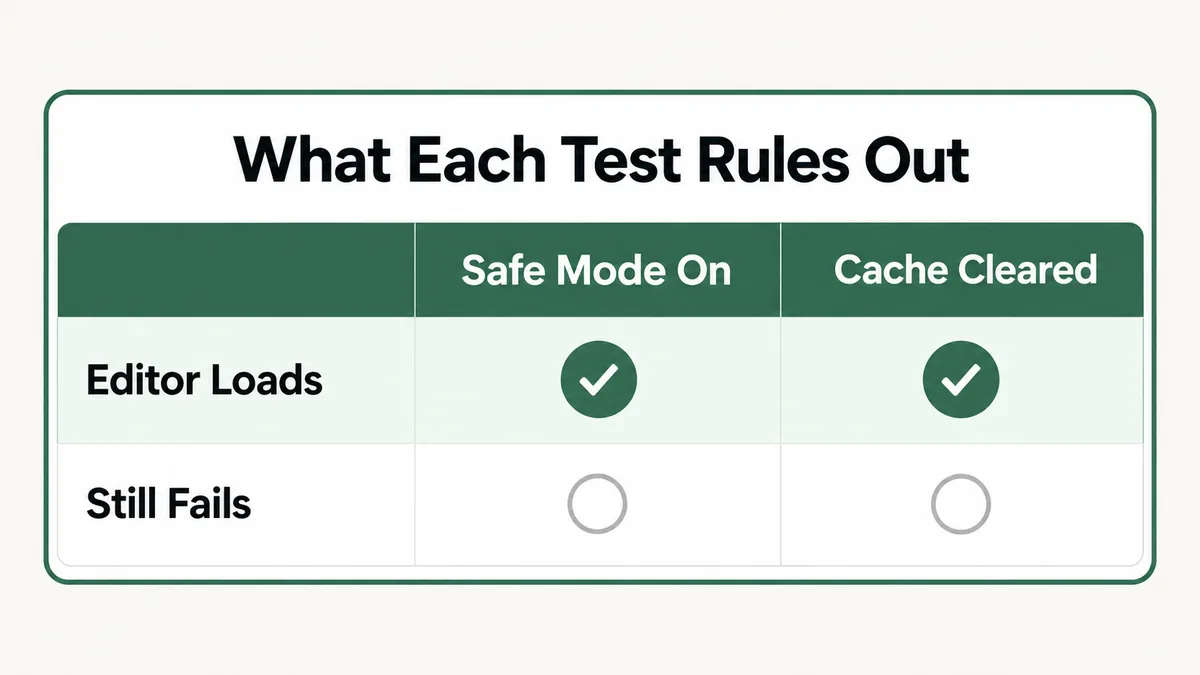
Fix: Activate Safe Mode and try the editor again. If it loads cleanly there, the real isolation work is to deactivate every plugin except Elementor and Elementor Pro, confirm the editor loads normally, then reactivate the rest one at a time, testing after each, until it breaks again. Whichever plugin you just reactivated is the conflict. Contact that plugin’s developer with the specifics, or swap in a different plugin with similar functionality while you wait on a fix.
Cause 4: Is a Cache Layer Serving You an Old Copy of the Editor?
Caching exists to make your site faster, and it is one of the most reliable causes of an editor that “just stopped working right after an update.” A cached copy of an old editor script sitting alongside a freshly updated Elementor install is a genuine, common conflict, and Elementor’s own support guidance recommends clearing your browser cache as one of the first checks for exactly this reason.
There are usually more cache layers in play than people realize:
- A caching plugin such as WP Rocket, W3 Total Cache, or a host-provided plugin. Each stores its own copy of rendered pages and the scripts attached to them.
- Server-side or CDN caching, including a host’s edge cache or Cloudflare’s own caching, sitting between your browser and the actual server.
- Your own browser cache, which can hold an outdated copy of the editor’s JavaScript long after the server-side files are already fixed.
The same stacked-cache pattern shows up constantly on slow WooCommerce membership sites, where several of these layers pile on top of each other and nobody purges all of them in one pass. I walk through that purge order in more depth in my guide to a slow WooCommerce membership site, and it applies just as directly here.
Fix: Work outward from the server. Purge your caching plugin’s cache first and re-test. Then purge any server-side or CDN cache your host provides. Finally, hard-refresh your browser or open the page in a private window to rule out a stale local copy entirely. Test the editor after each step rather than clearing everything at once, so you actually know which layer was holding the old files.
Cause 5: Is Cloudflare Rocket Loader Breaking the Editor?
This is a specific, documented conflict, and it is easy to miss because Rocket Loader is a Cloudflare account setting, not a WordPress plugin, so deactivating plugins to test never touches it. Rocket Loader automatically changes scripts to load asynchronously to speed up the page, and Elementor’s own Help Center names this exact feature as a known cause of the editor getting stuck on a gray loading page, since the deferred load order it creates can break the scripts the editor depends on to initialize.
The real fix is not to disable Rocket Loader for every visitor, which throws away a genuine performance feature site-wide. Elementor’s documented solution scopes it to only the pages and requests that matter.
Fix: In your Cloudflare dashboard, create Page Rules for your site: one matching yourdomain.com/*elementor* and another matching yourdomain.com/?elementor_library=*, each with Rocket Loader switched off. This is the exact rule structure Elementor documents, and it leaves Rocket Loader active for every visitor on your live, published pages while turning it off only for editor and template-library requests.
Cause 6: Do Your Site Address and WordPress Address Not Match?
This one catches people off guard because it looks like a setting nobody would think to touch, yet Elementor’s own troubleshooting documentation lists it as a direct cause of the blank white screen specifically. If your Site Address (URL) and WordPress Address (URL) under Settings, then General, point to two different domains or subdomains, often left over from a migration or a staging-to-live move, the editor’s iframe can hit what looks like a cross-origin request and simply refuse to render.
This is also one of the faster causes to rule out definitively, since it is a single setting rather than something you have to isolate through trial and error.
Fix: Log into wp-admin, go to Settings, then General, and confirm the Site Address (URL) and WordPress Address (URL) fields match exactly, including whether both use https and whether both include or omit “www”. If a migration or a domain change left them different, correct the Site Address to match and save. This is purely a configuration value, not a content change, so it carries no risk to your pages or posts.
Cause 7: Is a Browser Extension Blocking the Editor’s Scripts?
This cause has nothing to do with your website at all, which is exactly why it gets overlooked. Ad blockers, script blockers, and privacy extensions can flag the editor’s own JavaScript requests as tracking or advertising scripts, based on generic filename or URL-pattern matching rather than anything the script actually does, and silently block them before the editor ever gets a chance to run.
The telltale sign is inconsistency: the editor fails for you specifically, in your browser, while a colleague or your client on a different machine opens the exact same page in the exact same editor with no problem at all. When the issue is not reproducible between people testing the same site, this cause moves straight to the top of the list.
Fix: Open the page in a private or incognito window, where most extensions are disabled by default, or try a different browser entirely. If the editor loads there, go back to your normal browser and disable extensions one at a time, reloading after each, until you find the one responsible. Add your own site’s domain to that extension’s allowlist instead of disabling it everywhere, so other sites you browse stay protected.
Cause 8: Is Custom Code Conflicting With the Editor?
Custom JavaScript or CSS snippets added through a code plugin, a theme’s custom-code field, or a functions.php edit can interfere with the editor in ways that are genuinely hard to predict, since the conflict depends entirely on what the custom code actually does and when it runs. Elementor’s own troubleshooting steps for the blank white screen specifically call out disabling custom code as a real test, not a last resort.
Content pasted in from another page or document can cause a related, smaller version of the same problem: hidden CSS classes or formatting riding along with the pasted text that the editor’s styles were never meant to handle.
Fix: Temporarily disable any custom code snippets you have added, whether through a snippets plugin, your theme’s custom code area, or a child theme’s functions.php, and re-test the editor. If it loads cleanly, reintroduce the code piece by piece to find the specific line causing the conflict. For pasted content, paste into a plain text editor first, strip the formatting, then paste the plain text into Elementor’s text widget instead of pasting directly from the source document.
Cause 9: Is Your Theme’s Preloader Never Finishing?
Some WordPress themes add a full-page loading animation, a preloader, that is supposed to disappear once the page finishes rendering. When that preloader’s own script hangs or errors, it can sit on top of the entire screen indefinitely, including on top of a perfectly healthy Elementor editor running underneath it. From where you are sitting, this looks identical to the editor itself failing to load, even though the editor loaded just fine behind the stuck overlay.
This is a genuinely easy cause to misdiagnose, because every symptom points at Elementor while the actual problem sits entirely in the theme’s own code.
Fix: Check your active theme’s Customizer or theme options panel for a preloader or page-load-animation setting and disable it while you are actively troubleshooting. If your theme has no such setting, right-click the stuck screen, choose Inspect, and look in the Elements panel for a full-screen overlay element you can temporarily hide to confirm whether the editor underneath is actually working.
Cause 10: Is a Restrictive X-Frame-Options Header Blocking the Canvas?
This is the deepest, least common cause on this list, and it is also the one cause that is easiest to confirm directly rather than by elimination, because it leaves a specific, visible trace. Elementor’s editor renders your live page inside an iframe, and if your server sends an X-Frame-Options header set to DENY rather than SAMEORIGIN, the browser will refuse to display that iframe at all, leaving a gray page behind with a cross-origin or frame-related error sitting in the browser console the entire time.
Security plugins and some hosting-level firewalls set this header by default as a general hardening measure, with no awareness that it also blocks Elementor’s own canvas from rendering.
Fix: Right-click the stuck editor page, choose Inspect, then open the Console tab and look for a red error mentioning X-Frame-Options or a cross-origin frame restriction. If you find one, change the header’s value from DENY to SAMEORIGIN, either in your security plugin’s header settings or by asking your hosting provider to adjust it at the server level, since SAMEORIGIN still blocks third-party sites from framing your pages while allowing your own admin to do it.
Elementor Not Loading: Which Symptom Points to Which Cause?
Ten causes is too many to check one at a time by guessing, so use the exact symptom you are seeing as a filter. This matches the real symptom categories Elementor’s own Help Center splits the problem into.
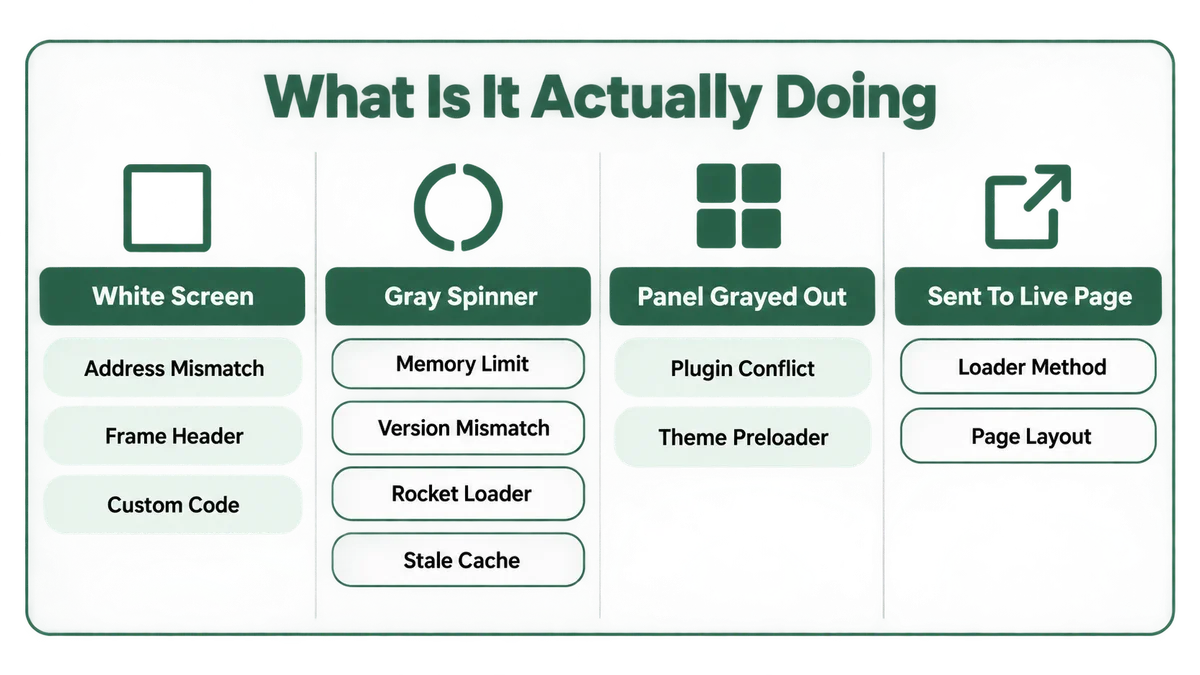
- A blank white screen with nothing on it points first to Cause 6, the Site Address and WordPress Address mismatch, then Cause 10, the X-Frame-Options header, then Cause 8, a custom code conflict.
- A gray page with an endless spinner points first to Cause 1, PHP memory, then Cause 2, a version mismatch, then Cause 5, Rocket Loader, then Cause 4, a stale cache.
- The widget panel on the left stays grayed out or loads endlessly while the canvas itself looks fine points to Cause 3, a plugin conflict, tested immediately with Safe Mode.
- Clicking Edit with Elementor sends you to the live page instead of the editor is a distinct, documented issue of its own, usually resolved by switching the Editor Loader Method under Elementor, then Settings, then Advanced, from its default setting to the alternate Enabled method, or by confirming the page was not built with a conflicting theme template.
- The editor loads but seems to freeze or lag badly once open most often traces back to Cause 9, a theme preloader still running underneath, or an extension from Cause 7 throttling the page in the background.
Matching your exact symptom to one of these five patterns before working through the list top to bottom saves real time, since most of the ten causes never apply to a given symptom at all.
Why Does the Elementor Editor Break More Often Than a Simple Page?
Step back across the ten causes above and a pattern shows up. Every single one of them is a case of the visual editor needing more from its environment than a plain WordPress page or post editor does. A basic block editor mostly needs PHP to render a form and save a database row. Elementor’s editor needs a real-time JavaScript application, a continuous REST connection, a specific PHP and memory configuration, an iframe that the server’s own security headers have to permit, and a front end free of script conflicts, all holding up at the same time.
That trade-off is deliberate, and it is not unique to Elementor. Every visual, drag-and-drop page builder makes the same bargain, whether it is Elementor, Divi, or a builder baked into a hosted platform. The instant-preview, no-code experience that makes non-developers productive is exactly what makes the tool more sensitive to server limits, caching, and third-party scripts than a form that just posts data and reloads. Elementor is not unusually fragile among page builders, and I see the same symptom-to-cause pattern on Divi’s builder not loading, which maps onto nearly the same server-then-cache-then-plugin-then-browser order of checks.
This is also why the actual fix rarely lives inside Elementor’s own settings. Across the ten causes above, only the Editor Loader Method toggle and Safe Mode live inside Elementor itself. The rest sit in your server configuration, your caching setup, your Cloudflare account, your other plugins, or your browser. If a similar loading issue shows up on a different builder or editor on the same WordPress site, the same layered approach, server first, then cache, then plugins, then browser, applies just as directly there.
How Do You Stop the Elementor Editor From Breaking Again?
Most of these ten causes are preventable with a handful of habits built into regular maintenance, rather than something you only think about once the editor is already down.
- Match your hosting plan to Elementor’s real requirements before you need to. Check Site Health’s PHP version and memory limit once while the site is healthy, not just during an incident, so you have a known baseline.
- Clear every cache layer after every update, Elementor itself, Elementor Pro, your theme, or any plugin. Make it the last step of any update, every time, without skipping it when you are in a hurry.
- Keep Elementor and Elementor Pro on the same update schedule. Update both together rather than letting one lag behind the other for weeks.
- Test major plugin or theme updates on staging first. A staging copy costs a few minutes on most hosts and turns a live-site emergency into a quiet five-minute check.
- Scope JavaScript optimization tools to exclude the editor, the way the Rocket Loader page rules do, rather than disabling a genuine performance feature site-wide out of caution.
- Keep a short, known list of plugins you trust alongside Elementor. Every new plugin is a new potential conflict, so test additions on staging before activating them live.
Plugin conflicts specifically are worth testing methodically rather than by trial and error under pressure, especially on a site carrying real membership logic alongside the page builder. I walk through the same bulk-deactivate-and-reactivate approach in more detail in my guide to MemberPress rules not working, since membership plugins and page builders share a lot of the same conflict patterns on a typical WordPress site.
Frequently Asked Questions
Why does the Elementor editor show a blank white screen with no error message?
A blank white screen almost always means a script or request failed silently rather than Elementor throwing a visible error. The most common causes are a mismatch between your Site Address and WordPress Address, a restrictive X-Frame-Options header, or a custom code conflict. Work through those first before assuming the worst.
Is it safe to use Elementor’s Safe Mode on a live site?
Yes. Safe Mode only disables other plugins and your theme for your own logged-in editing session. Visitors browsing the live, published site continue to see it exactly as normal, with every plugin active, the entire time you are testing.
Will changing my Site Address or WordPress Address delete any content?
No. These two fields only tell WordPress where the site’s files and front end live. They do not touch your posts, pages, or media stored in the database. Still, only correct a genuine mismatch left over from a migration, and avoid changing either value to something new and untested on a live site.
How much memory does Elementor actually need?
Elementor’s own hosting guidance recommends a WordPress memory limit of at least 256MB set aside for Elementor and Elementor Pro alone, on top of whatever your theme and other active plugins already consume. A server sitting at the old 128MB default is a common, invisible cause of editor failures.
Why does the editor work for me but not for my client on their computer?
This points strongly toward a browser-side cause rather than a site-wide one. A browser extension, an aggressive ad blocker, or a stale local cache on their specific machine is far more likely than a server or plugin issue, since a genuine site-wide problem would affect every logged-in user identically.
What should I check first if I only have a few minutes?
Open the page in a private browser window, which rules out a browser extension and most local cache issues in one step, then enable Elementor’s Safe Mode. Between those two tests, you will have already ruled out or confirmed roughly half of the causes on this list.
Elementor not loading is almost always the editor doing exactly what its environment tells it to: a memory ceiling it cannot clear, a script a cache or Rocket Loader is holding back, a header blocking its own iframe, or a plugin quietly colliding with it. Work from the server outward, test one change at a time, and the cause usually shows itself in the first few steps rather than the last. If a similar loading or caching issue is showing up on a membership or course area built on the same WordPress install, my guide to a slow WooCommerce membership site works through the same cache-layer troubleshooting in more depth.
Editor still stuck?
Tell me exactly what you see when it fails, whether Safe Mode changes anything, and what Site Health shows for PHP memory. I will tell you which of these ten causes it is and what to change, whether or not you need anyone to do the work.